Billing & Subscription
Manage your plan, payments, trial expiry, and Stripe billing portal access.
Overview
Billing controls your dashboard access and subscription status. You can view your current plan, next billing date, and payment state from the Billing page in the admin sidebar.
DabDash uses Stripe for checkout and ongoing subscription management. Plan changes, payment methods, invoices, and cancellations are handled through the Stripe Customer Portal.
Step 1: Start from Billing (Trial / No Active Subscription)
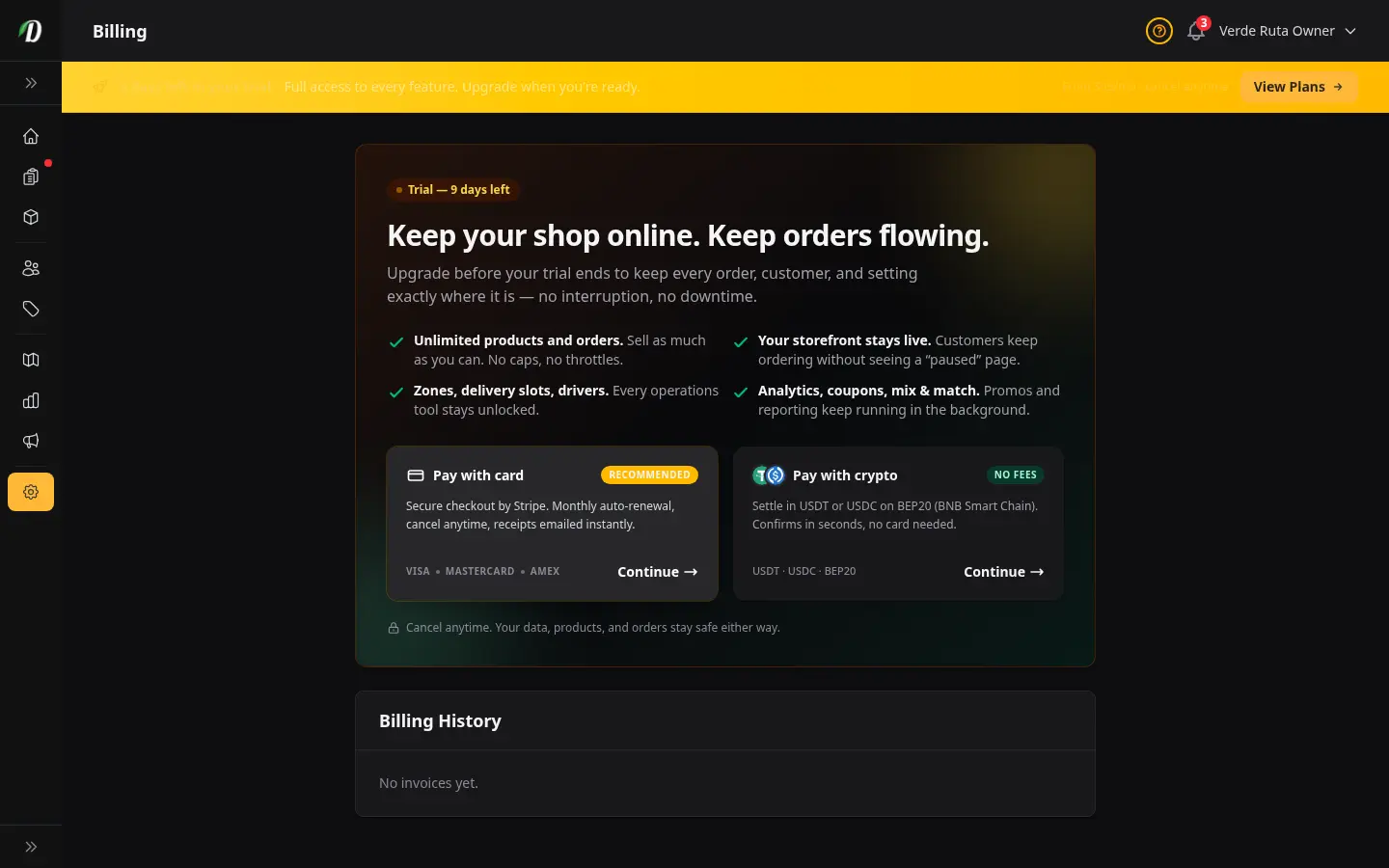
Open Billing from your sidebar. If your store is on trial or has no active subscription, this page is where you recover full admin access.
During trial, you can still manage the admin normally. Once trial expires without an active subscription, non-billing admin routes are gated until billing is restored.
Step 2: Choose a Plan
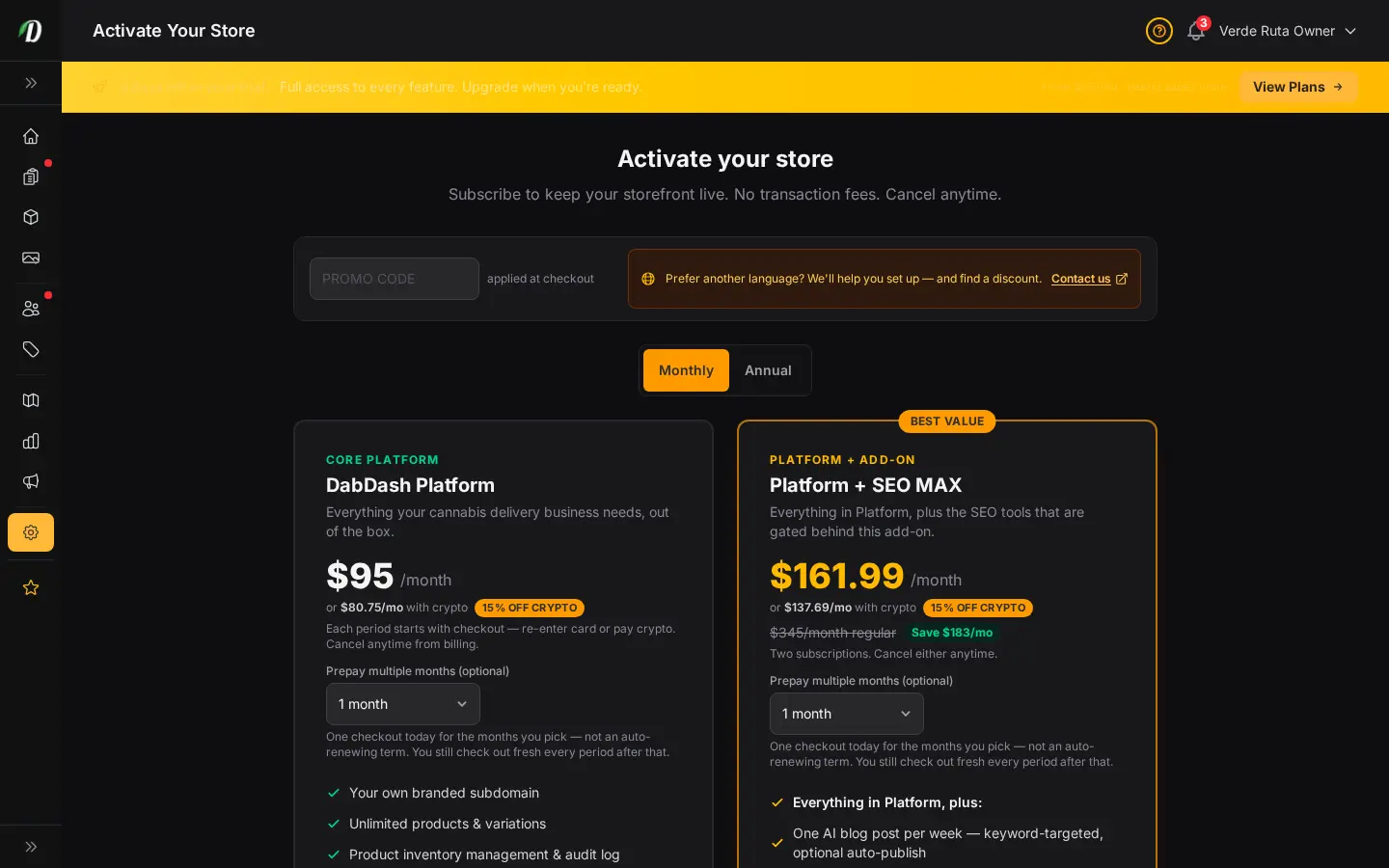
Click Change Plan or Upgrade Now to open the subscribe page. The available plan options are:
- DabDash Platform — core storefront and dashboard features.
- Platform + SEO MAX — core platform plus enhanced SEO tooling for Google Search.
Selecting a plan starts a Stripe Checkout session. After successful payment, you are returned to Billing with an activation confirmation banner.
Step 3: Manage an Active Subscription
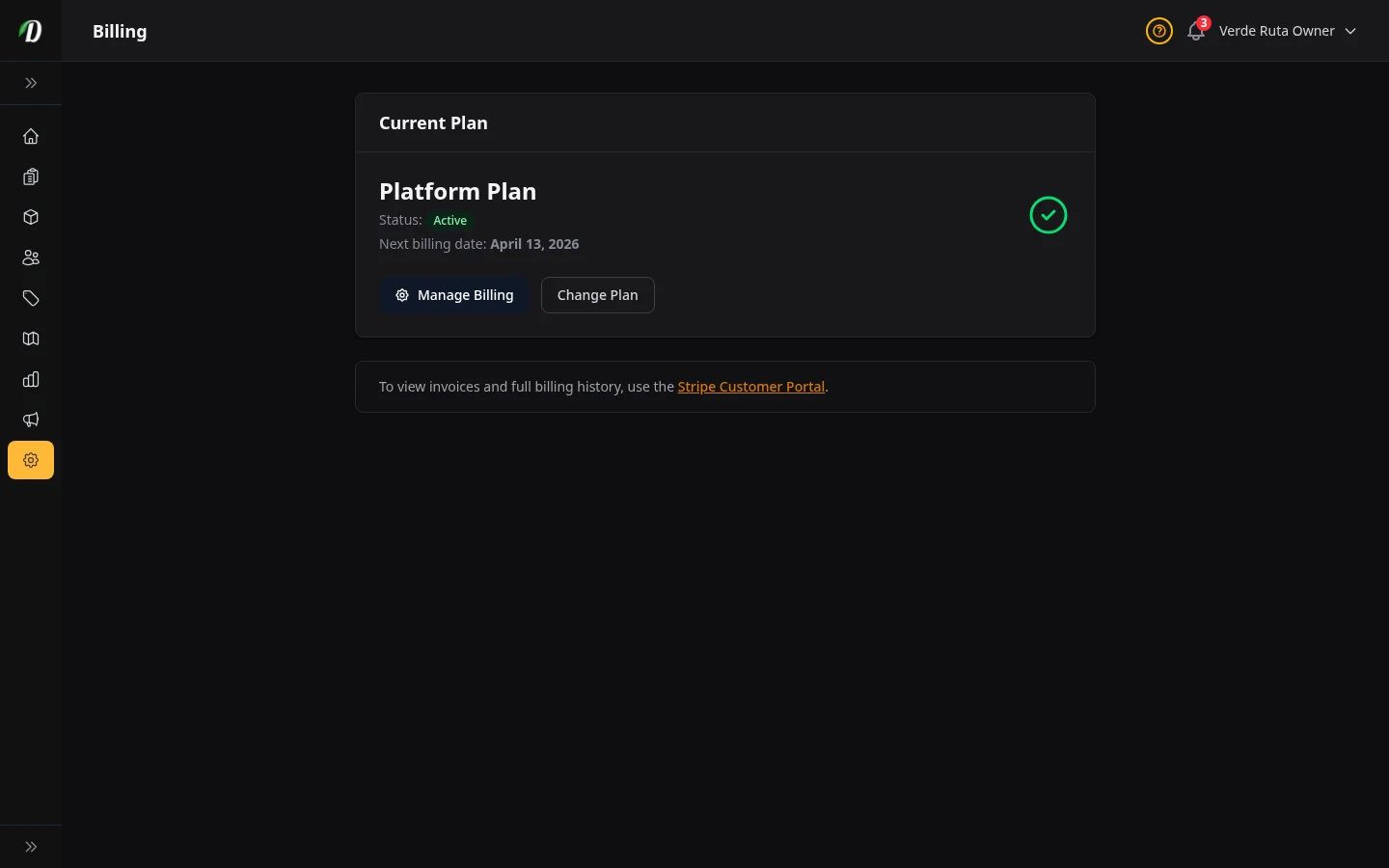
With an active subscription, Billing shows your plan, current state, and next billing date. Use Manage Billing to open Stripe Customer Portal for card updates, invoice downloads, and cancellation settings.
Step 4: Resolve Past Due Payments Quickly

If payment fails, Billing enters Past Due and highlights an Update Payment Method action. Resolve this in Stripe immediately to avoid interruptions in your admin access.
Subscription States Reference
- Trial Active
- You can access all admin pages while your trial is active. Billing shows days remaining and prompts you to subscribe.
- Active / Trialing Subscription
- Billing shows your plan name, status badge, and next billing date. Use Manage Billing to update card details, download invoices, or cancel at period end.
- Past Due
- Your most recent payment failed. Billing presents an Update Payment Method action. Fix payment in Stripe to avoid admin interruption.
- No Trial + No Active Subscription
- Dashboard routes are gated until you subscribe again. Billing pages remain accessible so you can recover access.
What Happens to Your Storefront
Billing affects dashboard access, but your storefront remains online for customers. Customers can still browse and place orders even if your subscription is expired.
Operationally, this means you should restore admin access quickly to avoid delays in order management, inventory updates, and delivery operations.
Using the Stripe Portal
- Open Billing in your dashboard.
- Click Manage Billing.
- In Stripe, update your payment method, review invoices, or change cancellation settings.
- Return to DabDash and refresh Billing to confirm updated status.