Delivery Slots
Configure available delivery windows by zone with capacity limits.
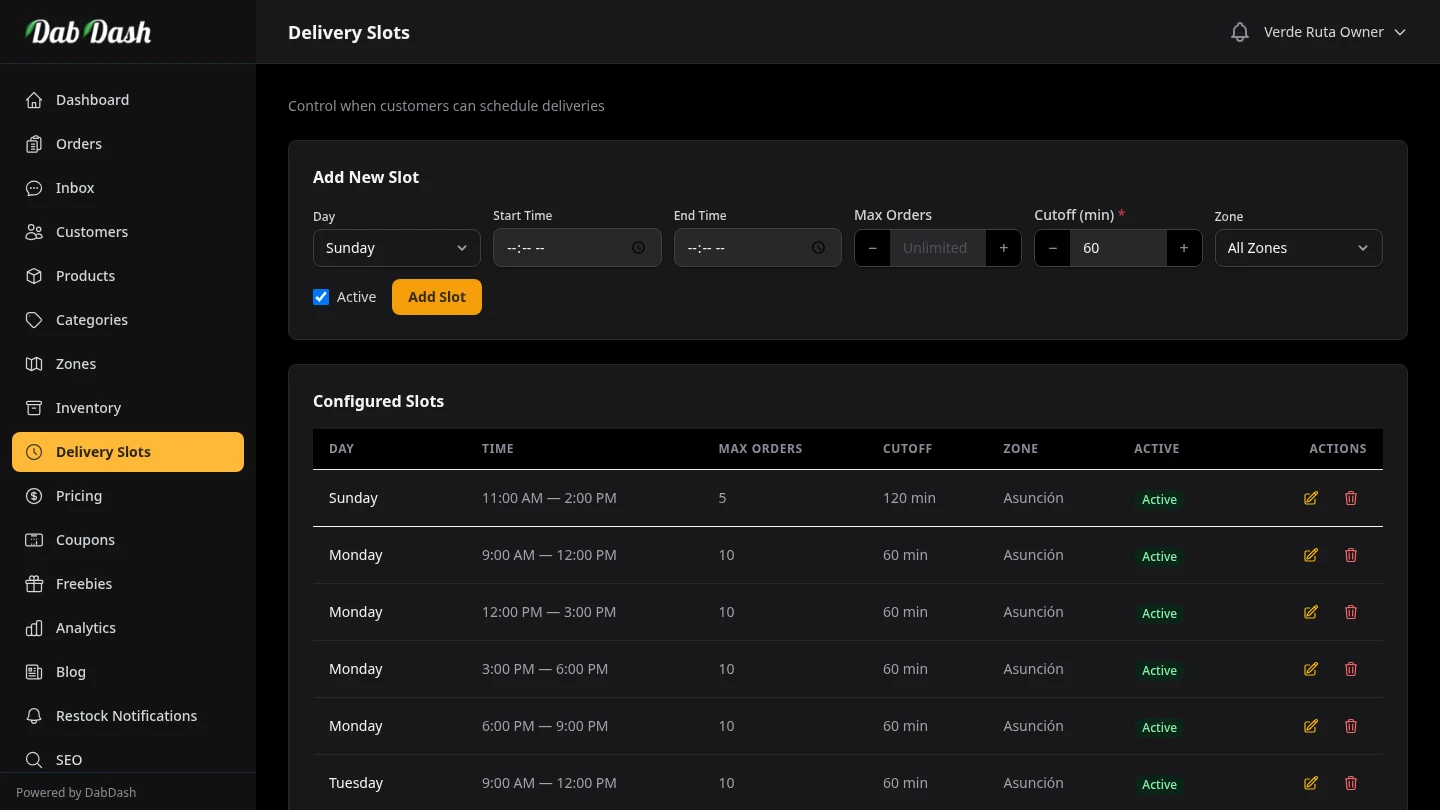
Overview
Delivery slots define when customers can receive their orders. Instead of promising "delivery today" without a clear time, slots let customers choose a specific window at checkout — for example, "Monday 2:00 PM – 4:00 PM". This sets clear expectations and makes your driver schedule predictable.
Slots are recurring — you set them up once and they appear every week on the same days. You can cap each slot with a maximum number of orders to avoid overloading a single time window, and you can set different slots for different zones.
Adding a Delivery Slot
Use the Add New Slot form at the top of the page. Fill in each field:
- Days
- Click the day buttons (Sun, Mon, Tue, Wed, Thu, Fri, Sat) to select which days this slot repeats. You can select multiple days to create one slot entry that appears on all selected days — for example, click Mon through Fri to create a slot that runs every weekday. A selected day shows with a filled amber background.
- Start Time / End Time
- The start and end time of the delivery window. These are shown to the customer exactly as you set them. Make sure the window is realistic for your drivers — allow enough time between consecutive slots for travel.
- Max Orders
- The maximum number of orders that can be assigned to this slot. Leave blank for unlimited. Once the limit is reached, the slot is no longer selectable at checkout. Use this to prevent over-booking a single window — for example, cap a peak-time slot at 10 orders per window.
- Cutoff (min)
-
Controls when ordering for this slot closes, relative to the slot start time. This is a critical field:
- Negative value (recommended) — closes ordering that many minutes before the slot starts. For example,
-60closes ordering 1 hour before the slot begins, giving your team time to prepare orders. - Positive value — keeps ordering open that many minutes after the slot has started. Use only if your operation can handle last-minute additions.
- Zero — ordering closes exactly when the slot starts.
The default of
60(positive 60 minutes) is intentionally generous for new stores. Most stores switch to-60or-120once their operations are established. - Negative value (recommended) — closes ordering that many minutes before the slot starts. For example,
- Zone
- Assign this slot to a specific delivery zone, or leave it as "All Zones" to make it available everywhere you deliver. Zone-specific slots are useful when different areas of the city get different delivery windows — for example, a morning slot only for the downtown zone and an afternoon slot only for the suburbs.
- Active
- Switch to make the slot immediately available at checkout. An inactive slot is hidden from customers but preserved in your setup for easy reactivation.
Click Add Slot to save. The new slot appears in the configured slots table below, grouped under the correct day.
Managing Existing Slots
Your configured slots appear in the table below the create form, grouped by day of the week (Sunday through Saturday). Each row shows the time window, max orders capacity, cutoff setting, zone, and active status.
Editing a Slot
Click the pencil icon in the Actions column to expand an inline edit form directly in the table row. Change any fields — day, start/end time, max orders, cutoff, zone, or active status — then click Save or Cancel.
Deleting Slots
Click the trash icon to delete a single slot. You will be asked to confirm. To delete multiple slots at once, tick their checkboxes and use the bulk delete bar that appears at the bottom of the screen.
Bulk Delete
Tick the checkbox at the start of any slot row to select it. Tick the header checkbox to select all slots on the current view. A floating bar appears at the bottom of the screen showing how many slots are selected and a Delete button. You will be asked to confirm before any slots are removed.
Bulk delete is useful when you are rescheduling your entire delivery calendar — select all slots, delete them, then add the new setup from scratch.
Tips
- Start with fewer, longer windows (e.g., 10 AM–1 PM and 2 PM–6 PM) before splitting into 1-hour slots. Customers care about the window, not the precision.
- Set a realistic cutoff. A
-90cutoff means orders placed less than 90 minutes before the slot are not allowed. This gives your team time to pick and pack without rushing. - Use max orders to balance your driver capacity. If one driver can handle 8 orders in a 2-hour window, set max orders to 8.
- Create zone-specific slots only when you genuinely have different schedules per zone. For most stores, a single "All Zones" schedule is simpler and equally effective.
- To close for a holiday, deactivate the relevant slots rather than deleting them — you can reactivate them the following week without recreating them.