Notifications
View order alerts, stock warnings, and system notifications.
Overview
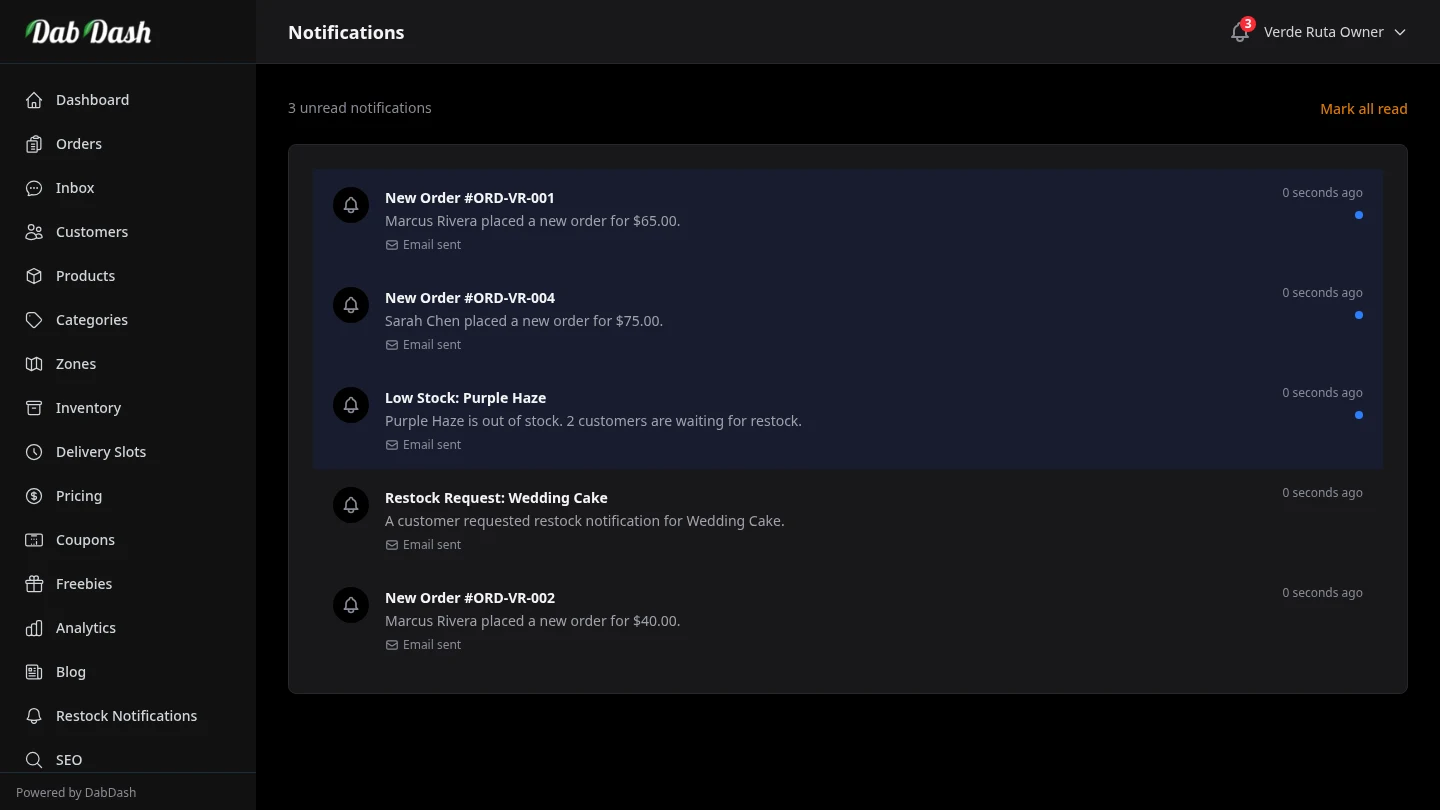
DabDash shows an alert in your admin whenever something important happens — for example, a new order or a low-stock warning. All alerts appear on this page, newest first.
Unread notifications are highlighted in blue. The bell icon in the sidebar header shows a count badge when you have unread notifications waiting.
Notification Types
- Order Received
- Shown when a customer places a new order. Click View order to open it and move it through your delivery steps.
- Low Stock
- Triggered when a product's stock quantity falls at or below its low-stock alert threshold. Click View product to open the product's inventory entry and restock it. You can set the threshold on the Inventory page.
Marking Notifications as Read
A notification is marked as read automatically when you click its View order or View product link. To clear all unread notifications at once, click Mark all read in the top-right corner of the page — this removes all blue highlights and resets the sidebar badge to zero.
Tips
- Check notifications at the start of each shift. A pending Order Received notification means a customer is waiting for confirmation.
- Set low-stock thresholds on your fastest-moving products so you get advance warning before running out — not after.
- Use "Mark all read" at the end of each day to keep the sidebar badge meaningful — a badge of 0 means you're up to date.