Customer Inbox
Manage live chat conversations and customer support messages.
Overview
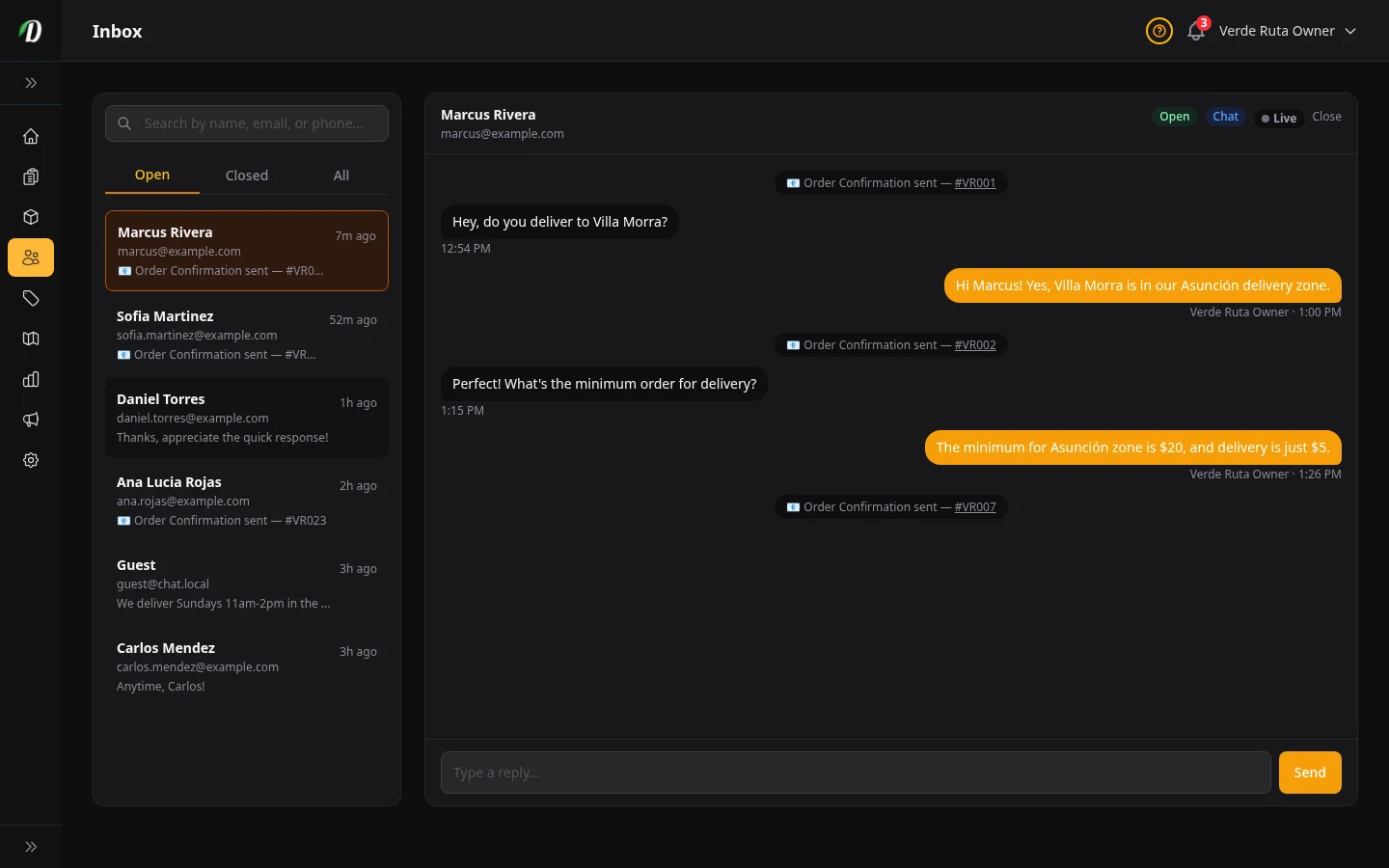
The Inbox is where customers message you from live chat. Every conversation stays here so your team can reply, review past messages, and keep a full message history.
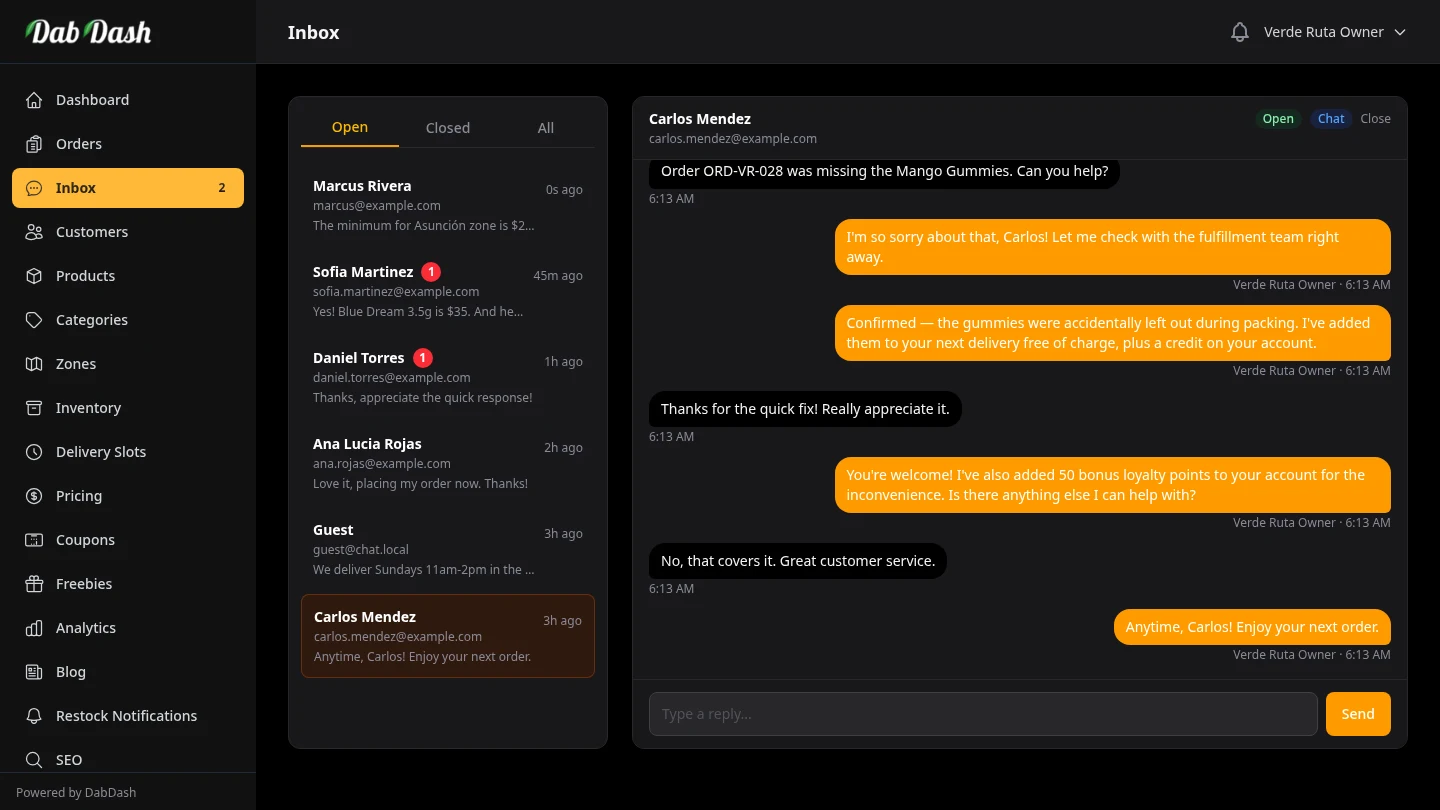
New messages appear in the conversation list on the left. A blue unread indicator shows which conversations need your attention. Click any conversation to open the full thread on the right.
Page Layout
- Conversation List (left panel)
- Lists all conversations, newest first. Each item shows the customer name or email, a preview of the last message, and a timestamp. Unread conversations are highlighted — click any to open it.
- Active Conversation (right panel)
- Shows the full message thread. Your messages appear on the right; customer messages appear on the left. Type a reply in the box at the bottom and press Send or hit Enter.
Using the Inbox on Mobile
On smaller screens the inbox switches to a single-panel view. The conversation list fills the screen initially. Tap any conversation to open it — the list slides away and the thread takes over. Tap the back arrow in the top-left to return to the list.
Tips
- Aim to reply within a few hours. Fast responses convert browsing customers into buyers — especially when they're asking about availability or delivery times.
- Check the Inbox before the end of each day. The blue unread badge in the sidebar is your reminder.
- If a customer asks about a specific order, copy the order number from the Orders page into your reply so both parties have a clear reference.