Vendor Blog
Publish blog posts on your storefront to engage customers and boost SEO.
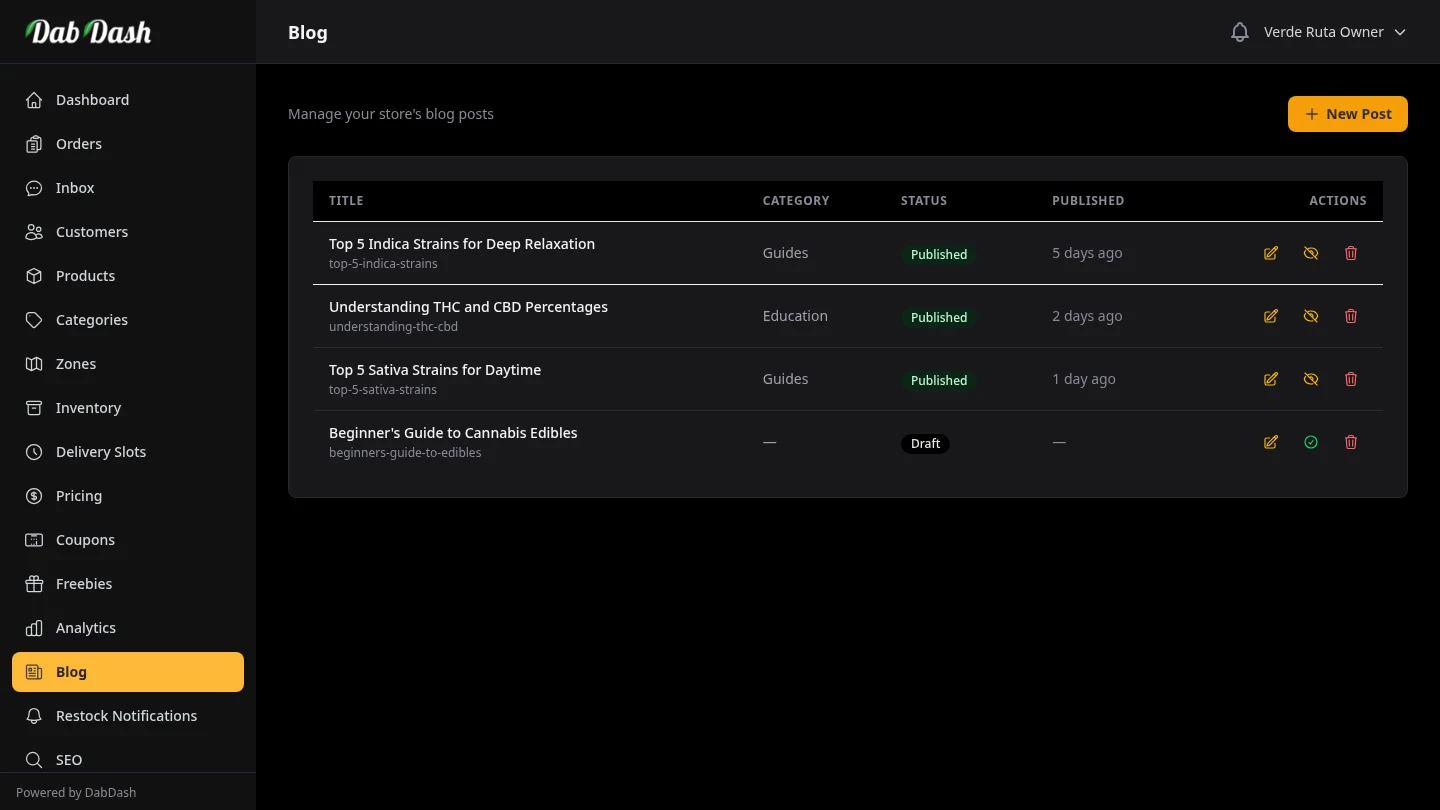
Overview
Your blog lets you publish articles directly on your storefront. Blog posts help customers discover your store through Google Search, showcase your products, and build trust with your brand. Every post gets its own SEO-friendly URL and can be assigned to categories.
Posts can be published immediately, saved as drafts, or scheduled to go live at a future date and time. You can manage all posts from this page — create, edit, and delete without leaving the admin.
Creating a Post
Click New Post in the top-right corner to open the post editor.

- Title & URL Text
- The post title appears as the page heading and in browser tabs. The URL text is generated automatically. You can edit it, but do not change it after publishing or old links may break.
- Category
- Assign the post to a category to help customers browse related articles. Categories are shared with your product taxonomy.
- Status
-
- Published — Visible on the storefront immediately.
- Draft — Saved but not visible to customers.
- Scheduled — Set a future publish date and the post goes live automatically.
- Content
- Write your post body here. Supports rich text formatting — headings, bold, lists, and links.
- SEO Fields
- Set a custom search title and search description. If left blank, DabDash uses your post title and a short excerpt.
Click Save to publish (or save as draft/scheduled based on the status you selected).
Editing a Post
Click the pencil icon in the Actions column, or click the post title, to open the edit form.
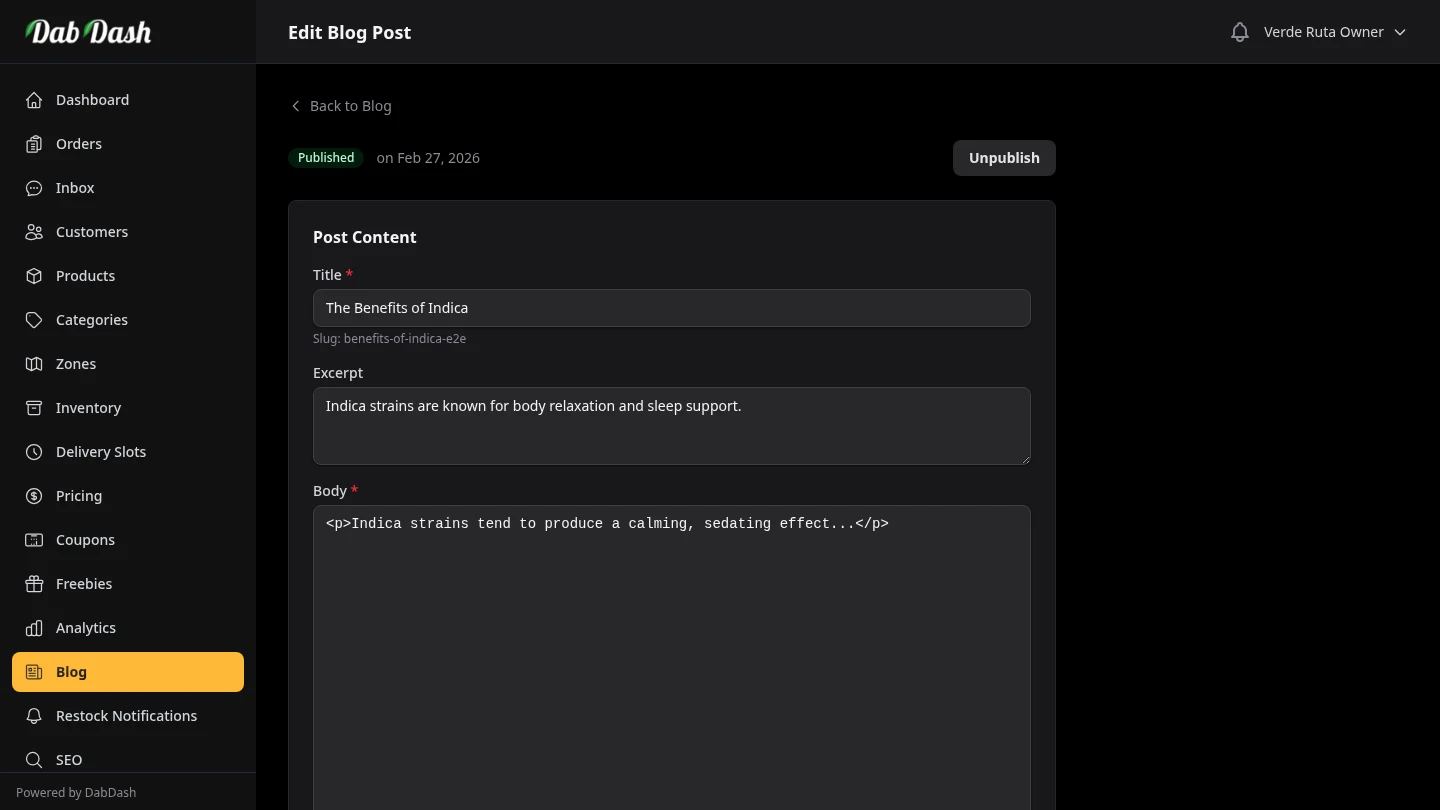
All fields are pre-filled with the existing post data. Make your changes and click Save. To take a live post offline temporarily, change its status to Draft and save.
Managing Posts
- Search & Filter
- Use the search box to find posts by title. Filter by status (All, Published, Draft, Scheduled) or by category to narrow the list.
- Bulk Actions
- Check the box on any row (or the top checkbox to select all on the page) to reveal the bulk actions bar. You can publish, unpublish, or delete multiple posts at once.
- Delete
- Click the trash icon in the Actions column. A confirmation prompt appears — deletion is permanent and cannot be undone.
Tips
- Write at least one post per product category — "The Best Indica Strains for Sleep" outperforms a product page alone in search rankings.
- Keep URL text short and clear. Once live, avoid changing it so old links keep working.
- Use the Scheduled status to prepare posts in advance and publish them at peak traffic hours without manual intervention.
- Fill in the search description field. Google often shows this under your page title.