Inventory Management
Track zone-level stock, audit changes, and prevent overselling.
Overview
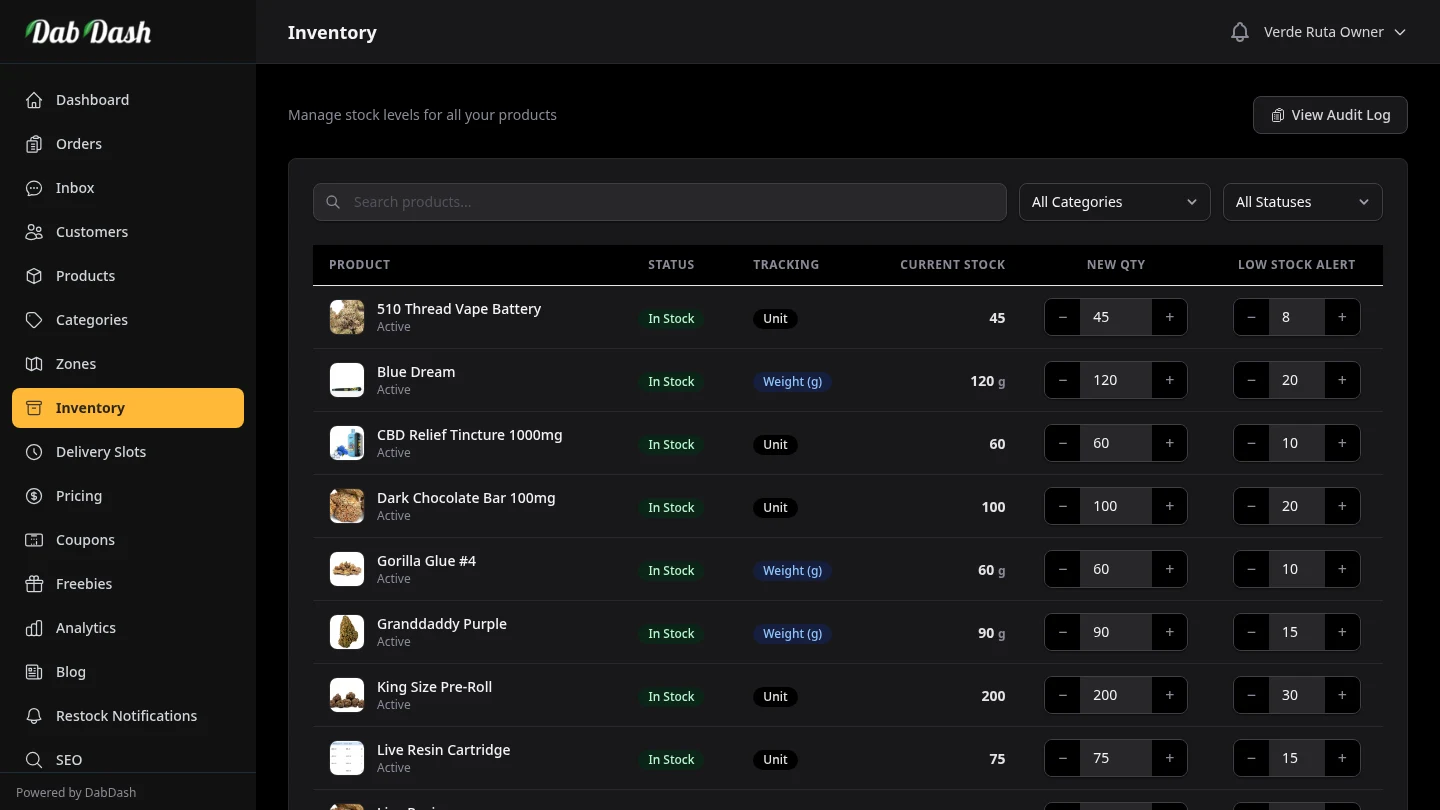
The Inventory page is where you update and monitor stock levels for every product and variation in your menu. You can edit quantities directly in the table, apply bulk adjustments across multiple items at once, and review a complete history of every stock change in the audit log.
Stock is tracked at the product or variation level, not by delivery zone. Every active zone draws from the same stock pool.
Tracking Types
Use the tabs at the top of the page to filter by how products are measured.
| Tab | What it shows |
|---|---|
| All | Every product and variation regardless of tracking type. |
| Weight | Items sold in grams or ounces (flower, concentrates). Stock is measured in grams. |
| Units | Items sold as individual pieces (pre-rolls, edibles, capsules). Stock is a whole-number count. |
Search & Filters
The sticky filter bar at the top of the page lets you narrow down the list without losing your tracking-type tab.
- Search
- Type any part of a product or variation name to filter the list instantly.
- Category
- Filter to one product category so you can focus on a single product type.
- Stock Status
- Filter to In Stock, Low Stock (below the alert threshold), or Out of Stock to quickly find items that need restocking.
Updating Stock Quantities
To update stock, type a new value in the New Qty column next to any product or variation. You can edit as many rows as you need — changes are highlighted in blue so you can see what is pending. When you are ready, click Save Changes at the top of the page to apply all edits at once.
For weight-tracked items, quantities are in grams. For unit-tracked items, quantities are whole numbers.
Products with multiple variations (such as 1g, 3.5g, 7g) display a collapse button — click the row to expand and edit each variation individually.
Low-Stock Alert Thresholds
The Low Stock Alert column lets you set a reorder point for each product or variation. When the current stock drops to or below this number, the item is flagged as "Low Stock" in the table and in your notifications.
Set the threshold to 0 or leave it blank to disable the alert for that item.
Bulk Stock Adjustments
When you need to update many items at once — for example, after a large delivery — use bulk adjustment instead of editing each row individually.
- Check the box next to each product or variation you want to adjust. Use the top checkbox to select all items on the current page.
- The floating action bar appears at the bottom of the screen once items are selected.
- Choose an action: Set (replace the current quantity), Add (add to the current quantity), or Subtract (reduce by a fixed amount).
- Enter the amount and click Apply.
You cannot bulk-adjust a mix of weight-tracked and unit-tracked items at the same time. Use the tracking-type tabs to filter to one type before selecting.
Audit Log
Every stock change is recorded automatically — whether it was a manual edit, a bulk adjustment, an order confirmation deducting stock, or a refund returning stock. Click View Audit Log in the top-right corner to open the full history.
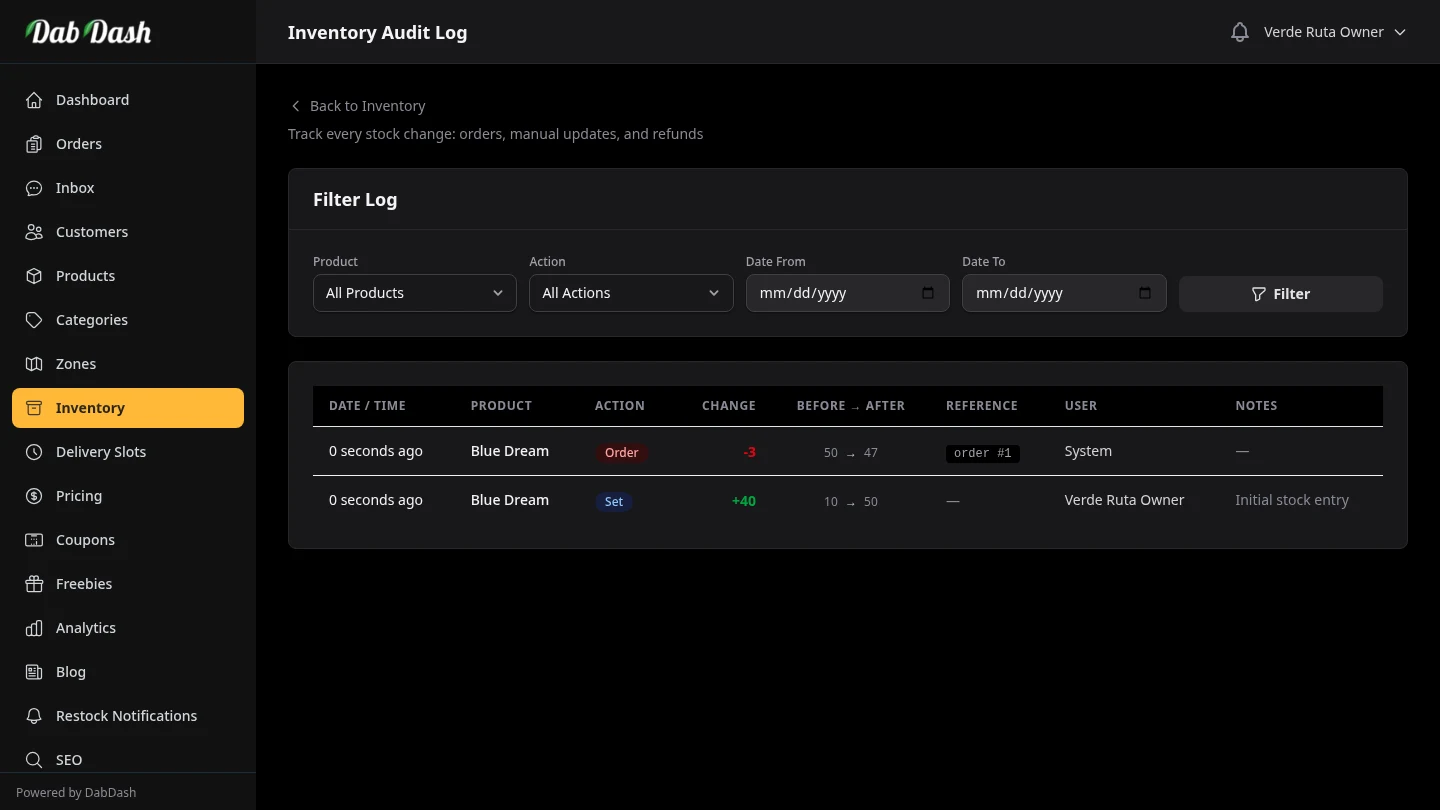
To narrow down the log, use the Filter panel at the top of the page. You can filter by:
- Product — Start typing a product name in the search box and pick from the suggestions to see only changes for that item.
- Date Range — Set a From and To date to limit the log to a specific period — useful for reconciling stock after a count or investigating a discrepancy.
- Reason — Filter to a specific change type (Order, Manual, Bulk, Refund) to isolate the source of an unexpected movement.
Each audit entry shows:
- Product / Variation
- The exact product and weight variation whose stock changed.
- Before & After
- The stock quantity immediately before and after the change, so you can reconstruct the stock timeline for any item.
- Change
- The signed difference — positive for stock added, negative for stock deducted.
- Reason
- Order — stock went down after an order was confirmed. Manual — edited directly on the inventory page. Bulk adjust — changed from the bulk action bar. Refund — stock returned after a refunded order (when return stock was selected).
- Timestamp
- The exact date and time the change occurred. Filter the log by date range or product name to trace any specific change.