Email Campaigns & Blasts
Send email blasts and campaigns to your customers and leads. Preview live audience counts before sending, track sends, errors, and pauses in real time.
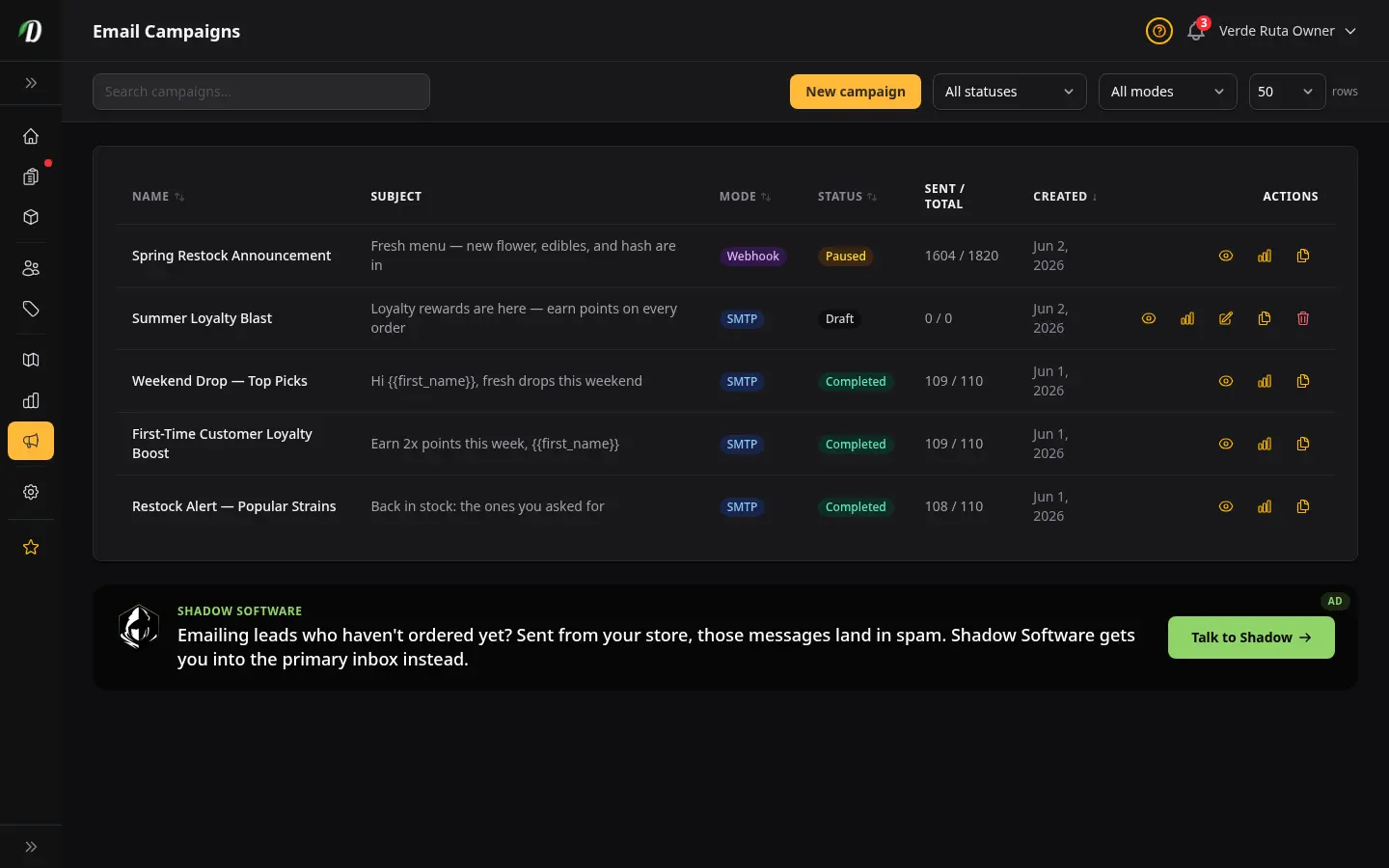
Quick Start
Use this article for email blasts and HTML campaigns. For text blasts, see the Text (SMS) Campaigns article after you connect Twilio.
- Open Marketing → Email Campaigns.
- Build or import a contact list under Lists.
- Click New Campaign, pick a mode (SMTP or Webhook), write your email, and choose your list.
- Hit Send Now. The page redirects to the campaign stats view where you can watch progress in real time.
Customers vs Leads
Your audience is split into two groups. The split matters because each group needs a different way to receive email.
- Customers are people who bought from you — including guest checkout (email on the order, no storefront login). You can email them through your own SMTP server.
- Leads are people you've collected but who haven't bought yet. Leads must be sent through a webhook to an outside provider that handles sending reputation for you.
Also Include All My Customers
On the campaign form, turn on Also include all my customers to add registered shoppers and guest buyers to your list. Guest buyers are people who checked out without creating an account — we use the email from their order.
The audience preview shows how many are registered, how many are guest buyers, and how many are skipped because they opted out. Opted-out addresses are never sent.
Need a one-to-one email instead of a blast? Search that person in the Inbox — guest buyers appear under Start a new email with a Guest buyer label.
SMTP Mode — For Your Customers
SMTP mode uses your store's email account to send. Set up SMTP first under Settings → Domain & Email. SMTP is for customers only, because customers trust mail from your own address.
Webhook Mode — For Leads
Webhook mode hands each recipient off to your outside email provider. You set the URL on each campaign — pick Webhook as the sending mode and enter your endpoint URL. Different campaigns can use different webhooks. Leads should always go through a webhook provider so that bounces and complaints don't hurt your store's reputation.
Signing secret
We generate a signing secret the first time you save a webhook campaign, so your endpoint can verify each request really came from us. Use Reveal to show it, Copy to paste it into your provider, and Regenerate if it is ever exposed — regenerating makes the old secret stop working immediately, so update your endpoint at the same time.
When to Use SMTP vs Webhook
| If you're emailing | Use this mode |
|---|---|
| People who bought from you | SMTP |
| People who haven't bought yet | Webhook |
| A mix of both | Webhook (safer for reputation) |
Uploading Your First List
Open Lists, click New List, and upload a CSV with one email per row. The first column should be email, with optional columns for first name and last name. We deduplicate as we import.
Composing a Campaign
Click New Campaign. Give it a name, write a subject line, and write the body. You can drag and drop images right into the editor — we upload and host them automatically. Use the Send Test button before going live, to see how your email looks in your own inbox.
Flyer Artwork for Your Campaign
Ask Dabby for flyer artwork and it builds one around your real product photos, in your shop's colours, then places it in the campaign's image slot for you. Tell it what the send is for — “September restock, cosy autumn mood” — and it works from there.
This needs your own image key connected under Settings → Dab AI. Each picture is billed to that key, not to us, so a shop without one gets a plain message instead of a flyer.
The artwork itself carries no words. Every headline, price, and button stays real text in the email, so it stays readable, translates with the rest of your campaign, and still makes sense when someone has images turned off.
Want it to look like the flyers you already send? Put a few of your past flyers in your media library and ask Dabby to save them as your flyer style. Everything it designs after that follows their mood and layout — never their text or logos.
Your Inbox Score
As you write your subject and body, a live Inbox Score card updates next to the editor. It checks the things that make email providers flag a message as spam — shouty subject lines, spammy words, missing personalization, too many links, and more — and scores your draft from 0 to 100.
Your score needs to be 80 or higher before you can send or schedule. A campaign below 80 saves fine as a draft, but Send and Schedule are blocked until you raise it. Below the score, coaching tips explain exactly what to fix — work through them and the number climbs as you type.
The live score is a fast check. At send time we also run a deeper spam check, so a campaign that looked ready can still need a small tweak — the error message at Send tells you exactly what to change.
Send Caps Explained
Email caps protect your sending reputation. Sending too fast looks like spam to email providers.
- SMTP defaults to 3 per minute and 180 per hour.
- Webhook defaults are higher because your provider handles the pacing.
- You can lower the cap, but you can't raise it past the safe ceiling.
Unsubscribes & Compliance
Every email we send includes a one-click unsubscribe link. We remove the address from future campaigns automatically — you don't have to do anything. This keeps you compliant with anti-spam laws.
Reading Your Sending Log
Open any campaign and click the Sending Log tab. Only errors are logged — successful sends aren't. Each row shows the recipient, the error type, a detail snippet, and the HTTP status (for webhook errors). Click Download CSV to export everything.
Why Your Campaign Stopped Itself
If you added a health check URL (for n8n, that is usually /webhook/health), we stop after one send error. Then we check that health page on the same schedule as sending. When it comes back OK, we start again by ourselves and try the failed address again. You’ll see a “Waiting” banner while we check.
If you did not add a health check URL, we still pause after three errors in a row. You’ll need to fix the endpoint and click Resume yourself.
Resuming a Stopped Campaign
With a health check URL, you usually don’t need to do anything — we resume when the health page is OK. You can still click Resume now if you want to continue without waiting. Without a health check URL, fix the endpoint first (use Test webhook), then click Resume. Sending picks up where it left off.
Troubleshooting Deliverability
- If your emails land in spam, send to a smaller, more engaged group first to warm up your sending reputation.
- Keep subject lines specific and avoid spammy words.
- If your bounce rate is high, clean your list — remove addresses that bounce and never email them again.
- For leads, always use webhook mode so your store's domain isn't used for cold outreach.
Frequently Asked Questions
How do I send an email blast or campaign in DabDash?
Go to Marketing → Email Campaigns, click New Campaign, choose Email as the channel, pick SMTP or Webhook mode, write your subject and body, select the contact lists and whether to include customers, then click Send Now. The campaign starts immediately and you can watch progress on the stats page.
How does the audience preview work in DabDash email campaigns?
The "Who will get this" panel beneath the campaign form updates live as you change your audience selection. It shows the exact number of eligible recipients, how many are customers versus leads, and how many addresses will be skipped because they failed email verification. The count adjusts instantly when you tick or untick contact lists or the "include customers" option.
Why are some addresses skipped in my DabDash campaign audience?
Addresses flagged as risky or invalid by email verification are excluded before sending. The audience preview shows how many will be skipped with a yellow notice. This protects your sending reputation by avoiding addresses that are likely to bounce.
When should I use SMTP vs Webhook for email campaigns in DabDash?
Use SMTP to email people who have already bought from you — your own customers. Use Webhook to email leads (people who have not bought yet) by routing through an external provider. Sending cold outreach through your own SMTP risks hurting your sending reputation.
Why did my DabDash email campaign pause automatically?
If the webhook endpoint returns errors three times in a row, DabDash pauses the campaign to protect your sending reputation. Fix the endpoint, then click Resume. Sending picks up exactly where it left off.
Why can't I send my DabDash email campaign?
Your campaign's Inbox Score is below 80, the minimum required to send or schedule. The score updates live as you edit the subject and body — coaching tips below the score explain exactly what to fix. You can still save the campaign as a draft below 80; only Send and Schedule are blocked.
What is the DabDash Inbox Score?
A 0–100 score that checks your subject and body for things that trigger spam filters — shouty subject lines, spammy words, missing personalization, too many links, and more. It updates live while you type. Sending or scheduling requires a score of 80 or higher.