Promotional Widgets
Build homepage promo cards that link shoppers to featured products, categories, and collections.
Overview
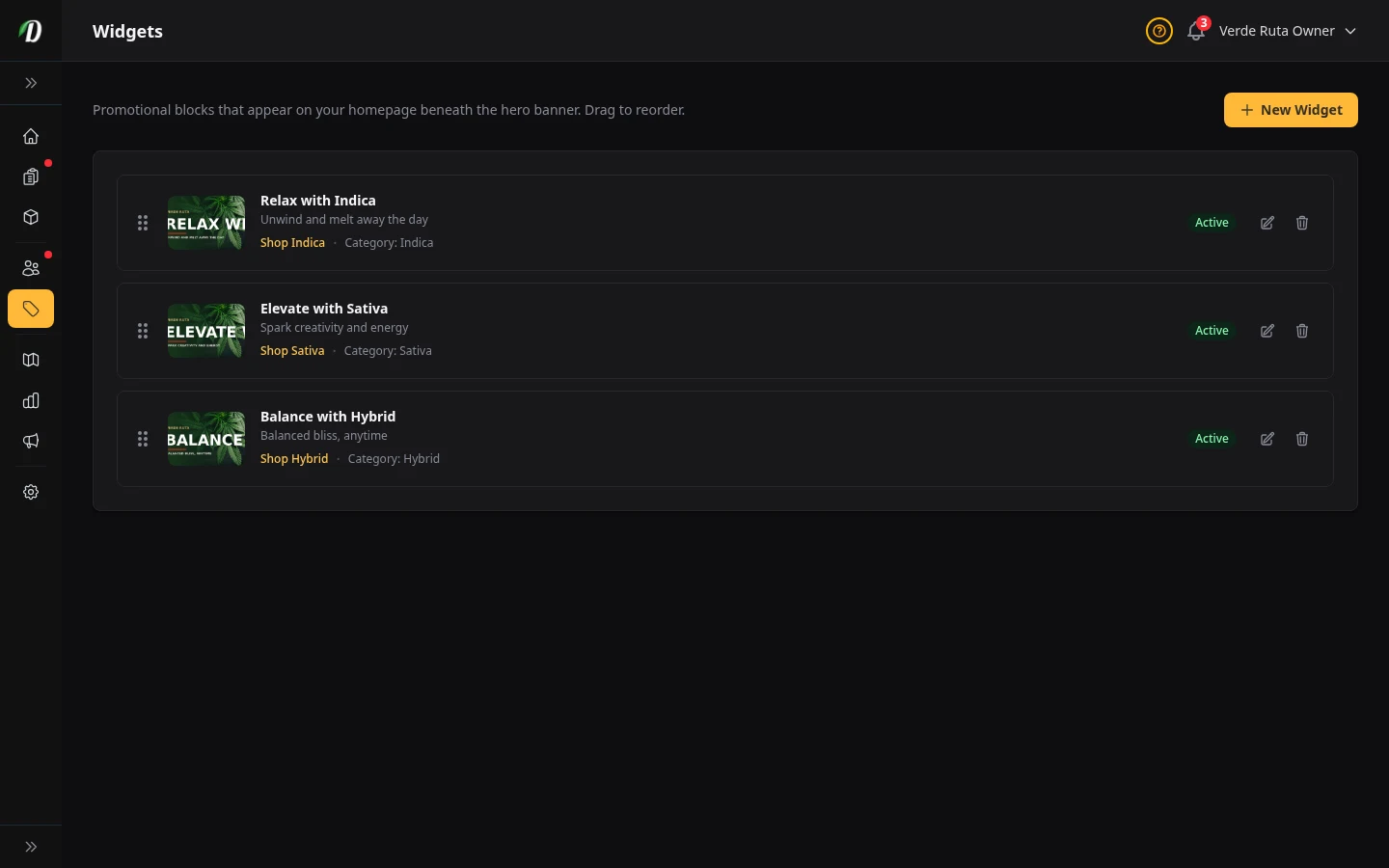
Widgets are homepage promo cards that sit under your storefront hero. They are a simple way to push shoppers toward seasonal offers, featured categories, or a specific product without editing code or redesigning the page.
Each widget can have its own image, headline, subtitle, button text, and destination. You can switch them on or off as campaigns change, and drag them into the order you want.
Reading the Widgets List
- Image preview: lets you spot the right promo quickly.
- Headline and subtitle: shows the message customers will see on the homepage.
- Button text: confirms the call to action for the promo.
- Destination: tells you whether the widget links to a product, a category, featured products, or a Bundle Deal group.
- Active badge: shows whether the widget is live on the storefront right now.
- Drag handle: lets you reorder widgets to control homepage priority.
Editing a Widget
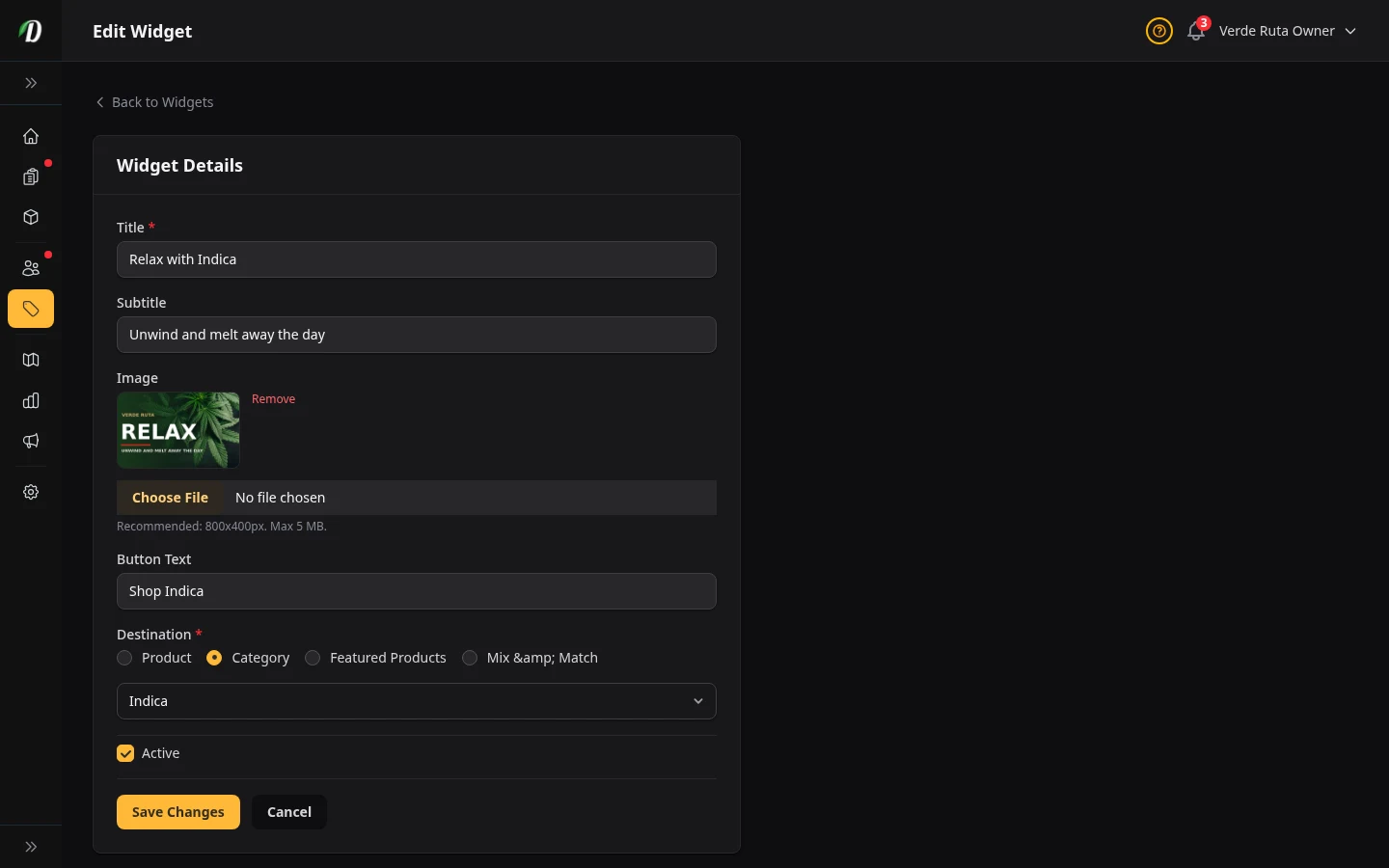
Open any widget to update the promo text, swap the image, change the button label, or point the card somewhere new.
- Title and Subtitle
- Use short, clear promo copy. Good widget text is quick to scan on mobile.
- Image
- Use a strong promo image that matches the offer. Replace it whenever the campaign changes.
- Button Text
- Keep it action-focused: "Shop Flower", "See Deals", or "Browse Gummies".
- Destination
- Send shoppers to one product, a category page, the featured products list, or a Bundle Deal group depending on the campaign. The Bundle Deal option shows a dropdown of your configured tags.
- Active
- Turn the widget off when the promo ends instead of deleting it. That makes seasonal reuse much faster later.
Recommended Workflow
- Start with the homepage campaign you want to push this week.
- Create or update the widget headline and image to match that campaign.
- Point the widget to the exact page you want shoppers to land on.
- Turn it on and drag it into the top position if it is your main offer.
- Turn off old widgets so the homepage stays focused instead of crowded.
Tips
- Use widgets for time-sensitive campaigns like payday promos, holiday drops, or featured strain pushes.
- Keep the widget title short so it stays strong on mobile cards.
- Match the image and destination. A flower image should lead to flower, not a generic page.
- Review the homepage after reordering widgets so the first three cards tell a clear story together.
Frequently Asked Questions
How do I add a homepage promo widget in DabDash?
Go to Widgets, click New Widget, add a headline, optional subtitle, upload an image, choose the button text, and pick whether the widget links to a product, a category, or your featured products list. Save to publish it on the storefront homepage.
Can I reorder homepage widgets in DabDash?
Yes — on the Widgets page, drag and drop the cards into the order you want. DabDash saves the new order so your homepage promos appear in that same sequence for shoppers.
Can I turn a widget off without deleting it in DabDash?
Yes — open the widget, turn off the Active toggle, and save. The widget is hidden from the storefront but kept in your dashboard so you can bring it back later for another promotion.