Media Library
Upload an image once and reuse it everywhere, then manage your library: crop, edit alt text for SEO, re-crop, download, and safely delete images.
Overview
The Media Library is one home for every image you use across your store. Experienced cannabis retailers upload once and reuse everywhere — products, categories, branding, widgets, blog posts, and campaigns — with alt text that helps Google understand what you sell.
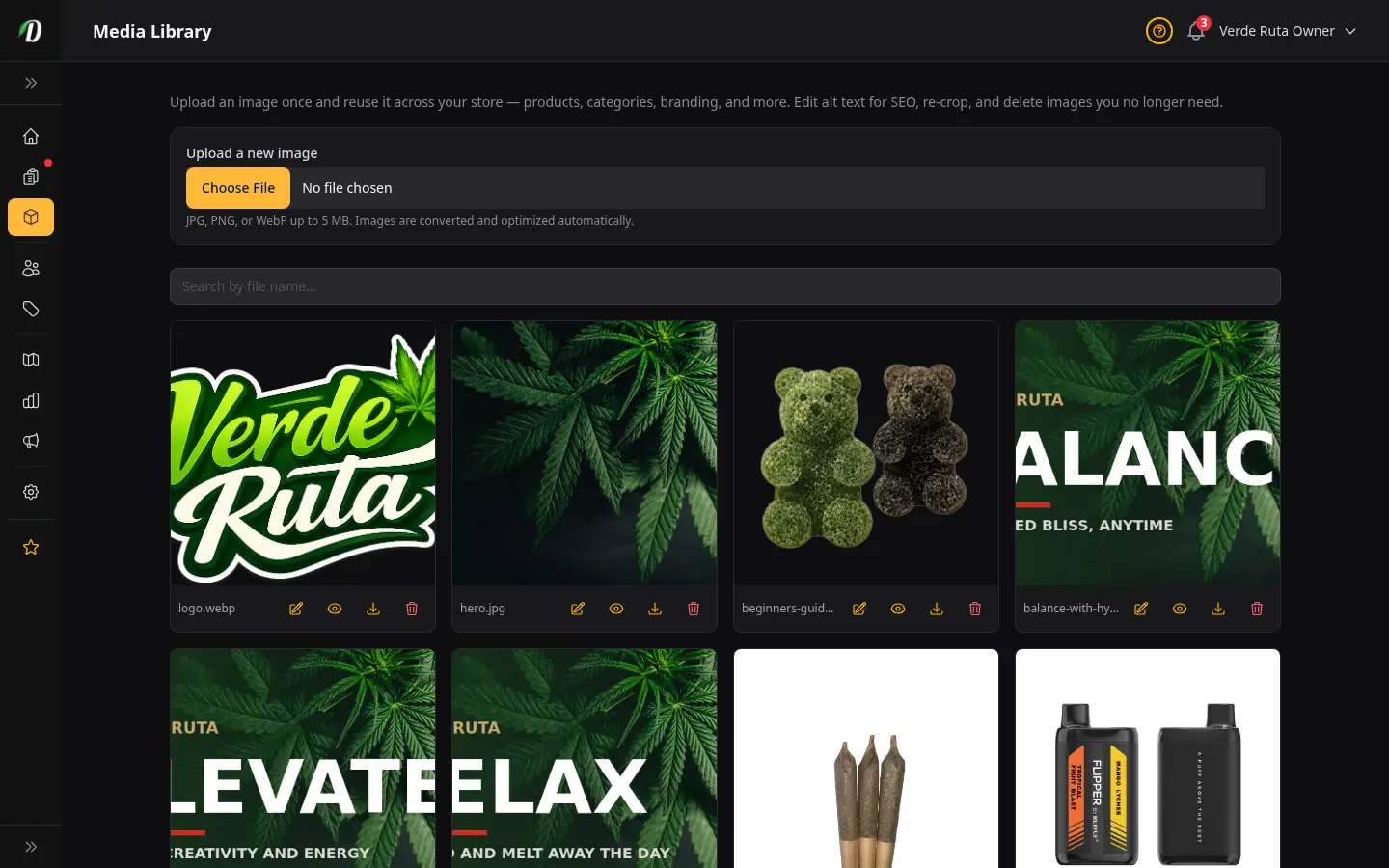
Open it from Media Library in the sidebar. Every image you have ever uploaded appears in one searchable grid, where you can edit details, re-crop, download, or safely delete images that are no longer in use.
Adding a New Image
Use the Upload a new image panel at the top of the page. Click Choose File and pick a JPG, PNG, or WebP (up to 5 MB). DabDash converts and optimizes it automatically, then adds it to your grid so it is ready to reuse everywhere.
As soon as you pick a file, a crop tool appears so you can frame it before saving (see below).
The Built-in Crop Tool
After you choose a file to upload, a crop tool appears so you can frame the image before it is saved. Drag the corners of the box to choose the part you want to keep.
The ratio buttons lock the crop box to a shape that fits where the image will be used — Square (1:1) for product and category images, 16:9 for hero banners and blog covers, 4:3 or 3:2 for standard photos, or Free to crop to any shape.
- Crop & save
- Saves just the area inside the box as a new image. Your original is left untouched, so you can crop the same picture differently for a different spot later.
- Use full image
- Skips cropping and saves the whole picture as-is.
Finding an Image
When your library grows, two tools help you find the right picture fast:
- Search
- Type part of a file name in the Search by file name box to narrow the grid as you type.
- Filter by folder
- If you organize images into folders, pick one from the folder dropdown to show only that folder. Choose All folders to see everything again.
Editing an Image's Details (Alt Text for SEO)
Click the edit (pencil) icon on any image to open its details panel. Here you can set:
- Alt text
- A short sentence describing the image. Search engines read it to understand the picture, and screen readers read it aloud — so good alt text helps your store's SEO and makes it usable for everyone. Describe what's in the image, for example "Purple Punch flower in a glass jar".
- Folder
- Group related images under a name (for example "Branding" or "Products") so you can filter to them later.
- File name
- A friendly name shown in the grid so you can recognise the image at a glance.
Click Save to apply your changes.
Re-cropping an Existing Image
Need the same picture in a different shape? Click the re-crop icon on any image. The crop tool opens on the stored image — choose a ratio, frame the area you want, and click Crop & save copy.
This makes a new image from the crop and keeps the original, so you can have a Square version for a product card and a 16:9 version for a banner from the same source.
Downloading an Image
Click the download icon to save a copy of any library image to your computer — handy when you need the optimized file for a flyer, social post, or print.
Deleting an Image (Safely)
Click the delete (trash) icon to remove an image you no longer need. DabDash protects you from breaking your storefront: if the image is still used anywhere — a product, a category, your logo or hero, or a blog post — the delete is blocked and you'll see exactly where it's used.
Good to know: An image can only be deleted once it isn't used anywhere. Swap it out on those pages first, then delete it — so you can never end up with a product or category showing a missing image.
Where You Can Reuse Library Images
Anywhere you set an image, look for the Choose from library button next to the upload field. It opens a picker with this same library so you can grab an image you already have instead of uploading again. You will find it on:
- Products — featured image and gallery images.
- Categories — the category image.
- Appearance — your store logo and hero banner.
- Store Blog — a post's featured image.
- Promotional widgets — the widget banner image.
- Email campaigns — images dropped into the message body.
- Payment QR code — your private QR image (kept private, never shown publicly).
If you upload the same image twice, DabDash recognises it and keeps a single copy rather than cluttering the grid with duplicates.
Frequently Asked Questions
What is the Media Library in DabDash?
The Media Library is one place for every image you use across your store. Upload a picture once and reuse it on products, categories, your logo and hero banner, blog posts, storefront widgets, email campaigns, and your payment QR code — without uploading the same file again. Open it from Media Library in the sidebar.
How do I reuse an image I already uploaded in DabDash?
Anywhere you set an image, click "Choose from library" next to the upload field. It opens your Media Library so you can pick an existing image instead of uploading a new one. Every image you have ever uploaded — from the library or any other page — appears in the grid.
How does the crop tool work in DabDash?
After you choose a file to upload, a crop tool appears. Drag the corners to frame the image, pick a ratio (Square 1:1 for products and categories, 16:9 for hero banners and blog covers, or Free), then click "Crop & save" to save just that area as a new image — or "Use full image" to keep the whole picture. Your original is never changed, so you can crop it differently elsewhere later.
If I remove an image from a product, does it disappear from my library in DabDash?
No. Removing an image from a product, category, or page only unlinks it there — the shared copy stays in your Media Library and in any other place that uses it. DabDash also recognizes duplicate uploads and keeps a single copy, so your library stays tidy.
How do I edit an image's alt text for SEO in DabDash?
In the Media Library, click the edit (pencil) icon on any image to open its details panel. Set the alt text — a short sentence describing the image — then click Save. Alt text helps search engines understand the picture and is read aloud by screen readers, so it improves your store's SEO and accessibility. You can also set a folder and a friendly file name here.
Can I re-crop an image already in my DabDash library?
Yes. Click the re-crop icon on any image, frame the new area, pick a ratio, and click Crop & save copy. This creates a new image from the crop and keeps the original — so you can have a Square version for a product card and a 16:9 version for a banner from the same source.
Why can't I delete an image in my DabDash Media Library?
DabDash blocks deleting an image that is still used somewhere — a product, category, your logo or hero, or a blog post — and shows you exactly where it is used. This stops a page from ending up with a missing image. Swap the image out on those pages first, then delete it. Images that aren't used anywhere delete immediately.