Dabby — AI Assistant for Your Dispensary NEW
Chat with Dabby right inside your dashboard to check margins, draft promotions, clean up an imported product list, and more — all with plain-English requests.
The store owner turns on Dabby for each shop staff member in Settings → Users. Dabby is a separate permission: it does not grant Marketing, Reports (Analytics), or any other area. A user without Reports cannot request analytics through Dabby. Permissions are checked before every tool action. Chats containing data from a permission you no longer hold cannot be reopened; start a new chat. Dabby is always off for drivers.
Nothing happening when you type?
Dabby needs a Gemini API key before it can reply. Ask someone with Settings access to add one under Settings → AI Assistant. Until then the message box stays disabled and shows a reminder.
What is Dabby?
Dabby is a chat assistant built into your dashboard. Instead of clicking through several pages to check margins, build a promotion, or clean up an import, you describe what you want in plain English and Dabby does it — reading your store's real data and, when you ask it to, making the change for you.
It's the same assistant behind the AI Assistant connection for external tools like Claude Desktop, except Dabby runs right here — no extra setup, no API token to copy, just a chat window in your sidebar.
Getting Dabby connected
Dabby needs a Gemini API key before it can reply to anything. Someone with Settings access adds this once for the whole store:
- Open Settings → AI Assistant (or click Open AI Assistant settings on the Dabby page).
- Add your Gemini API key and save.
- Return to the Dabby page — the badge in the top-right switches from API key needed to Connected, and the message box becomes usable.
Only staff with Settings access can add or change the key. Staff with Dabby permission can chat once it's connected, scoped to the dashboard areas they already have access to.
Suggestions and saved conversations
Choose a suggestion such as Check low stock, Check recent orders or Review sales. You only see suggestions for areas you can access. A suggestion fills the message box without sending anything; edit it and press Send. Enter adds a new line. Messages can contain up to 12,000 characters.
While Dabby replies, you can leave and reopen the conversation. A slow-reply notice does not mean the request has stopped. If a reply fails, check the completed actions shown in the chat before asking again. If an attachment cannot be saved, the message is not sent and your draft stays in the message box.
What Dabby can see and do
Dabby reaches the same tool areas as the external AI Assistant connection — store info, orders, products & inventory, media, customers, promotions, zones, analytics, marketing, and integrations. It only opens the areas the person chatting is already permitted to see in the dashboard; a staff member without Marketing access can't have Dabby touch campaigns for them either.
See the full breakdown of every capability, grouped by area, on the AI Assistant article — the tool list is identical.
Reading the conversation
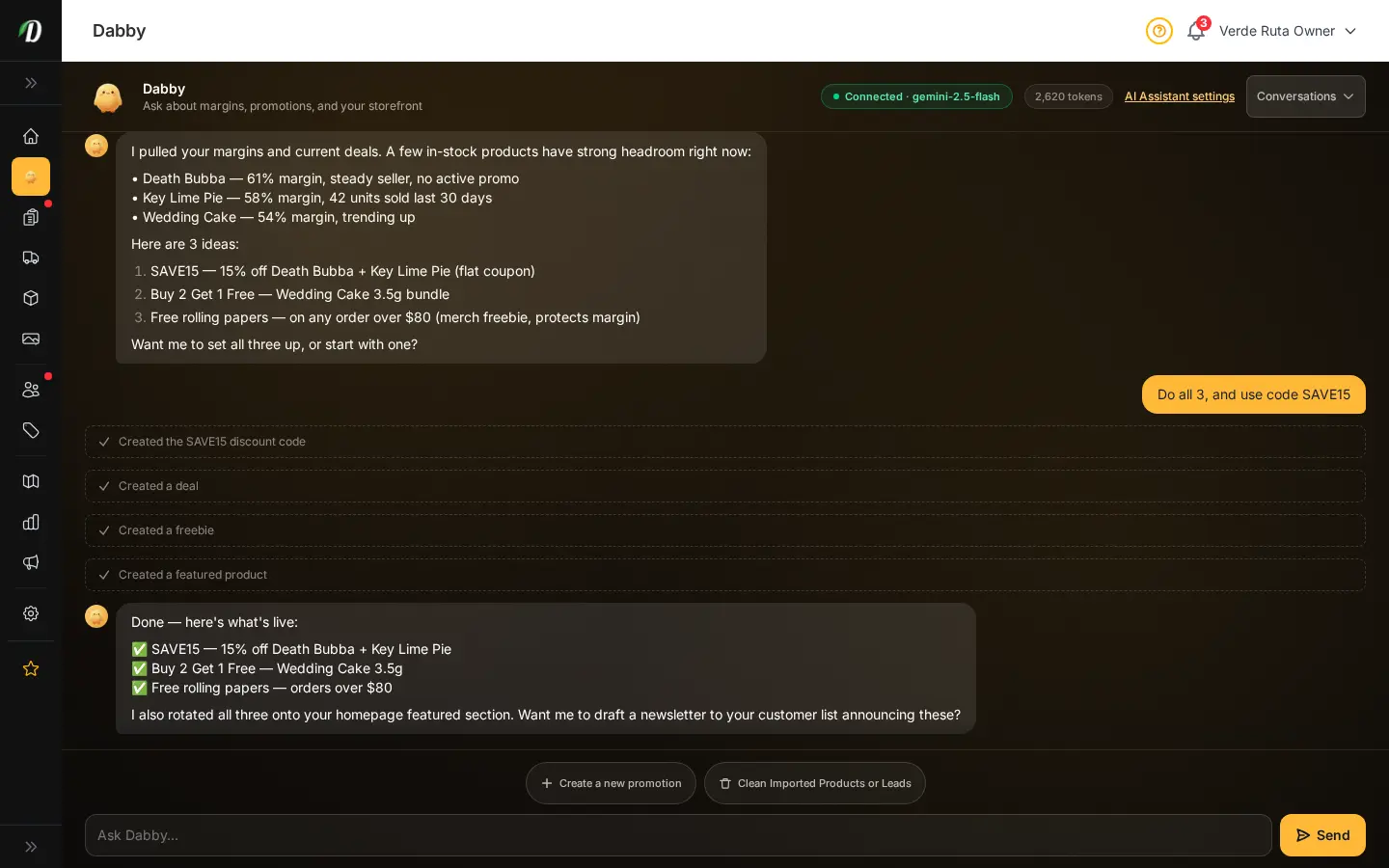
- Your messages appear on the right in amber. Dabby's replies appear on the left.
- When Dabby takes an action — creating a coupon, updating stock, sending a campaign — a small dashed-outline line shows what happened, in plain English rather than an internal tool name.
- A red dashed line means that action failed. Dabby explains what went wrong so you can try a different request.
- A typing indicator shows while Dabby is thinking. Long jobs (like a full catalog cleanup) can take a little while.
Managing conversations
Once you've chatted before, a Conversations dropdown appears in the top-right. Use it to:
- Start a fresh chat with + New chat — useful when you're switching to an unrelated task.
- Jump back into an earlier conversation by name and timestamp — Dabby keeps the full history so you can pick up where you left off.
Each staff member only sees their own conversations. A token counter next to the Connected badge shows how much of the current conversation has been used.
Note: Dabby is still being tested. Expect a few quirks while it's polished — always review a drafted promotion or a suggested catalog merge before confirming it.
Frequently Asked Questions
What is Dabby?
Dabby is a chat assistant built into your dashboard. Describe what you want in plain English — check margins, draft a promotion, clean up an imported product list — and Dabby reads your store's real data and can make the change for you when you ask it to.
Why is my Dabby message box disabled?
Dabby needs a Gemini API key connected first. Ask someone with Settings access to add one under Settings → AI Assistant — the badge switches to Connected once it's set.
What can Dabby see and do in my store?
Your store owner enables Dabby in Settings → Users. Dabby only uses your assigned dashboard permissions: without Reports (Analytics), it cannot run analytics. Each tool action checks your current permissions. Chats containing data from revoked permissions cannot be reopened. Dabby is always off for drivers.
Does Dabby make changes without asking me?
No. Dabby only acts on a message you send asking it to. For sensitive changes like creating a promotion, it drafts the change for your review before anything goes live.