Product Pages
Everything on a DabDash product page — cannabis strain data, THC/CBD info, size picker, bundle deals, and out-of-stock restock alerts.
Overview
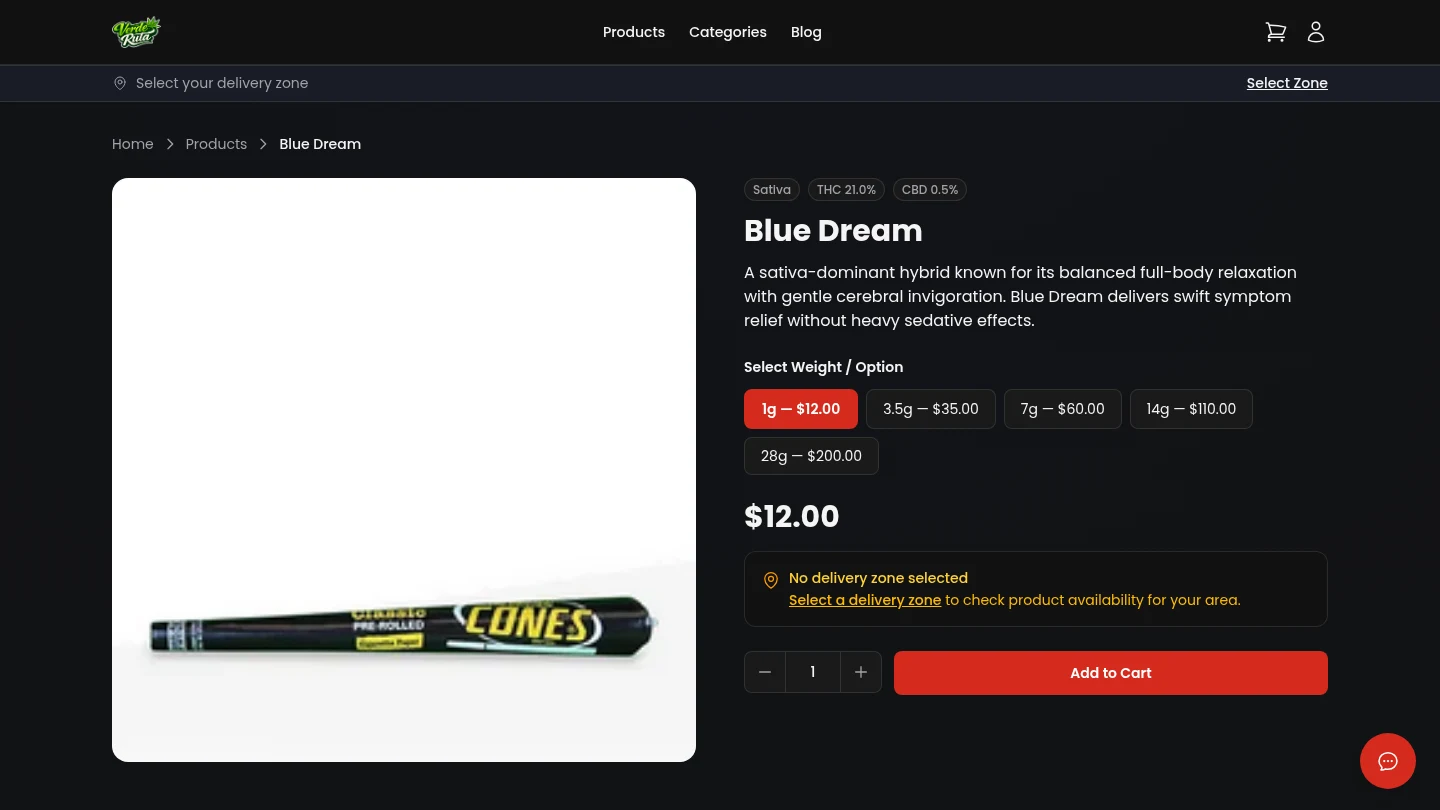
This is the page for a single product. It has everything a customer needs to decide whether to buy — the description, cannabis data, images, available sizes, and the add-to-cart button.
Each product page also shows related information like bundle deals, stock status, and strain details.
Product Info
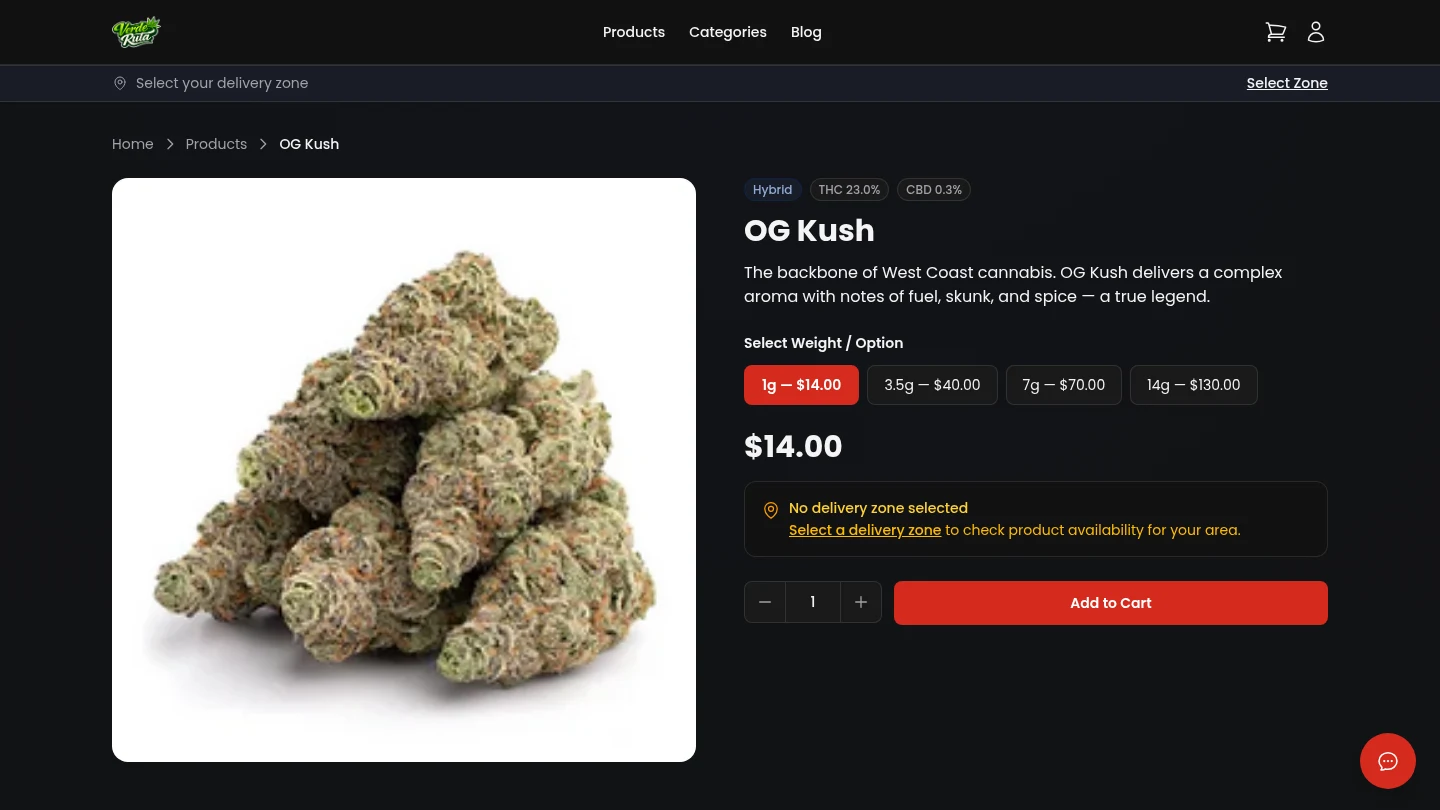
The top of the page shows the product name, images, and a full description. Below that is the cannabis data — THC and CBD percentages, effects (like Relaxed, Euphoric, Creative), flavors, and the indica/sativa ratio bar.
Further down is the size and variation picker. Products can have multiple sizes (1g, 3.5g, 7g, etc.) with different prices. Picking a size updates the displayed price.
Adding to Cart
Pick a size from the options, adjust the quantity if needed, then click Add to Cart. The cart icon in the header updates with the new item count right away.
If no size is picked, the first available option is selected by default. The button is disabled while the item is being added so it cannot be clicked twice by accident.
Bundle Deals
Some products are part of a bundle deal set up by the store. When a product qualifies for a bundle deal, a banner shows up at the top of the page explaining the deal.
A progress bar fills as qualifying items are added to the cart. Once the required number of items is reached, the discount kicks in automatically. No coupon code needed.
Out of Stock
When a product has no stock left, the Add to Cart button is replaced with a Notify Me button.
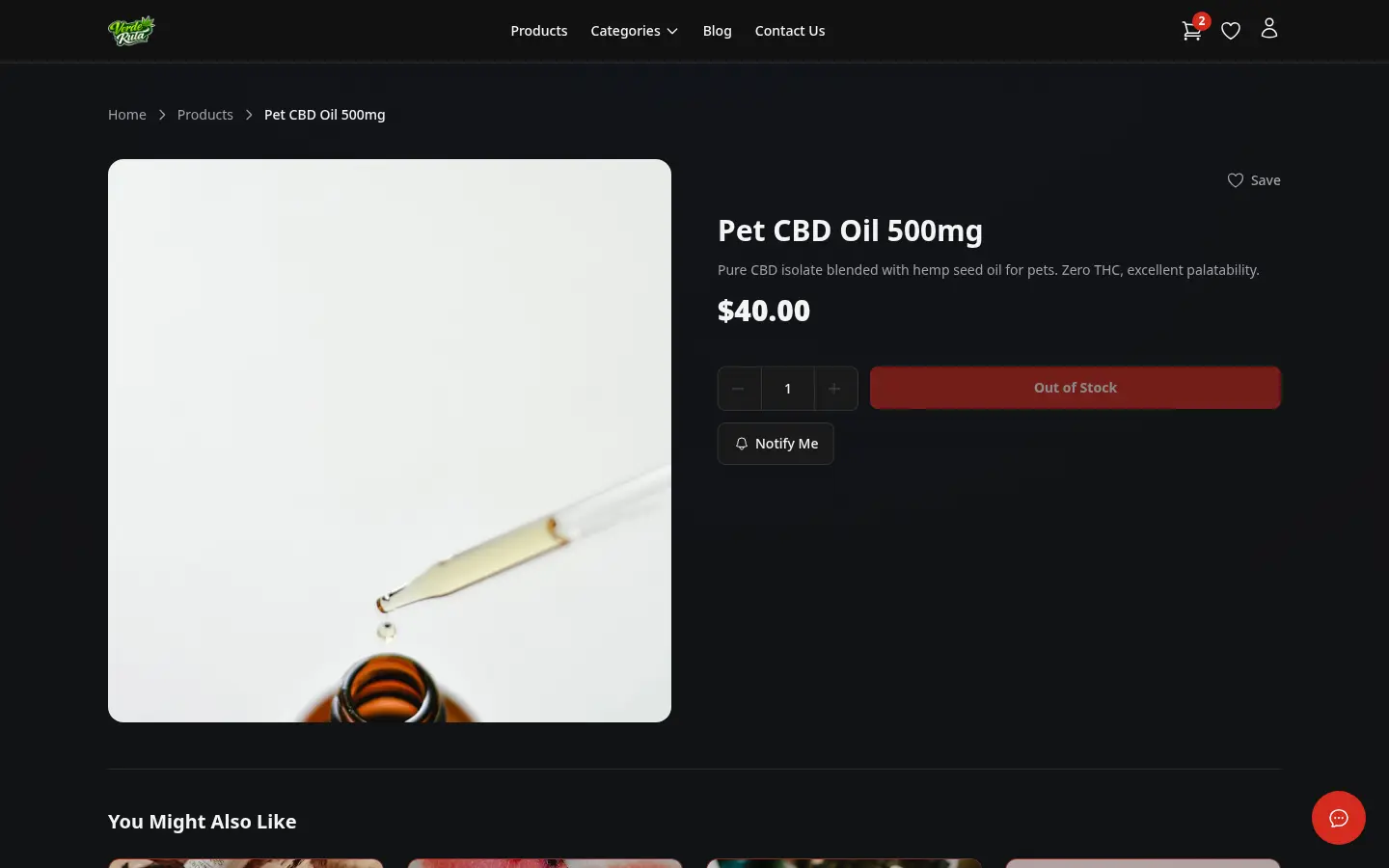
Clicking Notify Me joins a waitlist for that product. When stock comes back, an email goes out to everyone on the list letting them know the product is available again.
The product page still shows all the details — description, strain data, images — even when out of stock. Only the purchase button changes.
Frequently Asked Questions
What information is on a DabDash product page?
Product pages show the product name, images, description, cannabis strain data (THC/CBD percentages, effects, flavors), a size/variation picker with prices, and an Add to Cart button. Out-of-stock products show a Notify Me button for restock alerts.
What is mix and match on a DabDash store?
Mix and match is a bundle deal shown on product pages. A banner shows how many items are needed and the discount. As items are added, a progress bar fills up. When the required count is reached, the discount applies automatically in the cart.
What happens when a product is out of stock on a DabDash store?
The Add to Cart button is replaced with a Notify Me button. Clicking it signs up for an email alert. When the store restocks the product, everyone on the waitlist gets an email.
How do cannabis strain details appear on DabDash product pages?
Product pages show THC and CBD percentages, an indica/sativa ratio bar, effects (like Relaxed, Euphoric, Creative), and flavor notes (like Earthy, Citrus, Pine). This data comes from the store's product setup.