Storefront Browsing Flow

How customers discover products, categories, and out-of-stock items on your storefront.

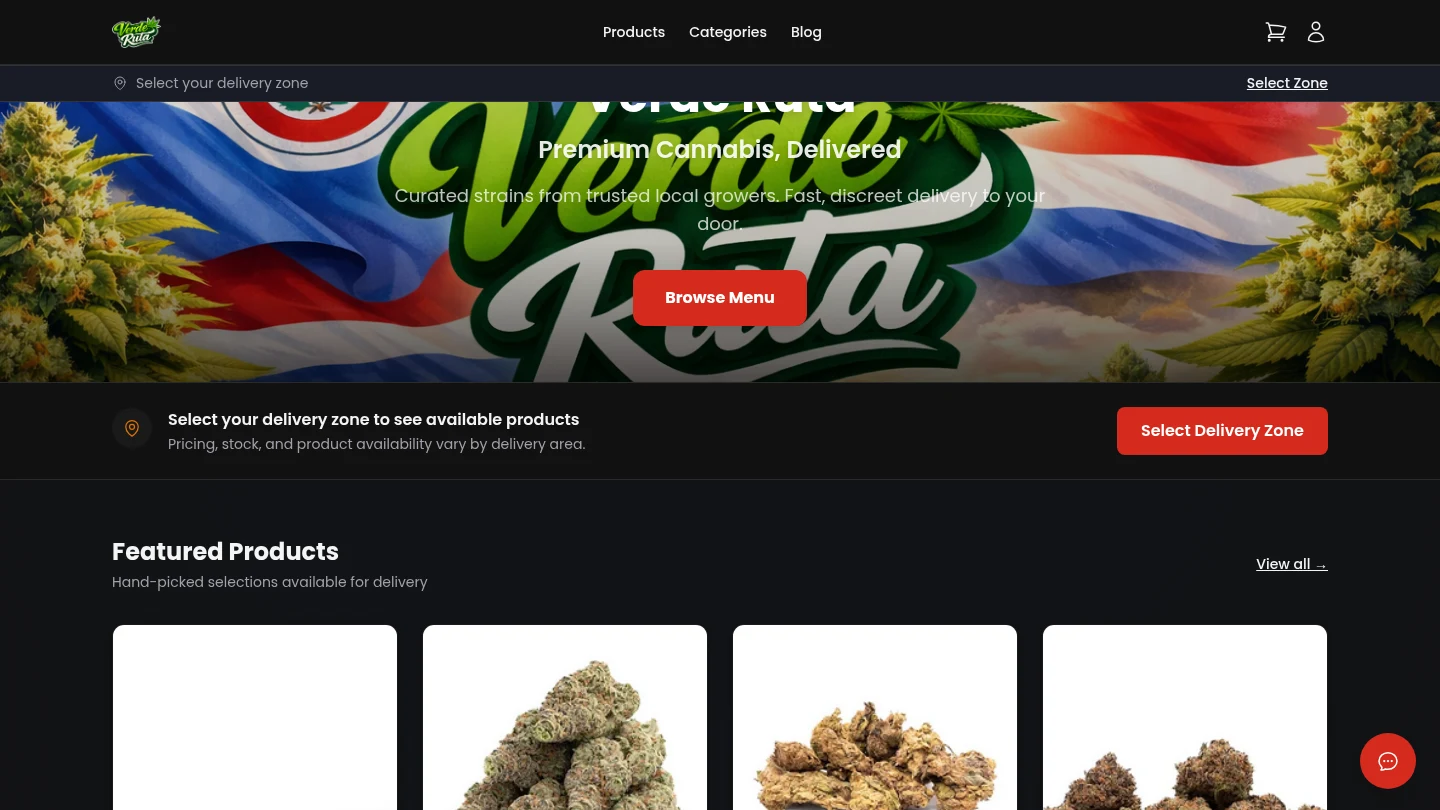
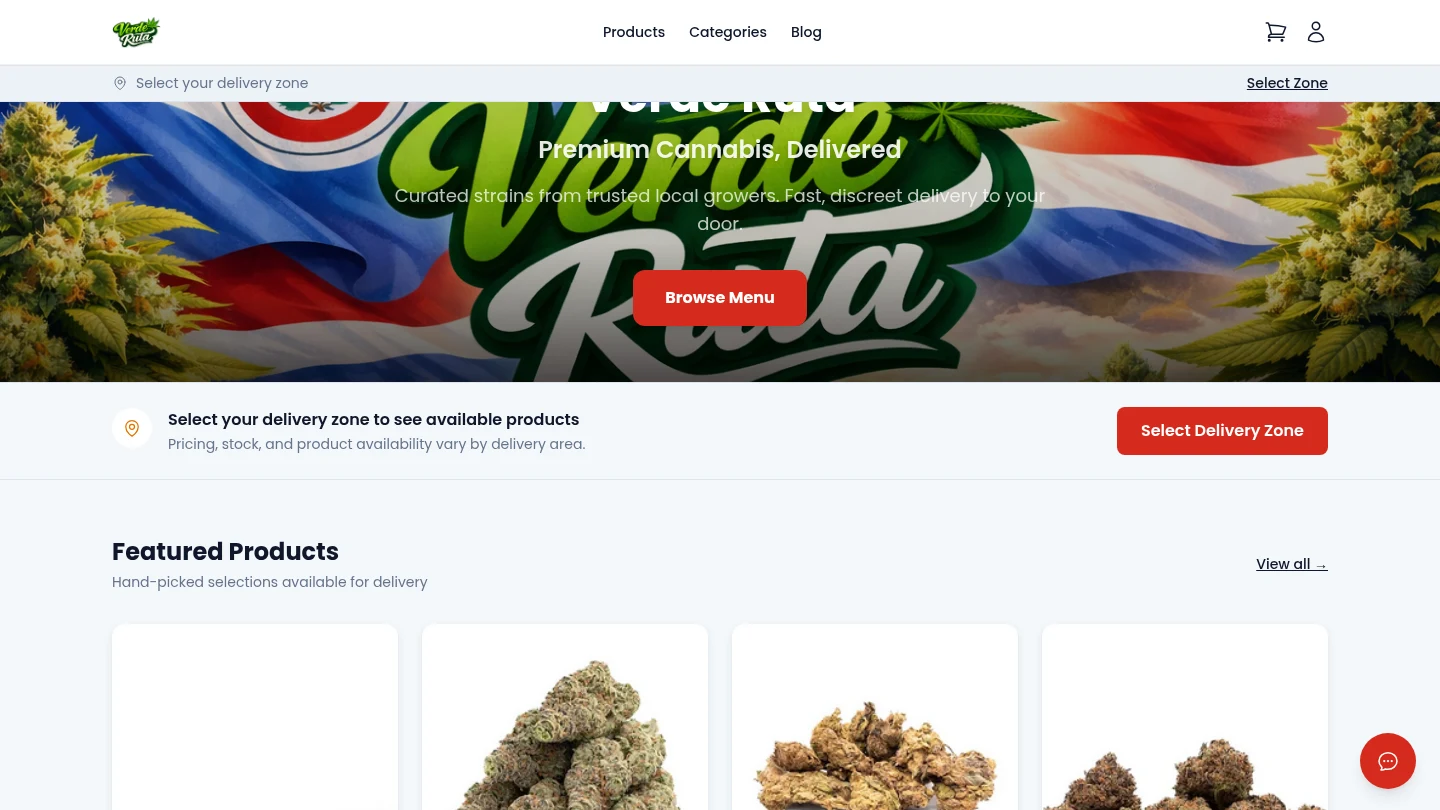
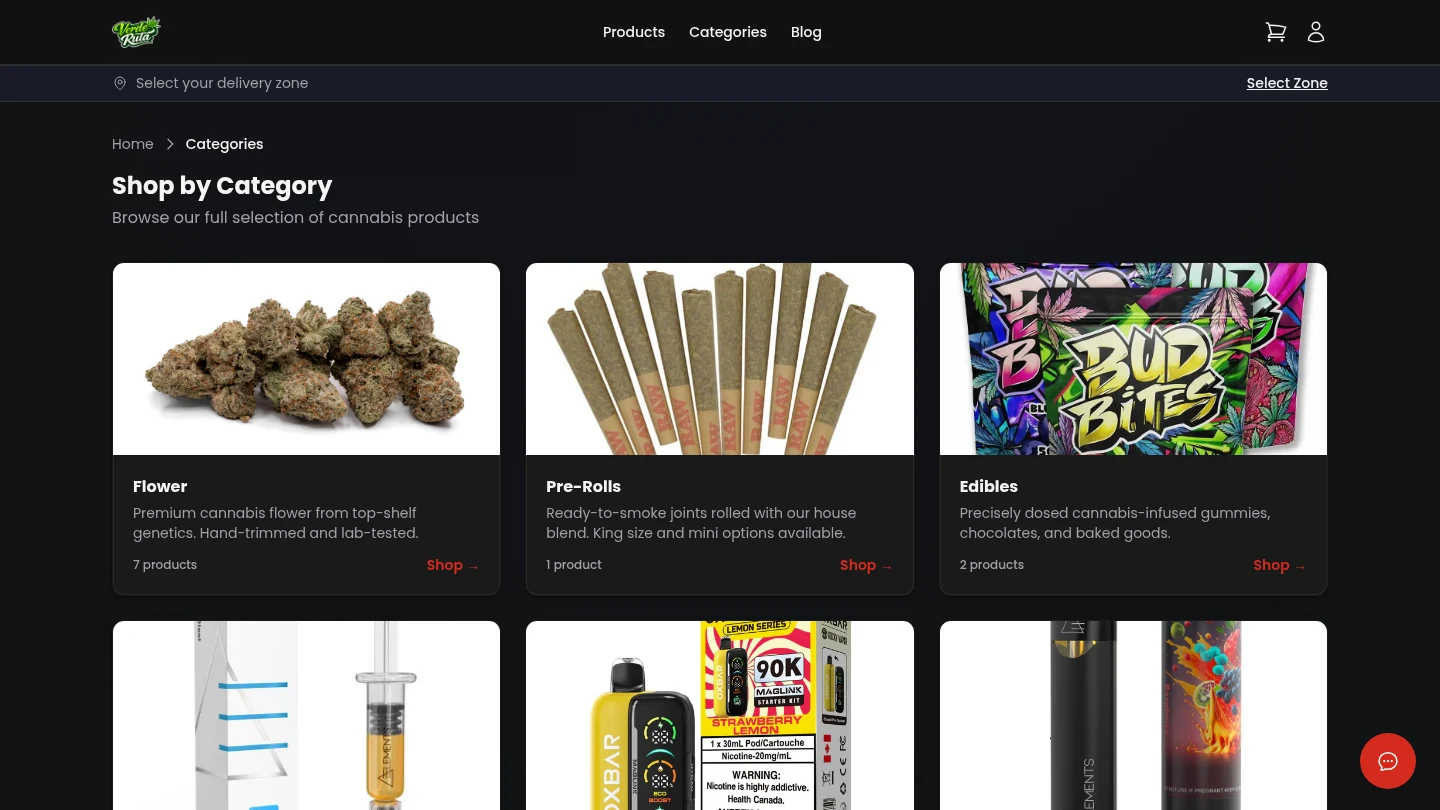
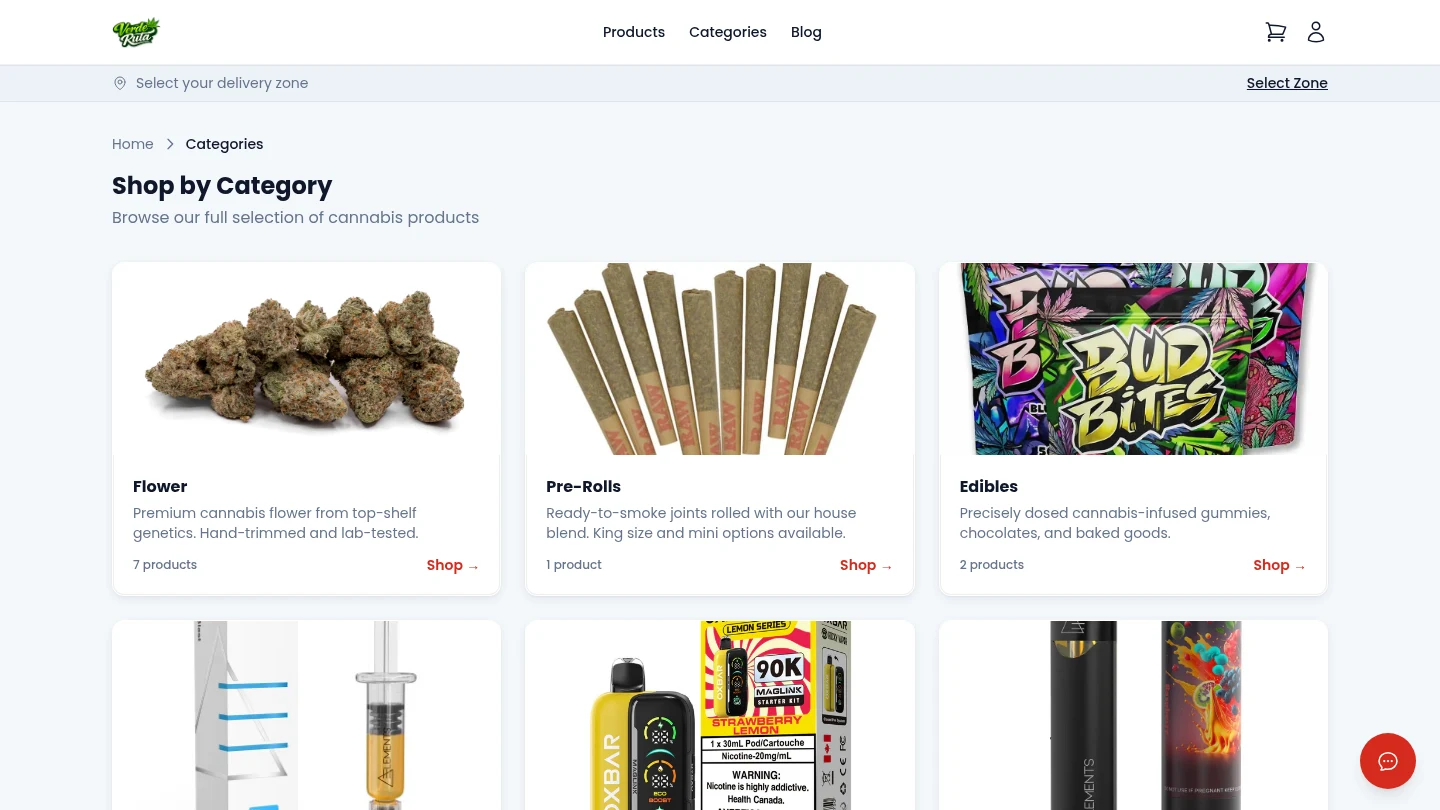
Storefront products listing page with product cards, search, and category filtering
How customers typically browse your catalog on desktop and mobile.

Overview For Store Team

This section explains what shoppers see and what controls it in your dashboard. Most visits follow this pattern: Home → Products/Categories → Product Detail → Cart.

Your Settings, Products, Categories, Inventory, and Zones pages all directly influence what is visible here.

Customer Entry Points

  • Home highlights your hero banner, featured items, and category links.
  • Products shows the full product list with search and filters.
  • Categories narrows items by product type.
  • Blog can bring new shoppers into your product pages.

What Makes Products Visible

Product Status
Only active products are intended for customer browsing. Draft or archived items should stay hidden.
Variations & Pricing
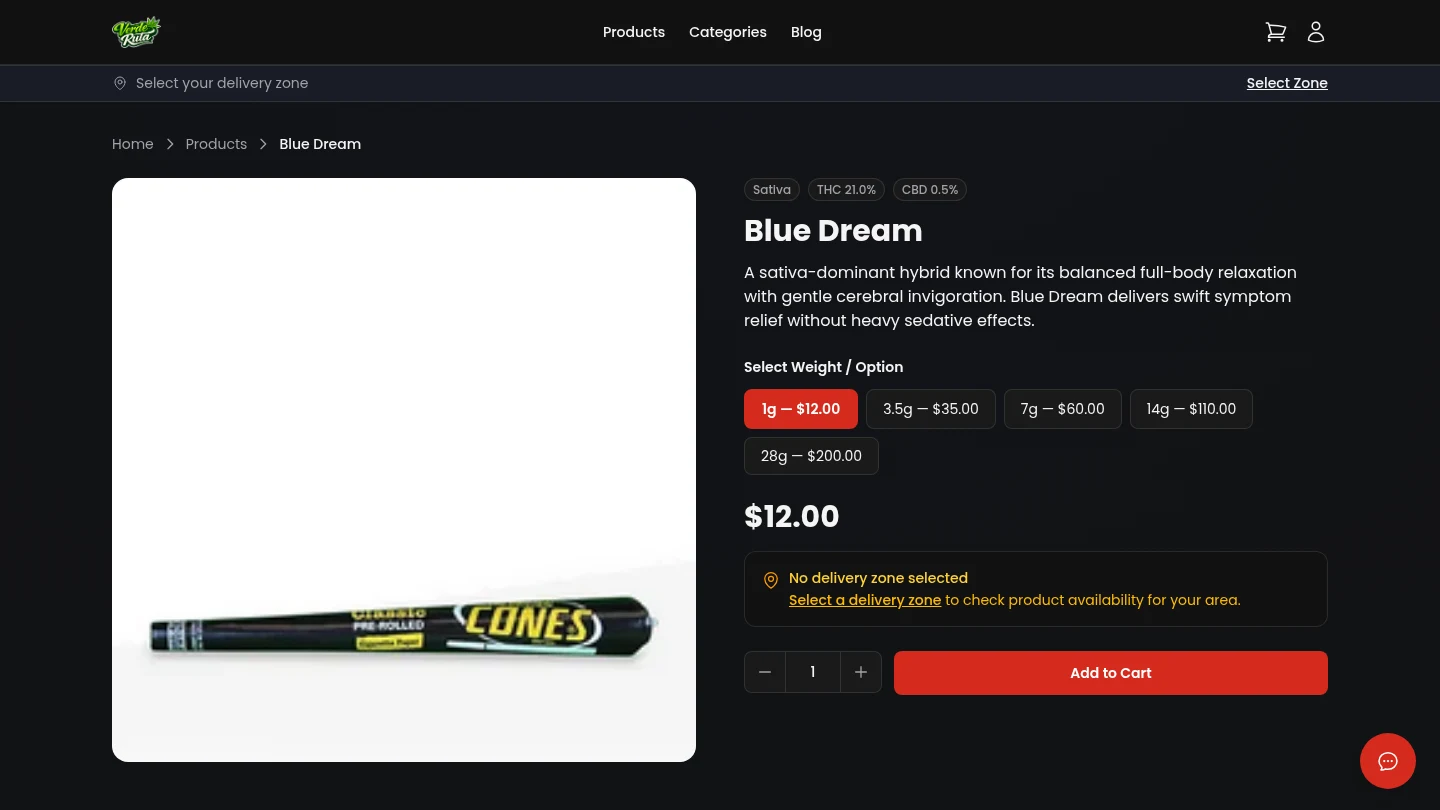
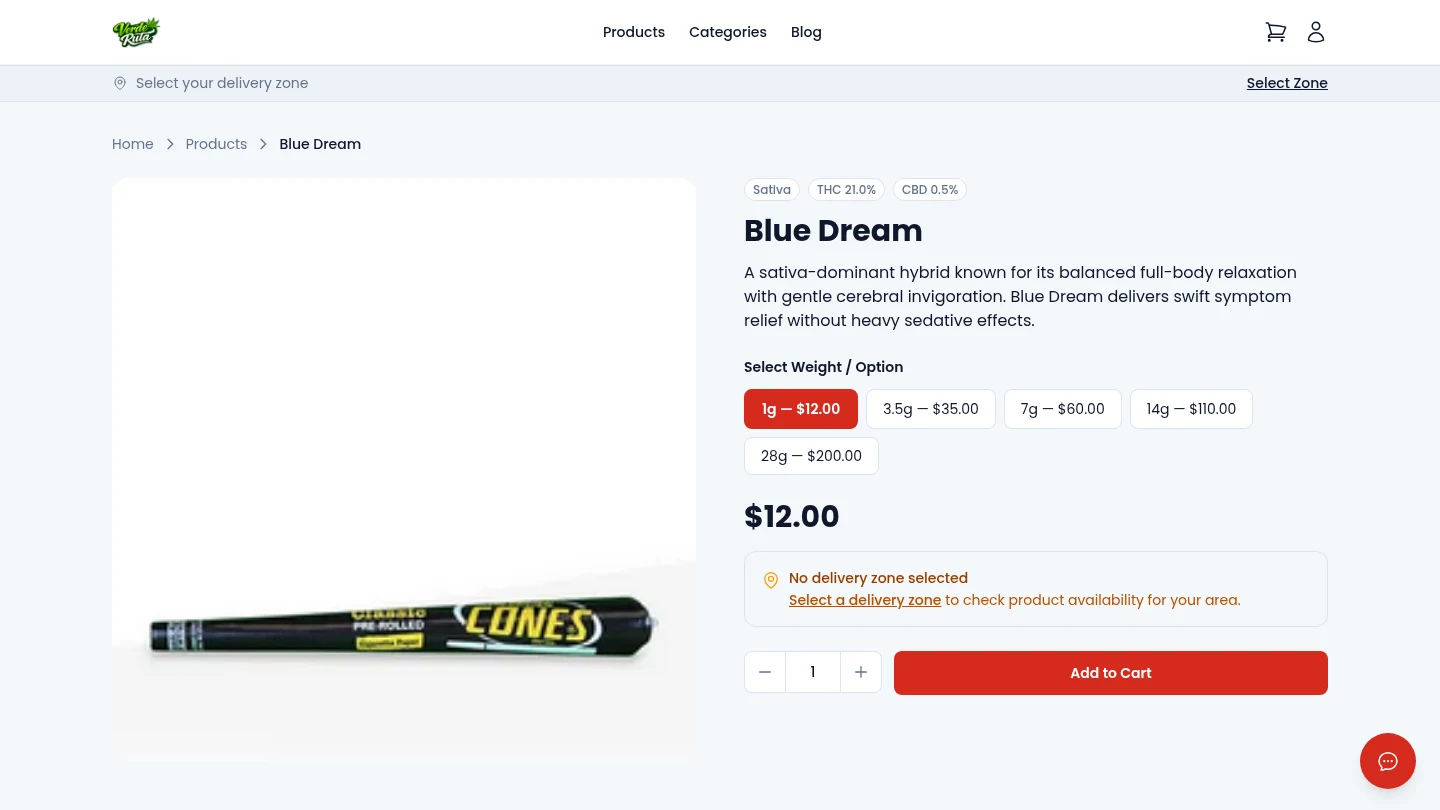
Products need valid size options and prices so customers can add to cart without confusion.
Category Status
Inactive categories are not meant to drive storefront navigation, even if products remain in your catalog.
Inventory State
Out-of-stock products may still be visible, but buy buttons change to restock request actions.

Zone Context During Browsing

Delivery zone checks affect trust early in the shopping journey. A shopper outside your active zones may browse but cannot complete checkout.

To reduce failed checkouts, keep active zone coverage accurate and ensure minimum order and delivery fees are clear.

Out-of-Stock Experience

When a product is unavailable, customers can submit a restock notification request. Those signups feed your Restock Notifications list.

This is demand data. High restock counts usually mean that item should be reordered soon.

Ops Checklist

  • Review inactive/archived products weekly to avoid stale catalog entries.
  • Keep category ordering aligned to your highest-converting menu paths.
  • Use clear product photos and strain details to help shoppers choose faster. Products with Indica/Sativa percentages display a strain ratio bar — choose between "Text" and "Slider" styles in Settings → General → Strain Bar Display.
  • Monitor restock demand and low-stock alerts together before reordering.