Order Management
View, process, and fulfill customer orders with status tracking and invoices.
Overview
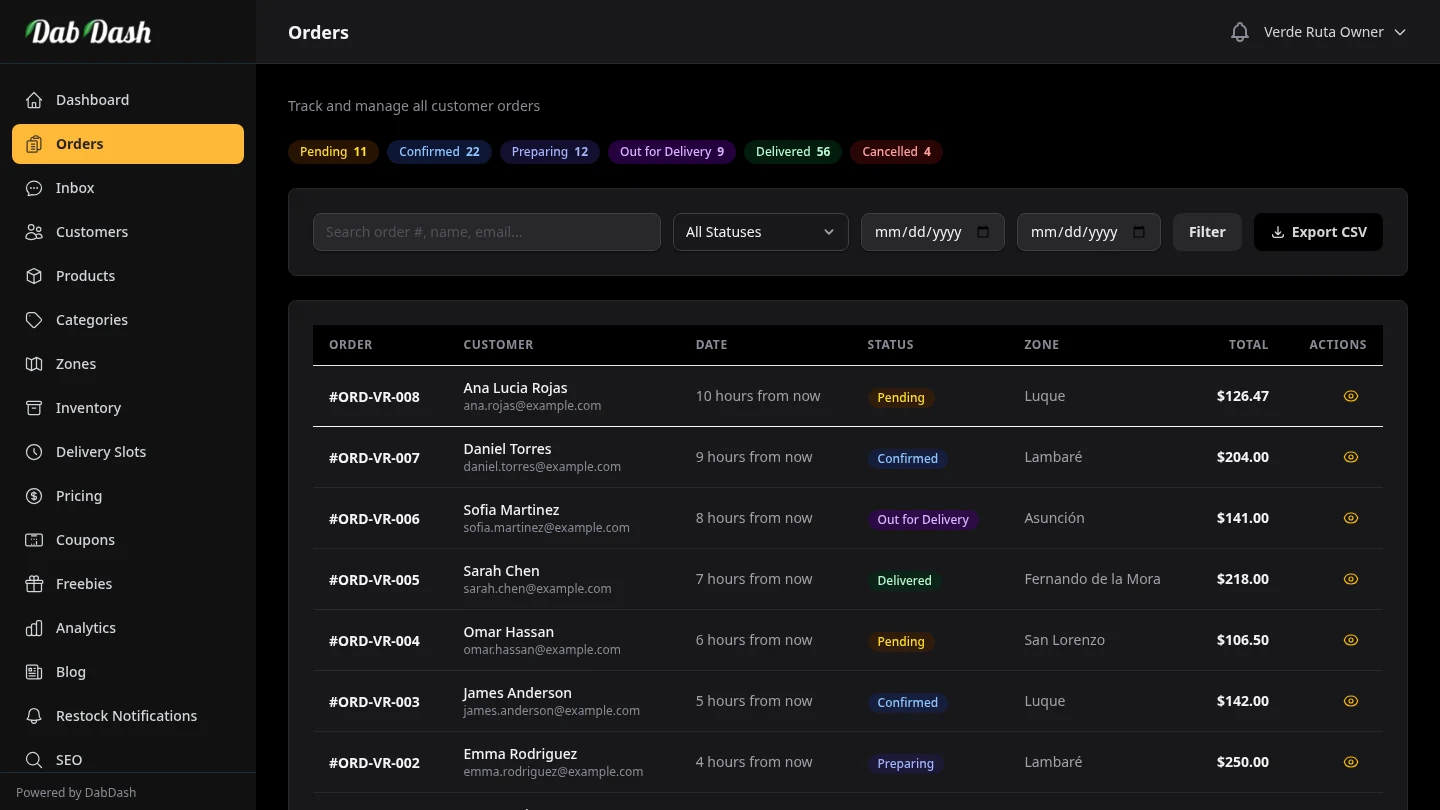
The Orders page is where you manage every order your store receives. From here you can search and filter orders, move orders through each delivery status, reverse orders, export data, and access detailed breakdowns for individual orders.
Orders are created automatically when a customer completes checkout on your storefront. You can also create orders manually for phone orders, walk-ins, or re-creating a cancelled order.
Status Summary Badges
Coloured badges at the top of the page show a live count for each order status. Only statuses that currently have orders appear.
| Status | Meaning |
|---|---|
| Pending | Order placed, payment received, not yet reviewed by your team. |
| Confirmed | You have reviewed the order and accepted it. Stock is deducted from inventory at this point. |
| Preparing | Your team is picking and packing the order. |
| Out for Delivery | The order is on its way to the customer. |
| Delivered | Order successfully handed to the customer. |
| Completed | Order is fully closed. Final state after delivery is confirmed. |
| Cancelled | Order was cancelled. You can optionally return stock to inventory. |
| Reversed | Order was reversed. Stock and loyalty points are handled per your choices. |
Order Status Lifecycle
Every order moves through a series of statuses from the moment it is placed until it is closed. Each status change triggers specific actions behind the scenes. Here is exactly what happens at every step.
The Normal Flow
Most orders follow this path from start to finish:
What Happens When You Change the Status
You mark it Confirmed. DabDash immediately deducts the stock for every item in the order from your inventory. If any product drops below its low-stock threshold, you get a notification. This is the only step where stock is deducted — it does not happen again later.
You mark it Preparing. This tells your team the order is being picked and packed. No stock changes happen — stock was already deducted when you confirmed.
You mark it Out for Delivery. The order is on its way. From this point forward, you can no longer add or remove items — only update delivery notes.
You mark it Delivered. The customer has received their order. You can still reverse the order from here if something went wrong.
You mark it Completed. The order is fulfilled and its revenue counts in your analytics. You can still edit a completed order to correct a mistake — change items, quantities, or prices, and the stock and the customer's loyalty points adjust to match. Only cancelled and reversed orders are fully locked.
Cancelling & Reversing
Orders can also leave the normal flow at several points. Here is when you can cancel or reverse, and what happens to your stock:
Cancelling an Order
Cancel from Pending — the order is dropped. No stock was deducted yet, so nothing needs to be restored.
Cancel from Confirmed or Preparing — DabDash restores all stock back to your inventory automatically. Items go back to their pre-order quantities.
Reversing an Order
You can reverse from Confirmed, Preparing, Out for Delivery, or Delivered. When you select Reverse, DabDash asks you two questions:
Return stock to inventory?
Yes — the items are put back on the shelf (stock quantities go back up). No — the customer keeps the products and your stock stays as-is. Choose this when the customer keeps the product.
Credit loyalty points instead of cash?
Yes — the order value is added to the customer's points balance. They can use these points at checkout on their next order. No — no points are credited. This option only appears if your loyalty program is turned on.
What You Can Edit at Each Stage
How much of an order you can change depends on where it is in the lifecycle:
| Status | What you can change | Stock effect |
|---|---|---|
| Pending | Everything — items, quantities, prices, customer, address, fees, notes | None (stock has not been deducted yet) |
| Confirmed / Preparing | Everything — but changing items triggers a stock adjustment prompt | You choose per item: deduct more, restore stock, or skip |
| Out for Delivery | Notes only — items and prices are locked while the driver is en route | None |
| Delivered / Completed | Everything — items, quantities, prices, and customer info. Use this to correct an order after the fact. | Changing items prompts a stock adjustment, and the customer's earned loyalty points are corrected to match the new total |
| Cancelled / Reversed | Nothing — the order is locked | None |
Key takeaway: Stock is deducted once when you confirm, and restored if you cancel or choose to return inventory on a reversal. Every stock change is recorded in the Inventory Audit Log so you always have a full history.
Search & Filters
The filter bar sticks to the top of the page as you scroll. Changes apply instantly — no need to press a Search or Apply button.
- Search
- Type any part of an order number, customer name, customer email, or product name. When you search for a product name (e.g. "Blue Dream"), DabDash returns every order that contains an item matching that name. Matched items appear expanded under each order row so you can see exactly which line items matched your search.
- Status filter
- Select a single status to see only orders at that stage — useful for working through your Pending queue or reviewing all Reversed orders in one view.
- Date range (From / To)
- Filter to a specific period. Use this for end-of-day reviews, weekly reporting, or finding orders placed during a promotion. Leave one date blank to filter from a start date without an end limit, or vice versa.
- Per-page
- Choose how many orders to show per page — 20, 50, 100, or 200. Larger pages mean fewer clicks but longer load times on very busy stores.
- Save / Clear filters
- Click the funnel icon next to the per-page selector to save your current filter combination. Saved filters are remembered in your browser and restored automatically on your next visit. A green funnel means filters are saved; a yellow icon means unsaved changes. Click Clear to reset all filters and remove any saved preset.
- Clear
- Appears when any filter is active. Click it to reset all filters and return to the full list.
All filters are preserved when you sort the table — changing the sort column does not reset your search or date range.
Live Mode
Click the Live toggle in the filter bar to turn on real-time order monitoring. When Live Mode is active, a pulsing green dot appears next to the button and DabDash polls for new orders automatically.
When a new order arrives, a toast notification slides in showing how many new orders are waiting. Click Refresh on the toast to reload the list with the new orders, or Dismiss to acknowledge without reloading.
A sound alert plays when new orders arrive (if your browser allows audio). Live Mode is ideal for busy stores that want to react to incoming orders without manually refreshing the page.
Exporting Orders
Click Export CSV in the filter bar to download a spreadsheet of your current filtered view. If you have active filters (status, date range, search), only matching orders are exported. Clear filters first if you want your full order history.
The CSV includes: order number, date, status, customer name/email/phone, zone, subtotal, discount, delivery fee, service fee, tax, total, payment method, payment status, and a summary of items ordered. Use this file for accounting, staff handovers, or reporting.
Order List & Sorting
The table shows 20 orders per page by default (adjustable via the per-page selector in the filter bar). Click any column header with an arrow icon to sort by that column. Click again to reverse the direction.
| Column | What it shows |
|---|---|
| Order | Unique order number. Click to open the full order detail. |
| Customer | Customer name, email (desktop), and delivery slot time (mobile). |
| Delivery Slot | The day and time window the customer selected (desktop only). |
| Status | Coloured status badge showing where this order is in your delivery flow. |
| Zone | The delivery zone the customer's address falls in (desktop only). |
| Total | The final amount charged, including discounts, delivery, and tax. |
Bulk Actions
Select multiple orders at once to update their status in bulk — saving time when you confirm, prepare, or deliver a batch of orders.
- Check the box on one or more rows to select those orders. Use the checkbox in the table header to select all orders on the current page.
- A dark panel slides up from the bottom of the screen showing how many orders are selected.
- Choose a status from the dropdown (e.g., Mark Confirmed).
- Click Apply. All selected orders move to that status.
Cancelling in bulk — a confirmation prompt appears before any orders are cancelled.
Reversing in bulk — a Reverse Options panel appears (see Reverse Options below) so you can choose how to handle inventory and loyalty points before confirming.
Reverse Options
When you mark an order as Reversed — either from the bulk actions bar or from inside the order detail — two options appear:
- Return inventory
- Tick this if the customer returned the products or the order was never actually delivered. DabDash adds the quantities back to your stock. Leave it unchecked if the customer keeps the items.
- Credit loyalty points
- Tick this to credit the equivalent order value as loyalty points to the customer's account. This option is only available if the Loyalty Points feature is active on your account.
Once a reversal is processed, the order's detail page records which options were chosen so you have a permanent audit trail.
Order Detail Page
Click any order number to open the full order detail. This page is split into a main column (items and discounts) and a sidebar (customer, address, delivery slot, and status controls).
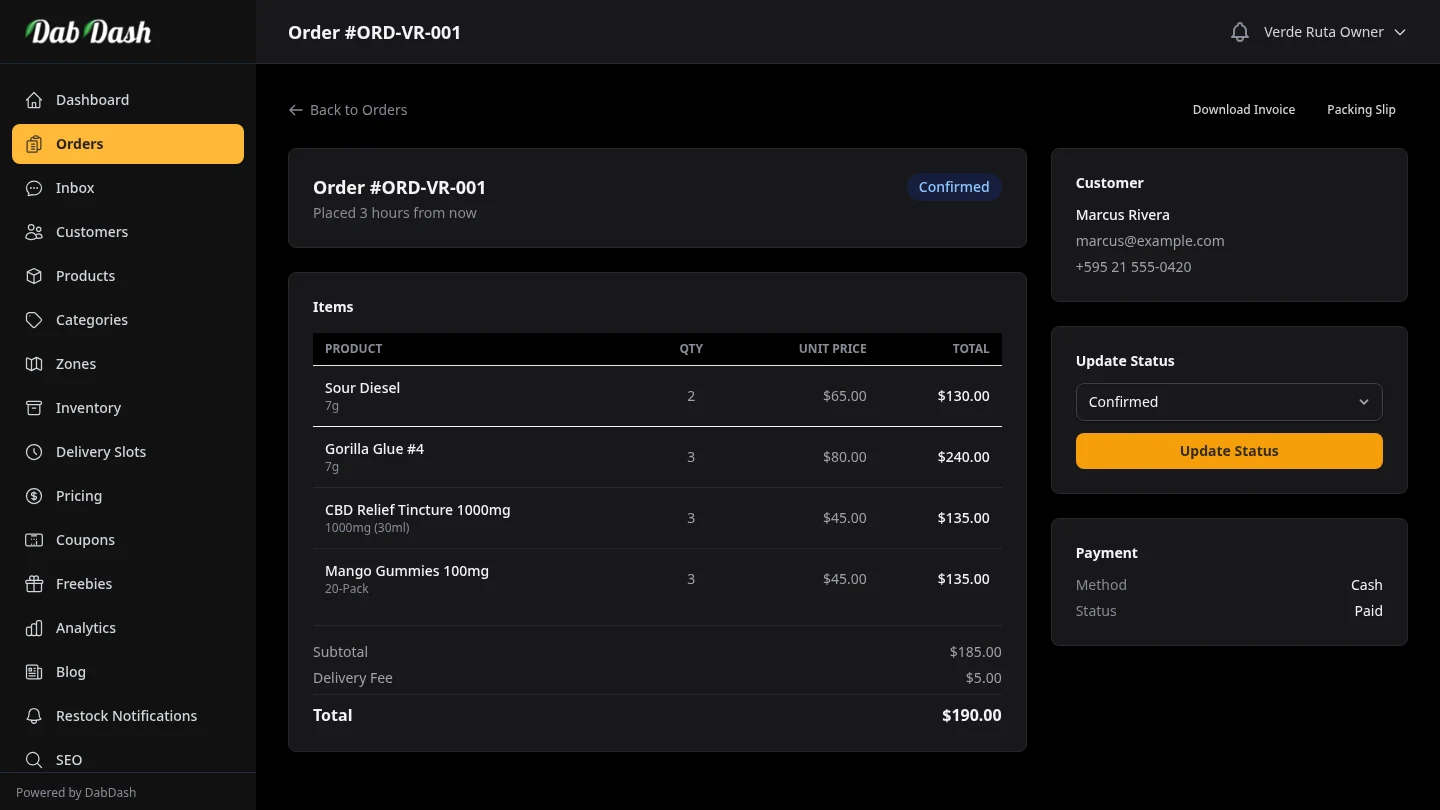
- Items & Totals
- Lists every product ordered with its quantity, unit price, any discount applied (Bundle Deal, coupon, or freebie), and the line total. The totals section below the table shows the full price breakdown: subtotal → discounts → delivery fee → service fee → tax → Total. A green savings bar appears when there are any discounts.
- Discount Breakdown
-
When any discount was applied, a separate card breaks it down by type:
- Bundle Deal — shows each group name, quantity requirement, and per-item savings.
- Promo Code — shows the code used, discount type, and per-item savings.
- Free Items — lists each freebie with its original price crossed out.
- Loyalty Points — shows points redeemed and the dollar value credited.
- Customer Details
- Name, email, and phone number. If the customer has a registered account, a link icon opens their full profile and order history. If the customer uploaded an ID photo at checkout, a secure link to view it appears here.
- Delivery Address
- The full address the customer entered at checkout, including any delivery notes they left. A map icon links directly to Google Maps for that address.
- Delivery Slot
- The day and time window the customer chose (e.g., Tuesday 10:00 AM – 2:00 PM). Use this to plan your delivery run and assign drivers.
- Update Status
- The status dropdown only shows valid next steps for the current order status, following the lifecycle: Pending → Confirmed → Preparing → Out for Delivery → Delivered → Completed. Select a new status and click Update Status. Reverse is available from the Confirmed, Preparing, Out for Delivery, and Delivered states. When you select Reversed, the reverse options (return inventory, loyalty points) appear before you confirm. Once an order is already Reversed, the card shows a summary of the decisions that were made.
Invoice & Packing Slip
Two PDF documents are available from every order detail page:
- Download Invoice
- A customer-facing document showing your store's logo, order number, date, itemised products, discounts, and totals. Send this to the customer for their records or for expense purposes.
- Packing Slip
- A lightweight document for your order prep and delivery team — shows the order number, customer name, delivery address, and list of items to pick and pack. Print one per order and include it in the bag.
Creating an Order
Click the Create Order button next to the status badges at the top of the Orders page. Use this for phone orders, walk-ins, or re-creating a cancelled order.
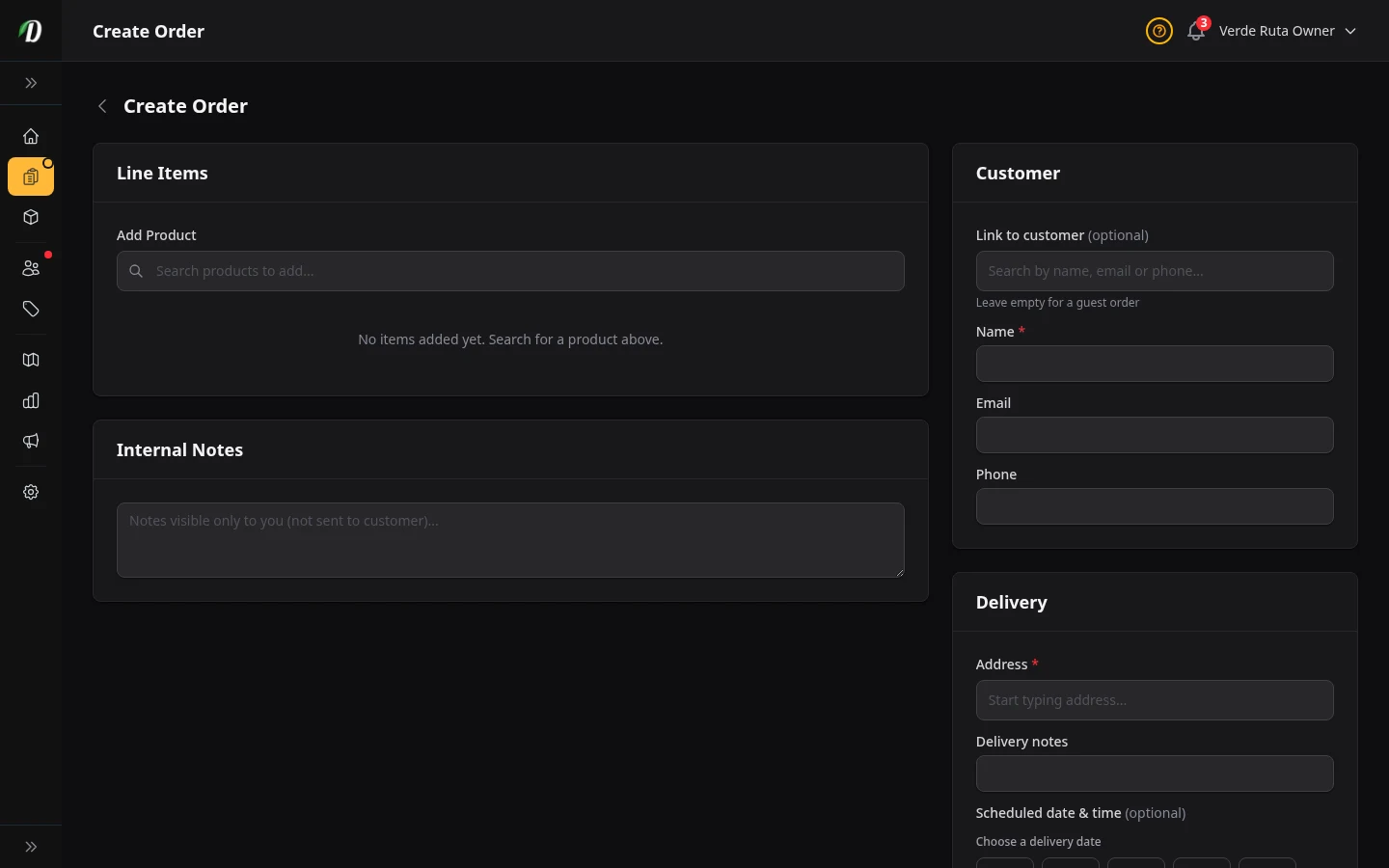
Step 1 — Add Products
Type a product name in the Add Product search box. Matching products appear with their photo, pricing type badge, and stock level. Products with weight or unit variations (like 1g, 3.5g, 7g) expand inline so you can pick the exact size. Click the + button to add it.
Each line item shows the product name, variation, quantity, price, and line total. You can change the quantity or override the price directly in the table. Click × to remove an item. The subtotal recalculates instantly as you make changes.
Step 2 — Set the Customer
Under Link to customer, search for an existing customer by name, email, or phone. When you select one, DabDash fills in their name, email, phone, and their most recent delivery address automatically. The customer pill shows their name and lifetime spend.
Leave the search empty for a guest order — type the customer's details into the Name, Email, and Phone fields manually.
Step 3 — Enter the Delivery Address
Start typing an address — Google autocomplete suggests matches as you type. Selecting a suggestion fills the city, province/state, and postal code, and verifies the coordinates. A green Address verified badge appears when the location is confirmed.
DabDash auto-detects the matching delivery zone from the address. The zone's delivery fee and service fee are applied automatically. You can override the zone or fees if needed.
Step 3b — Schedule a Delivery Time (Optional)
If your store has delivery slots configured, a Scheduled date & time picker appears below the delivery address. Select a date from the next 7 days — available time slots load automatically for that day.
Each slot shows its time window and availability. Slots that are fully booked appear greyed out and cannot be selected. Leave the date unselected to create an unscheduled (ASAP) order.
When you pick a date and slot, that delivery day is saved on the order. If your store uses On the delivery date for revenue reporting (Settings → Shop → Revenue Date), the order's revenue appears on that scheduled day — not only on the day you typed it in.
Step 4 — Review Totals & Submit
The Order Totals card shows: subtotal (from line items), delivery fee, service fee, discount, tax, and the final total. Every field except subtotal is editable — adjust the delivery fee for a loyal customer, add a manual discount, or set the tax amount.
Add any Internal Notes (visible only to your team — not shared with the customer). Use this for the reason the order was created manually, special handling notes, or driver instructions.
Click Create Order to save. The order starts in Pending status — move it through your normal workflow from there. No stock is deducted until you confirm the order.
Editing an Order
Open any order's detail page and click Edit Order to modify it. You can change items, quantities, prices, and customer info while an order is Pending, Confirmed, Preparing, Delivered, or Completed — so you can correct a delivered or completed order after the fact. While an order is Out for Delivery, only delivery notes can be changed (the driver is already carrying it). Cancelled and reversed orders are locked.
Editing a delivered or completed order corrects your records too. Changing items adjusts your inventory, and the new total automatically corrects the customer's earned loyalty points and the revenue counted for that day — using the same Revenue Date rule as your analytics (placed day or scheduled delivery day).
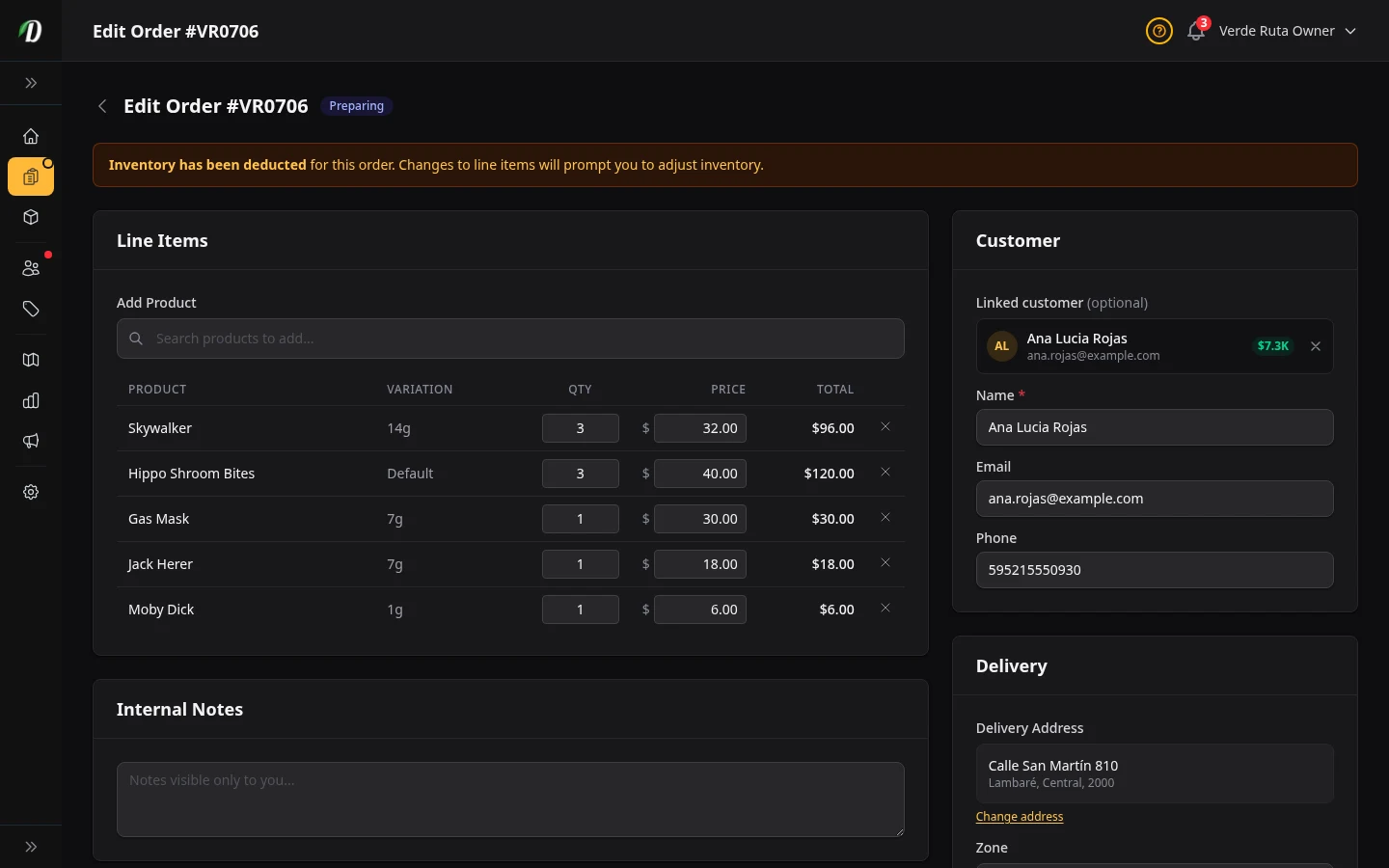
What You Can Change
- Add or remove products
- Use the product search to add new items, change quantities on existing ones, or click × to remove a line. Freebie items show a badge and cannot be edited — they were added automatically at checkout.
- Update customer details
- Change the name, email, or phone. You can also re-link to a different customer or switch from a guest order to a registered customer.
- Change the delivery address, zone, or time slot
- Type a new address or pick from the customer's saved addresses. Changing the zone updates the delivery and service fees automatically. You can also reschedule the delivery by picking a new date and time slot — available slots load for the selected day, with fully booked slots greyed out.
- Override fees, discount, or tax
- All fee fields update the total in real time.
Stock Adjustments on Confirmed Orders
If the order is Confirmed or Preparing, stock has already been deducted. An amber banner at the top of the page warns you.
When you save changes to line items, a confirmation dialog appears listing every stock adjustment. For each change you choose whether to apply it:
- Removed an item — choose to return its stock to inventory, or leave it deducted (e.g., product was already given away)
- Reduced the quantity — choose to restore the difference back to stock
- Increased the quantity or added a new item — choose to deduct the additional stock
Customer Notifications
When you save material changes (adding, removing, or changing items or prices), the customer receives an email summarising what changed. Internal notes are never shared with the customer.
Audit trail: Every edit is recorded in the order's activity log — who changed what and when. View the log from the order detail page.
Shipping Orders
If an order ships instead of being delivered by your own drivers, add the carrier and tracking number from the Shipping card on the order detail page. This card is hidden on cancelled and refunded orders.

Adding Tracking
- Carrier
- Optional. Type the shipping company's name (e.g., UPS, USPS, FedEx, DHL, Canada Post, Royal Mail, Australia Post, Thailand Post). When the name matches one of these carriers, DabDash shows an Open carrier tracking link that jumps straight to that carrier's tracking page.
- Tracking number
- Required. The tracking number your carrier gave you for the package.
Click Save & Notify Customer the first time you add tracking to an order. DabDash stamps the order as shipped and emails your customer their tracking link right away — the button relabels to Update Tracking after that, so later corrections (a typo in the tracking number, a wrong carrier) save silently without sending another email.
Tip: If you use a webhook to notify another system when an order ships, the order.shipped event fires at the same moment — see Webhooks for the full payload.
Orders in a shipping zone are the most common case for tracking, but you can add a carrier and tracking number to any order — useful if you occasionally mail an order outside your normal delivery area.
Frequently Asked Questions
How do I create a manual order in DabDash?
Click Create Order on the Orders page, search for an existing customer or enter new customer details, add products and quantities, select a delivery zone and time slot, and confirm. Manual orders are useful for phone orders, walk-ins, or re-creating a cancelled order.
How do I change an order status in DabDash?
Open the order detail page and click the next status button in the workflow: Pending → Confirmed → Preparing → Out for Delivery → Delivered. Stock is automatically deducted from inventory when you move an order to Confirmed status.
When is stock deducted from inventory in DabDash?
Stock is deducted when an order is moved to Confirmed status. If the order is later cancelled or refunded, the stock is automatically returned to inventory. Orders in Pending status do not reserve stock.
How do I export orders from DabDash?
On the Orders page, apply any filters you need (date range, status, zone, search), then click Export CSV. The download includes every order matching the current filter as a spreadsheet with all order details, customer info, and line items.
How do I process a refund or cancellation in DabDash?
Open the order detail page and click Refund or Cancel. You can choose whether to return stock to inventory and whether to restore the customer's loyalty points. The refund status appears in the order timeline. DabDash is cash-on-delivery so no card reversal is needed.
How do I add tracking to a shipped order in DabDash?
Open the order detail page and use the Shipping card. Enter the carrier name (optional) and the tracking number (required), then click Save & Notify Customer. The first save stamps the order as shipped and emails the customer their tracking link; later saves just update the details.
When does DabDash email the customer that their order shipped?
The first time you save a tracking number on an order, DabDash stamps it as shipped, emails the customer a shipping notification with their tracking link, and fires an order.shipped webhook if you have one configured. Editing the carrier or tracking number again later does not send another email.