Driver Scheduling
Schedule single-day shifts and set recurring weekly shift templates so the next two weeks build themselves.
Overview
Driver scheduling is where you decide who is working, and when. A shift is a block of time a driver is available to take deliveries — for example, "Friday 4:00 PM to 9:00 PM". When a shift is in place, that driver can be assigned the orders that come in during that window, and you always know who is on the road.
You can build your schedule three ways: add a single shift by hand, set up a recurring weekly pattern that fills itself in automatically, or post an open shift that any of your drivers can claim. Most stores use a mix — a steady weekly template for the regulars, plus the odd one-off shift for busy days. Everything you set here uses your store's local time, so the times you type are the times your drivers see.
Scheduling a Single Shift
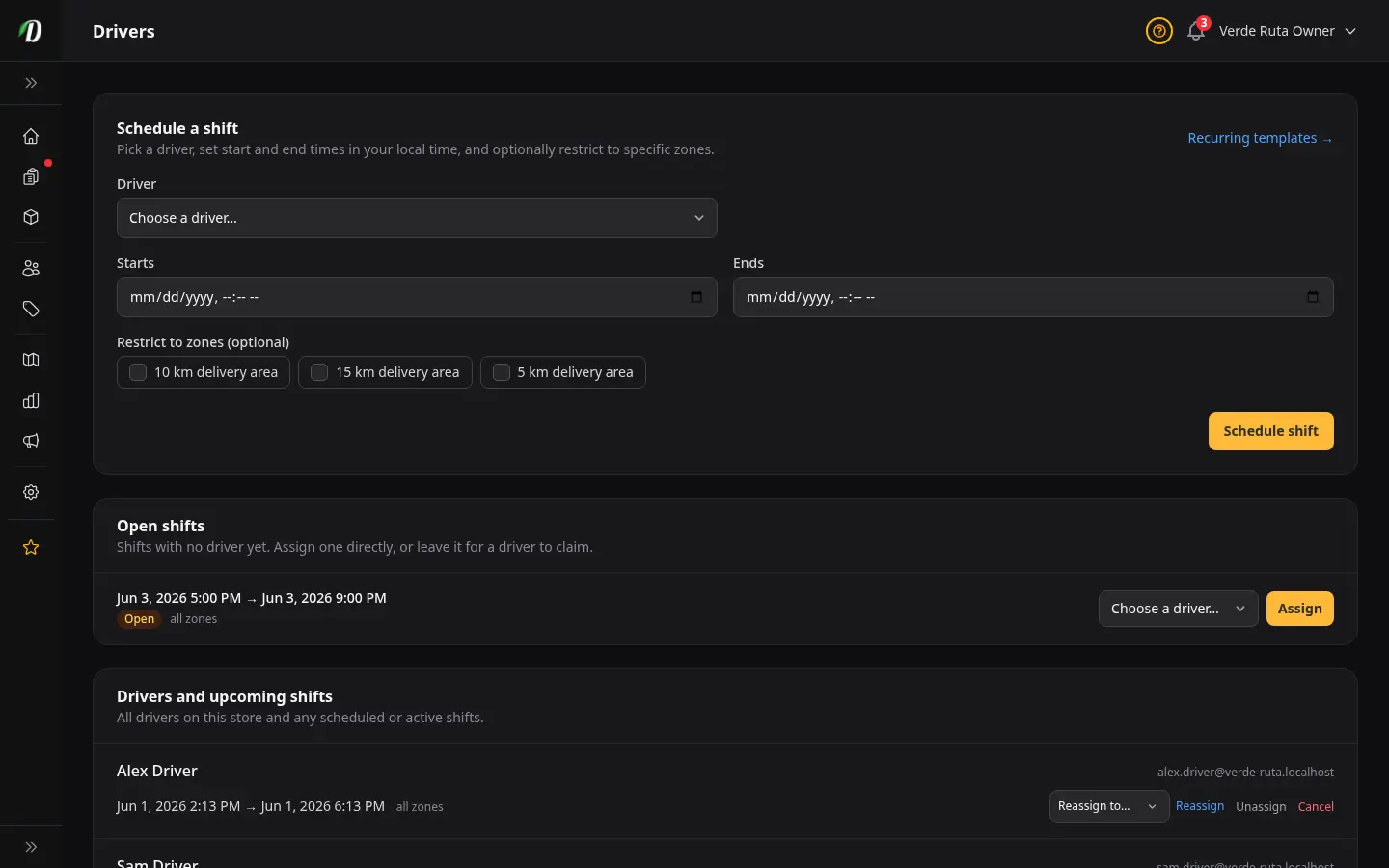
Use the Schedule a shift quick form at the top of the page when you need to add one shift on one day. Fill in each field:
- Driver
- Pick the driver who will work this shift. Leave this blank to create an open shift instead — a shift with no name attached that any of your drivers can claim for themselves (more on that below).
- Start time / End time
- The window the driver is available, in your store's local time. Set a realistic block — long enough to cover the delivery slots you expect to be busy, but not so long that a driver is sitting idle. The times you enter are exactly what the driver sees.
- Zone restriction (optional)
- Limit the shift to a single delivery zone if you want this driver to cover only one area — for example, only downtown. Leave it unset and the driver is available across everywhere you deliver. Most stores leave this open unless they run dedicated drivers per area.
Save the form and the shift appears straight away against that driver in the upcoming shifts list at the bottom of the page.
Recurring Templates
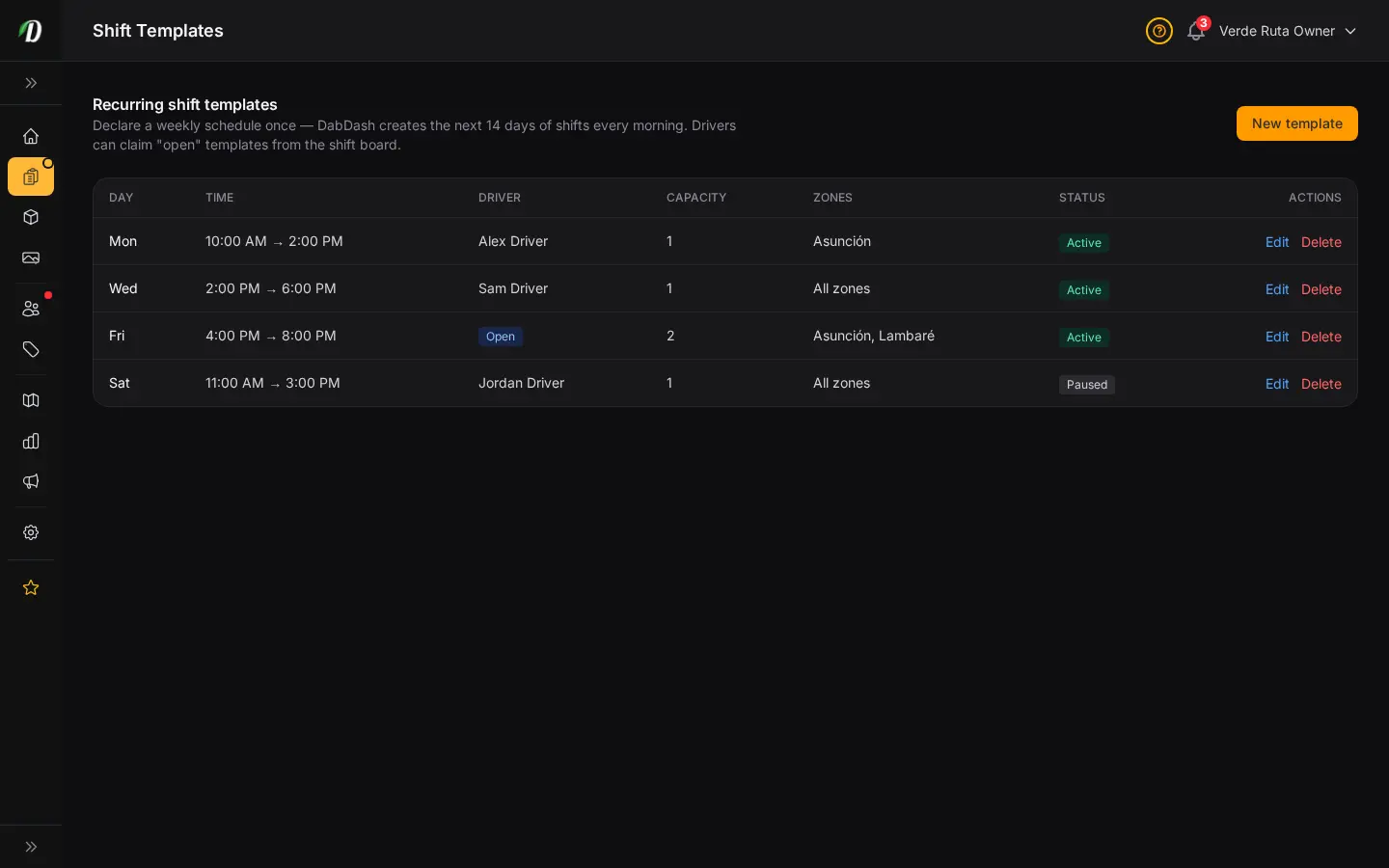
If the same driver works the same hours every week, you do not want to re-type their shift over and over. A recurring template lets you set the weekly pattern once — for example, "Maria, every Thursday and Friday, 5:00 PM to 10:00 PM" — and the platform builds those shifts for you.
Each morning, the next couple of weeks of shifts are created automatically from your active templates, so your schedule is always filled out two weeks ahead without you lifting a finger. You and your drivers can see what is coming and plan around it.
A template has a few simple controls:
- Driver and days
- Who works the pattern, and which days of the week it repeats on. On the new-template form you can tick more than one day at once — pick Monday, Wednesday and Friday together and the platform creates a separate template for each, so you set up a whole week in one step instead of one day at a time.
- Start time / End time
- The hours the shift runs on each of those days, in your store's local time.
- Pause
- Pausing a template stops it from generating any new shifts, but keeps all of its settings intact. This is the right tool for a holiday week or a driver's time off — pause it, then switch it back on later without rebuilding anything. Shifts that were already generated stay on the schedule until you remove them.
- Delete
- Deleting a template stops it from making any new shifts. Because some of its shifts may already be on the schedule for the coming days, we ask what should happen to those: keep them (drivers keep the upcoming shifts they can already see) or remove them (take those upcoming, unclaimed shifts off the schedule too). Either way, a shift a driver is already working — or one that's finished — is never touched.
Templates and the one-off form work together: the template handles your regular week, and you can still add single shifts on top for a busy weekend or to cover a gap.
Open Shifts & Capacity
An open shift is a shift you post with the driver left blank. Instead of you assigning it, any of your drivers can see it and claim it for themselves. This is handy when you know you need extra coverage on Saturday night but you do not mind which driver picks it up — post the open shift and let your team sort it out.
Once a driver claims an open shift, it becomes their shift and disappears from the list of available ones, so two drivers can never grab the same slot. If nobody claims it, it simply stays open until you assign it directly or remove it.
Assigning an open shift yourself. Open the Drivers page and find the Open shifts section near the top — it lists every shift still waiting for a driver. Pick a driver from the dropdown next to the shift and click Assign. The shift becomes that driver's, exactly as if they had claimed it, and the driver is notified. This is the quick way to fill a gap when you do not want to wait for someone to pick it up. If a shift is already assigned and you change your mind, you can reassign it to a different driver or unassign it to put it back into the open pool.
Capacity is about not over-scheduling. Look at how many orders a single driver can realistically handle in a window before you add another shift — if one driver can cover a delivery window comfortably, a second open shift may sit empty. The upcoming shifts list gives you the at-a-glance view you need to balance enough drivers against the orders you expect.
Your Drivers & Upcoming Shifts
The lower part of the page lists your drivers alongside the shifts they have coming up. This is your single source of truth for the schedule — at a glance you can see who is working today, who is on tomorrow, and where there are gaps you still need to fill.
Use it to spot problems before they happen: a day with no driver scheduled, a driver double-booked across two windows, or an open shift nobody has claimed yet. From here you can add a shift to cover a gap or adjust your templates so the pattern fixes itself going forward.
Tips
- Set up a recurring template for your regular drivers first — it does the bulk of your scheduling work and keeps the next two weeks filled automatically.
- Pause a template instead of deleting it when a driver is away. Pausing keeps every setting so you can switch it back on with one click when they return.
- Use the one-off form for exceptions only — covering a busy weekend, a last-minute gap, or a trial shift for a new driver.
- Post open shifts for the times you need coverage but do not care which driver takes them. It saves you the back-and-forth of asking around.
- Only add a zone restriction when you genuinely run dedicated drivers per area. Leaving it open gives you the most flexibility when assigning orders.
- Set each driver's start location under Settings → Staff & Permissions (store, their address, or the middle of a zone) so optimized routes begin where they actually begin.
- Check the upcoming shifts list at the start of each day. It is the fastest way to catch an unstaffed window before customers start ordering.
Frequently Asked Questions
How do I schedule a driver shift in DabDash?
Go to Drivers, pick a driver, set the start and end times in your local time, and optionally restrict the shift to specific zones. Save and the shift appears under that driver and in their own portal right away.
What are recurring shift templates in DabDash?
A template is a weekly schedule you set once — one or more days, a time window, and how many drivers you need. Tick several days on the form and DabDash creates a template for each at once. Every morning it builds the next two weeks of shifts from your templates automatically, so you never re-enter the same shifts every week.
What is an "open" shift in DabDash?
An open shift is one with no driver assigned yet. Leave the driver blank on a template or single shift and it becomes claimable — drivers can pick it up themselves from their shift board, first come, first served.