Order Status & Lifecycle
Every order status explained — what each one means, what happens when you change it, and which transitions are allowed.
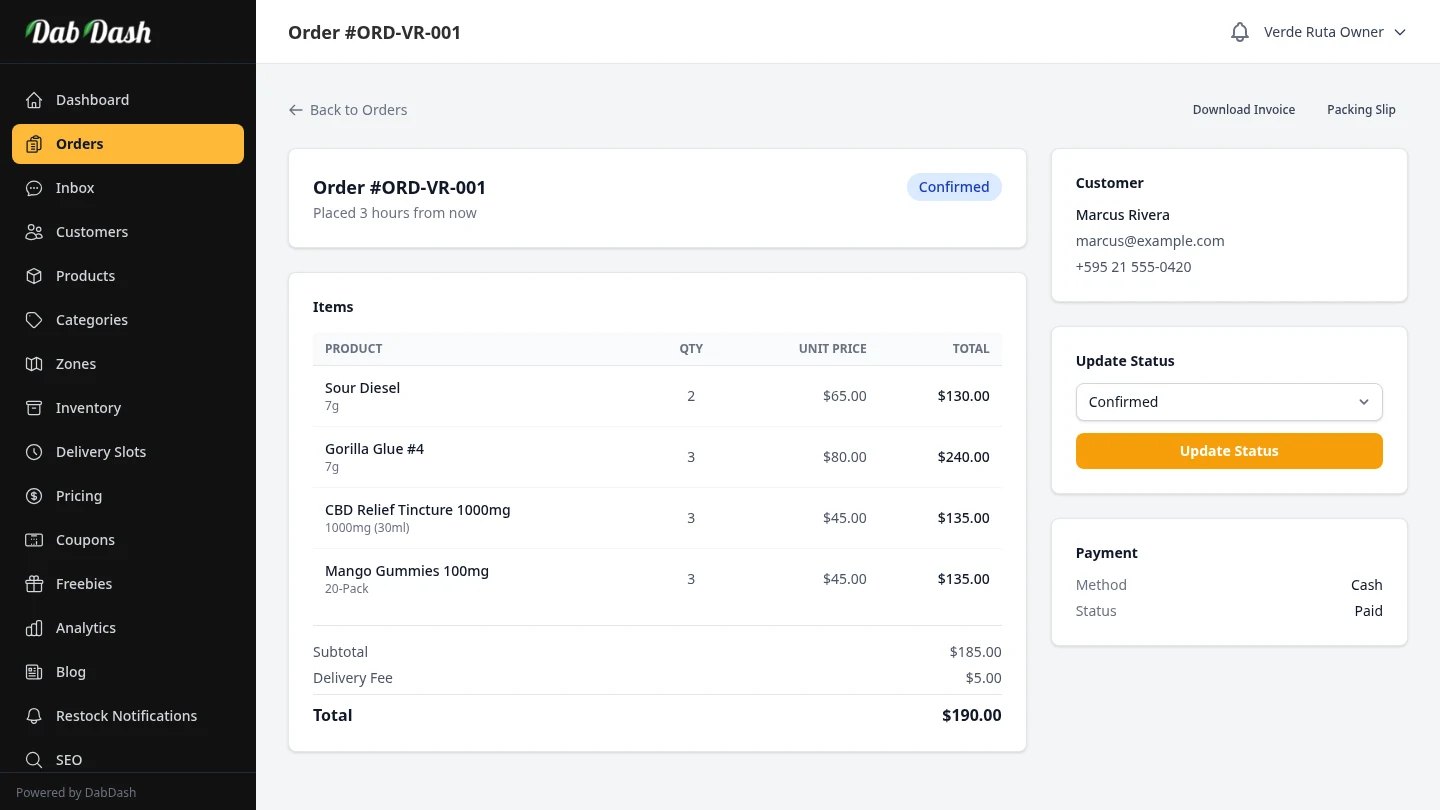
Overview
Every order in DabDash moves through a fixed set of statuses from the moment a customer checks out to final closure. Each status has a specific meaning, specific actions available, and specific effects on your inventory and customer account.
This article explains every status, which moves are allowed, and exactly what happens behind the scenes when you change a status — so you never accidentally deduct stock twice or get surprised by a locked order.
The Full Lifecycle at a Glance
The diagram below shows every allowed status move. Green arrows are the normal delivery path. Red arrows are the cancellation and refund paths available at each stage.
Key rule: You can skip forward steps. If you go straight from Confirmed to Out for Delivery, DabDash handles it — stock is deducted at the first forward move just as it would be at Confirmed. You cannot go backwards, and terminal states (Completed, Cancelled, Refunded) cannot be changed at all.
Status Reference
Every new order starts here — whether placed by a customer through your storefront or created manually by you. The order is waiting for your review.
- Stock effect
- None — stock is not deducted yet
- Can move to
- Confirmed · Preparing · Out for Delivery · Delivered · Completed · Cancelled
- Can edit
- Everything — items, quantities, customer info, notes
- Counts toward revenue?
- Yes
You have reviewed and accepted the order. Stock is deducted here if this is the first forward move from Pending — every item's quantity is deducted at the first forward status change, whether that is Confirmed, Out for Delivery, or anything in between.
- Stock effect
- Deducted immediately for all items
- Can move to
- Preparing · Out for Delivery · Delivered · Completed · Cancelled · Refunded
- Can edit
- Items, quantities, customer info, notes
- Low-stock alert
- Sent if stock drops to or below your threshold
Weight products (flower, hash): DabDash deducts grams, not unit counts. A 3.5g order deducts exactly 3.5g from the inventory pool for that product.
Your team has started packing the order. No inventory change happens at this step — stock was already deducted at Confirmed.
- Stock effect
- None
- Can move to
- Out for Delivery · Delivered · Completed · Cancelled · Refunded
- Can edit
- Items, quantities, customer info, notes
The order is on its way. Line item editing is locked at this point — you can still update the customer's notes or delivery instructions.
- Stock effect
- None
- Can move to
- Delivered · Completed · Cancelled · Refunded
- Can edit
- Notes and customer info only — not line items
The customer has the order. You can still issue a refund from this state if something went wrong (wrong items, quality issue, etc.) before you close it out.
- Stock effect
- None
- Can move to
- Completed · Refunded
- Can edit
- Notes and customer info only — not line items
The order is fully closed. Nothing can be edited. No refund is possible. This is the final state for a successfully fulfilled order.
- Stock effect
- None
- Can move to
- Nothing — fully locked
- Counts toward revenue?
- Yes
The order was voided. If it had already been confirmed (stock deducted), the stock is automatically returned to your inventory. If it was still Pending (stock never deducted), no inventory change is needed and none is made.
- Stock effect
- Returned if it was previously deducted
- Available from
- Pending, Confirmed, Preparing, Out for Delivery, Delivered
- Counts toward revenue?
- No — removed from all reports
The order was reversed after being confirmed or further along. Unlike Cancelled, a Refund gives you two choices: whether to return stock to inventory, and whether to restore the customer's loyalty points. DabDash is cash-on-delivery, so there is no card reversal.
- Stock effect
- Optional — you decide per refund
- Loyalty points
- Optional — you decide per refund
- Available from
- Confirmed, Preparing, Out for Delivery, Delivered
- Counts toward revenue?
- No — removed from all reports
Quick Reference: Allowed Transitions
| Current Status | Can Move To | Edit Line Items? | Stock Effect on Change |
|---|---|---|---|
| Pending | Confirmed, Preparing, Out for Delivery, Delivered, Completed, Cancelled | Yes | → First forward move: stock deducted · → Cancelled: none (never deducted) |
| Confirmed | Preparing, Out for Delivery, Delivered, Completed, Cancelled, Refunded | Yes | → Cancelled/Refunded: stock returned (if opted in) |
| Preparing | Out for Delivery, Delivered, Completed, Cancelled, Refunded | Yes | → Cancelled/Refunded: stock returned (if opted in) |
| Out for Delivery | Delivered, Completed, Cancelled, Refunded | No — notes only | → Cancelled/Refunded: stock returned (if opted in) |
| Delivered | Completed, Refunded | No — notes only | → Refunded: stock returned (if opted in) |
| Completed | None — locked | No | N/A |
| Cancelled | None — locked | No | N/A |
| Refunded | None — locked | No | N/A |
Revenue & Analytics Impact
Your revenue reports include orders that are Pending, Confirmed, Preparing, Out for Delivery, Delivered, or Completed. Moving an order to Cancelled or Refunded removes it from all revenue calculations immediately.
Counts toward revenue
- ✓ Pending
- ✓ Confirmed
- ✓ Preparing
- ✓ Out for Delivery
- ✓ Delivered
- ✓ Completed
Excluded from revenue
- ✗ Cancelled
- ✗ Refunded
Cancel vs. Refund — Which to Use
| Situation | Use | Why |
|---|---|---|
| Customer changed their mind before you confirmed | Cancel | Stock was never deducted — Cancel is cleaner |
| Address was undeliverable after you confirmed | Cancel | Cancel automatically returns stock to inventory |
| Customer received the wrong items or a short order | Refund | Order was delivered — Refund lets you optionally return stock and points |
| Driver could not complete the delivery | Cancel | Order is Out for Delivery — Cancel returns stock automatically. Use Refund instead if you want to optionally restore loyalty points too. |
| Quality complaint after delivery | Refund | Order is Delivered — Refund is the only reverse option available |
Common Questions
Can I undo a status change?
You cannot go backwards through the delivery path. Once an order is Confirmed, it cannot return to Pending. If you made a mistake, use Cancel (for active orders) or Refund (once confirmed or further along). Terminal states — Completed, Cancelled, and Refunded — cannot be changed at all.
What if I confirm an order and then need to add an item?
You can still edit line items while the order is Confirmed or Preparing. Open the order, click Edit, and add the new item. DabDash will ask whether to deduct the added item's stock from inventory. You can also decrease quantities or remove items and choose whether to return that stock.
Does DabDash send the customer an email when I change the status?
A confirmation email is sent to the customer when their order is first placed. If you edit the order's line items and the customer has an email address on file, a notification is sent to let them know their order was updated.
Can I apply a status change to many orders at once?
Yes. On the Orders list page, select multiple orders using the checkboxes, then use the bulk action bar at the bottom to move all selected orders to a new status in one click. The same transition rules apply — only valid moves are allowed per order.
Frequently Asked Questions
What are the order statuses in DabDash?
DabDash has 8 order statuses: Pending (new order, not yet reviewed), Confirmed (accepted — stock is deducted), Preparing (being packed), Out for Delivery (on the road), Delivered (handed to customer), Completed (fully closed), Cancelled (voided — stock returned), and Refunded (reversed — stock and loyalty points optionally returned).
Can I skip order statuses in DabDash?
Yes — you can skip forward steps. For example, you can move an order straight from Confirmed to Out for Delivery without marking it Preparing first. DabDash deducts stock at the first forward move if it hasn't happened yet. You cannot go backwards, and terminal states (Completed, Cancelled, Refunded) cannot be changed at all.
When does DabDash deduct stock from inventory?
Stock is deducted the first time you move an order forward from Pending — whether that is to Confirmed, Out for Delivery, or any other forward status. Cancellations and refunds automatically return the stock. Orders stuck at Pending never affect your inventory.
What is the difference between Cancelled and Refunded in DabDash?
Cancelled is used when an order will not be fulfilled — stock is always returned. Refunded is for orders that were confirmed or further along — you choose whether to return stock and whether to credit loyalty points back to the customer. Both are terminal states and cannot be changed after.
What happens to loyalty points when I refund an order in DabDash?
During a refund, you see a checkbox to restore the customer's loyalty points. If you check it, the points earned on that order are added back to the customer's balance immediately. You can also choose to return the stock to inventory at the same time.
Can I edit an order after it is out for delivery?
You can edit notes and customer information on Out for Delivery and Delivered orders, but you cannot change line items at that stage. Line items can only be changed while the order is Pending, Confirmed, or Preparing. Completed, Cancelled, and Refunded orders are fully locked.