Inventory Valuation
See the real-time value of your current stock at cost and retail price with unit conversion and stock distribution.
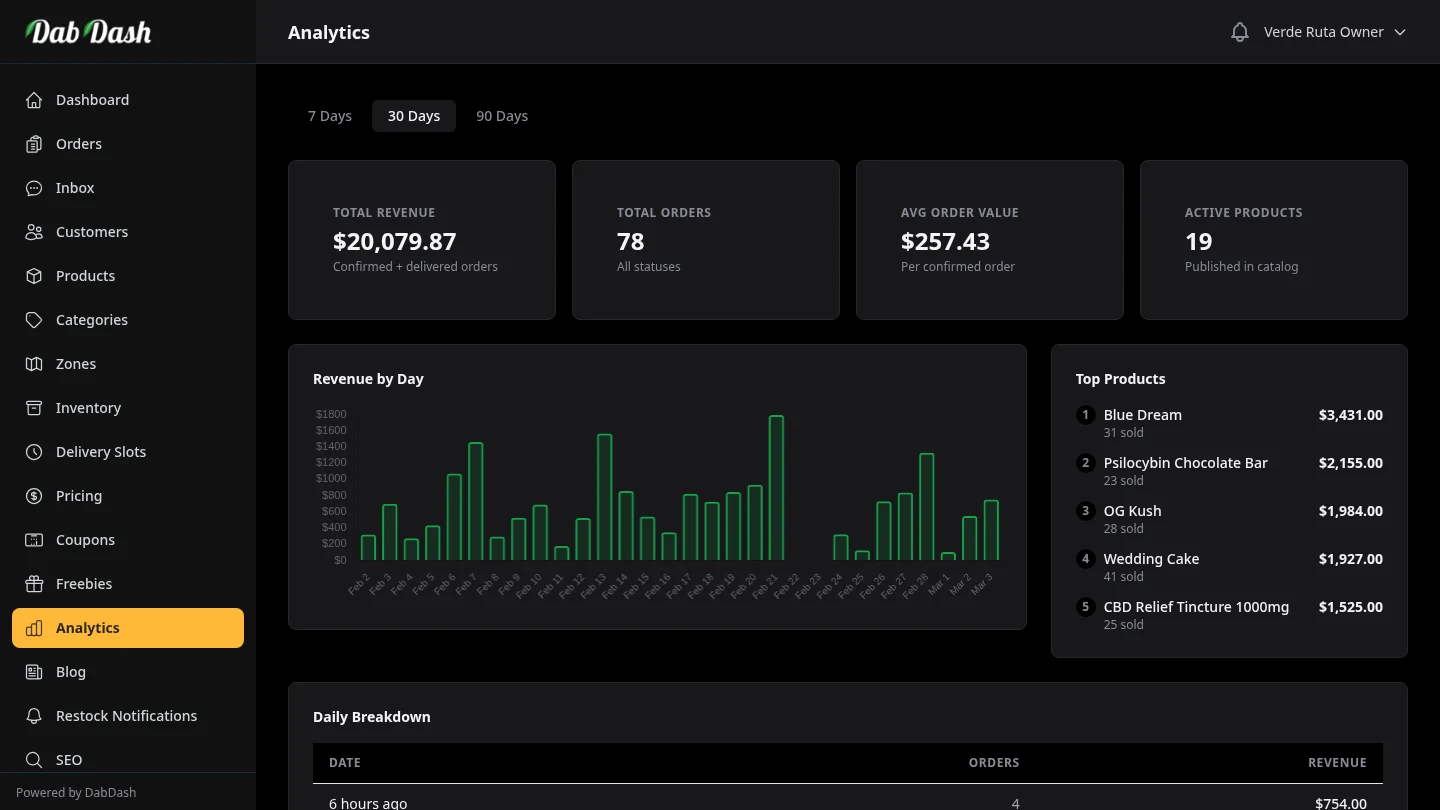
Overview
The Inventory Valuation tab shows a real-time snapshot of what your current stock is worth — at both cost and retail price. Unlike other analytics reports, this is not filtered by date range: it reflects your inventory right now.
Use this report before placing purchase orders, during end-of-month checks, or whenever you need to know the total value of stock on hand.
Value Summary
- Total Inventory Value (at cost)
- Sum of stock quantity multiplied by cost price across all in-stock products and variations. This is what your stock cost you.
- Total Inventory Value (at retail)
- Sum of stock quantity multiplied by retail price. The difference between cost and retail is your potential margin — shown as a percentage with a visual bar.
- Products In Stock
- Count of products currently carrying positive stock quantity.
- Missing Cost Prices
- Products with stock but no cost price configured. These understate your total cost valuation — add cost prices in the pricing structure editor for accurate totals.
Stock Distribution
The pie chart shows how your inventory is split between weight-tracked products (flower / weighed items) and unit-tracked products (everything else). This helps you understand the composition of your stock at a glance.
Unit Conversion
Use the weight unit selector to switch how stock and prices are displayed: grams (g), ounces (oz), pounds (lb), or kilograms (kg). Weight-tracked products show cost and retail per the selected unit. Unit-tracked products always show per-unit pricing regardless of the selector.
Product Table
The paginated table shows each product with its stock details. Click any column header to sort. Use the search bar, category dropdown, and type filter to narrow results.
- Product Name
- Product name with a type badge indicating pricing structure.
- Stock
- Current stock on hand. Hidden on mobile.
- Cost Price
- Wholesale cost per unit or per selected weight unit. An amber warning icon means no cost price is set. Hidden on medium screens.
- Retail Price
- Selling price per unit or per selected weight unit. Hidden on large screens.
- Value
- Total inventory value (stock times retail price) for this product.
Type Badges
Each product row shows a badge indicating its pricing structure: Simple, Weight, Unit, Var × Weight (matrix with weight tiers), or Var × Unit (matrix with unit tiers). Weight-tracked products show a purple W badge and unit-tracked products show a blue U badge.
Expanding Variations
Products with variations can be expanded with the arrow icon to show per-variation breakdowns including individual stock, cost price, retail price, and value.
Tips
- Use this report before placing purchase orders — sort by stock to see which products are running low.
- Products with an amber warning icon have no cost price. Add cost prices in the pricing structure editor for accurate valuation totals.
- Compare the cost and retail totals to understand your potential margin. A large gap means healthy margins; a small gap suggests tight pricing.
- Use the type filter to focus on specific pricing structures — for example, filter to Weight products to see the value of your flower inventory.
Frequently Asked Questions
How do I see what my current inventory is worth in DabDash?
Open Analytics and click the Inventory Valuation tab. Two headline numbers show your total inventory value at cost (what you paid) and at retail (what you would earn at current prices). The difference is your potential margin, displayed as a percentage with a visual bar.
Can I switch weight units in DabDash inventory valuation?
Yes — use the unit selector to switch between grams, ounces, pounds, and kilograms. Weight-tracked products show cost and retail prices in the selected unit. Unit-tracked products always show per-unit pricing regardless of the weight selector.
What do the type badges mean in DabDash inventory valuation?
Each product row shows a badge indicating its pricing structure type: Simple, Weight, Unit, Var × Weight (matrix with weight tiers), or Var × Unit (matrix with unit tiers). Weight-tracked products show a purple W badge and unit-tracked products show a blue U badge.
Why does DabDash inventory valuation show a missing cost warning?
The amber warning appears when products have stock on hand but no cost price configured. These products are excluded from the total cost valuation, making your inventory value understated. Add cost prices in the product pricing structures to get accurate totals.