Notification Settings
Choose which alerts you get by email or push — orders, low stock, and restock requests.
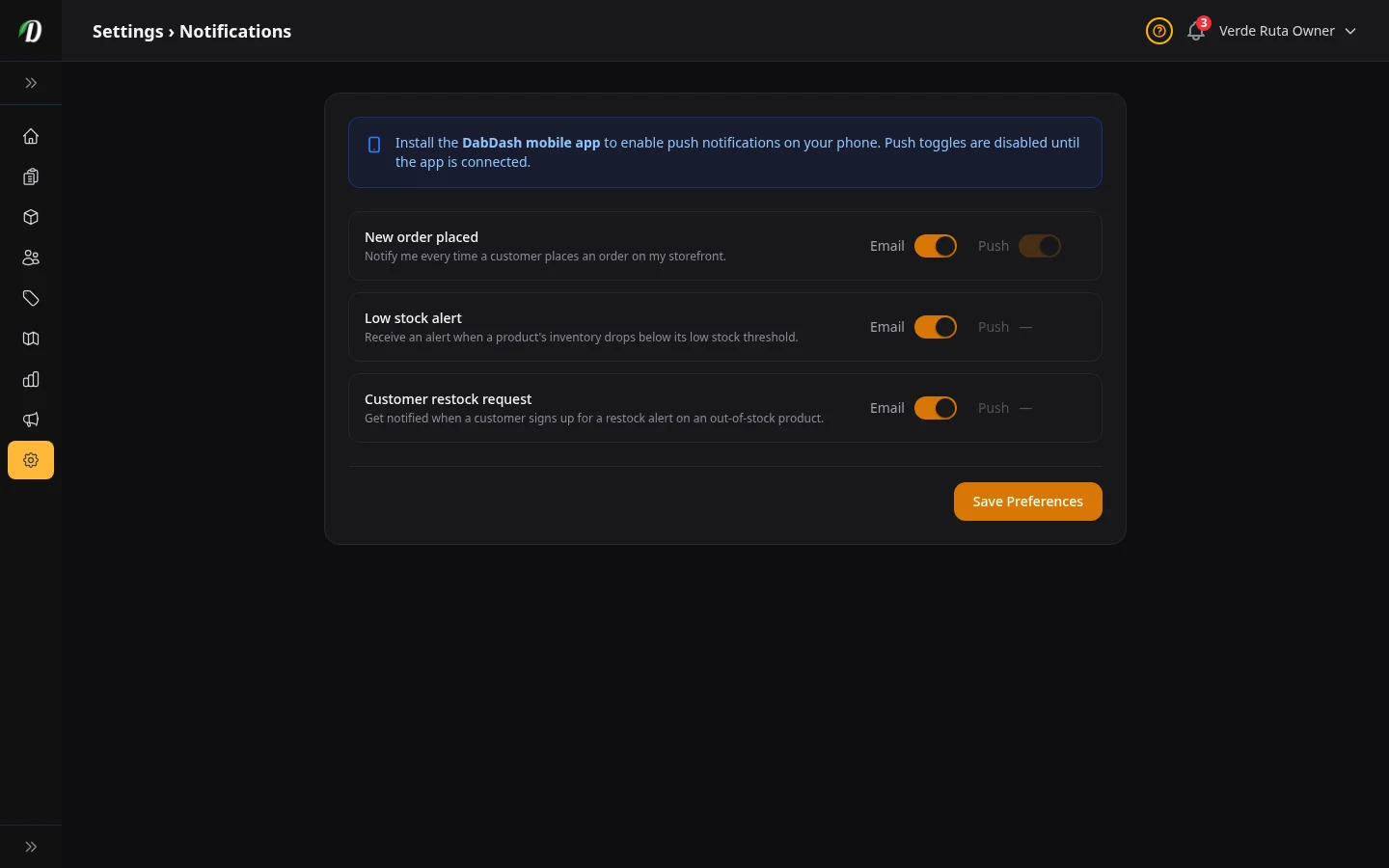
What this page does
Three things can happen in your store that you probably want to know about right away: a new order, low stock, or a customer asking you to restock something. This page lets you pick which of those send you an email and, for new orders, a push notification to your phone.
Each notification type has an Email toggle and, where supported, a Push toggle. Push notifications require the DabDash mobile app — if the app is not connected, push toggles are disabled and a notice appears at the top of the page explaining how to enable them.
New order placed
This fires every time a customer finishes checkout and places an order.
- Sends an email to the address you signed up with. Most store owners keep this on so they know when to start packing an order.
- Push
- Sends a notification directly to your phone. You need the DabDash mobile app installed and logged in for this to work — the toggle stays grayed out until the app is connected.
Low stock alert
This fires when a product's stock drops below the threshold you set for it. You configure per-product thresholds on the Inventory page; the store-wide defaults live in Settings → Shop.
Good to know: The alert fires only once per product when stock hits the threshold — not on every sale after that. You get one heads-up, not a flood of emails.
- Available. Toggle on to receive the alert by email.
- Push
- Not available for this event. Email only.
Customer restock request
When a product is out of stock, customers can tap a button on the product page to say "Tell me when this is back." Each request sends you an email.
Why this matters: It tells you exactly which products people are waiting for. If many customers are waiting for the same item, restock that one first.
You can see all pending restock requests under Restock Notifications in the sidebar.
- Available. Toggle on to receive an email each time a customer signs up for a restock alert.
- Push
- Not available for this event. Email only.
Tips
- Keep "New order" email on — you don't want to miss orders.
- Enable push for new orders and install the DabDash mobile app so you're notified instantly, even when your dashboard isn't open.
- Set low-stock thresholds on your best-selling products first. Go to the Inventory page and enter a threshold for each product.
- Check the Restock Notifications page regularly to see what your customers are waiting for.
Frequently Asked Questions
How do I get email notifications for new orders in DabDash?
Go to Settings → Notifications and toggle the Email switch for New Orders. DabDash sends an email to your registered account address every time a customer places an order.
How do I set up low-stock email alerts in DabDash?
In Settings → Notifications, toggle Email for Low Stock Alerts. The alert fires once per product when stock drops to or below the threshold you set on the Inventory page. Set thresholds on each product to start receiving alerts.