Your Store Info
Set your business name, address, phone number, subdomain, and timezone.
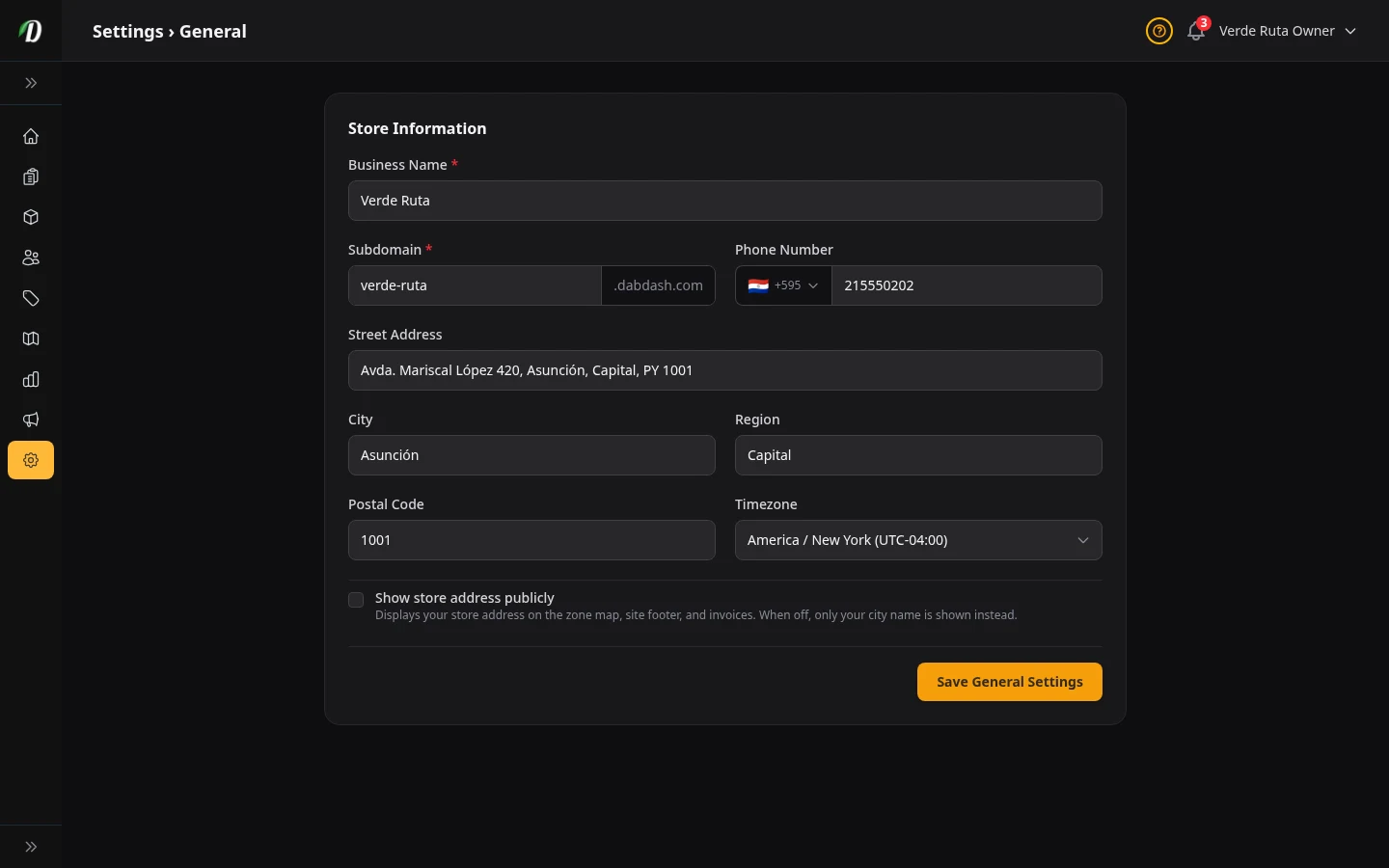
What this page does
This is where you put in the basic facts about your business. Your name, your address, your phone number, and your web address all live here.
Everything you type here shows up in other places — on your online store, on invoices customers get, and on the map where people pick their delivery zone.
Your business name, web address (subdomain), phone, street address, and timezone all live here. The name shows on your store, emails, and invoices.
Business Name
This is the name customers see everywhere — at the top of your store, in emails they get from you, and on their receipts.
What happens when you change it: The new name shows up right away on your store and in all future emails. Old emails and invoices keep the name they were sent with.
The name customers see everywhere — at the top of your store, on emails, and on receipts. Change it any time.
Subdomain (your web address)
Your subdomain is the first part of your store's web address. If you type mango, your store lives at mango.dabdash.com.
Only lowercase letters, numbers, and dashes are allowed. No spaces.
Watch out: If you change this, the old address stops working right away. Anyone who saved the old link will get a "not found" page. Only change it if you really need to.
This is the first part of your web address. Only lowercase letters, numbers, and dashes.
Phone Number
Your business phone number. It shows up on invoices and in the footer of your store (if you turn on "Show store address publicly"). Pick your country from the dropdown so the number formats correctly.
Address
Your street address, city, state/region, and postal code. This is your physical location.
Where it shows up: On invoices, on the delivery zone map (as a pin), and in the store footer if you turn on "Show store address publicly."
If you work from home: You can leave "Show store address publicly" turned off. That way only your city shows — not your full street address.
Timezone
This controls what time your store thinks it is. Order times, delivery windows, and reports all use this timezone.
How to pick: Start typing your city name and pick the right one from the list. If you are in Los Angeles, pick America/Los_Angeles.
Address Lookup
This setting lives on Settings → Integrations, on the Address Lookup card. It chooses how addresses are suggested as customers type at checkout. It sits there rather than here because the Google option needs your own Google API key, which you paste on the same card.
What happens when you change it: The next time someone starts typing an address, suggestions come from the option you picked. Orders already placed are not affected.
| Option | What customers get | Cost | Where lookups run |
|---|---|---|---|
| Google — more accurate, needs your own key | The strongest address suggestions in most countries. Requires your own Google API key, pasted on the same card. If the key ever stops working, suggestions switch to DabDash Autocomplete automatically and we show you a warning on your dashboard, so orders keep coming in. | Uses your existing Google Maps connection. | United States. |
| DabDash Autocomplete | Address suggestions without a Google key. $0.01 from platform credits when a suggestion is accepted. | $0.01 per accepted address. | DabDash. |
DabDash Autocomplete is the default. Choose Google only after your own key is saved and the Places API is enabled.
Show store address publicly
This is a checkbox at the bottom of the form.
Turned on: Your full street address shows on the delivery zone map, the store footer, and customer invoices.
Turned off: Only your city name shows. Good if you run your business from a home address and don't want to share it.
Saving your changes
Click the Save General Settings button at the bottom. If something is wrong (like a missing name), you will see a red message telling you what to fix.
Frequently Asked Questions
How do I change my store name in DabDash?
Go to Settings → General, update the Store Name field, and click Save General Settings. The new name appears immediately on your storefront header, in customer email notifications, and on printed invoices.
How do I change my DabDash subdomain?
In Settings → General, update the Subdomain field and save. Your store moves to the new address (newname.dabdash.com) immediately. Note that any bookmarks to the old subdomain will stop working, so update any links in your marketing.
Why does the timezone setting matter in DabDash?
DabDash uses your timezone for all order timestamps, delivery slot scheduling, analytics date grouping, blog post scheduling, and email notification timing. Set it to your local timezone so times match your actual business hours and reports show the correct days.