Metrc Integration US Only
Connect your Metrc API key, sync packages, link products to package labels, and turn on automatic compliance reporting. US stores only.
Overview
If your dispensary operates in a US state that uses Metrc for cannabis track-and-trace, DabDash can automatically report every sale to Metrc on your behalf. No manual entry. No missed receipts.
The setup has four steps: connect your API key, sync your active packages, link each product to its Metrc package, then turn on reporting. After that, every delivered order reports automatically.
US stores only. Metrc is a US government system. This feature is only visible if your store is registered in a US state where Metrc is the regulator. Stores in other countries will not see Metrc settings.
Navigate to Settings → Metrc in your admin sidebar to get started.
Step 1 — Connect Your API Key
Metrc issues each licensed business a User API Key through their web portal. You'll need this key to connect DabDash.
- Log into Metrc at your state's Metrc URL and go to your profile settings.
- Find and copy your User API Key.
- Back in DabDash, go to Settings → Metrc.
- Select your State from the dropdown.
- Paste your User API Key into the field.
- Click Connect Metrc.
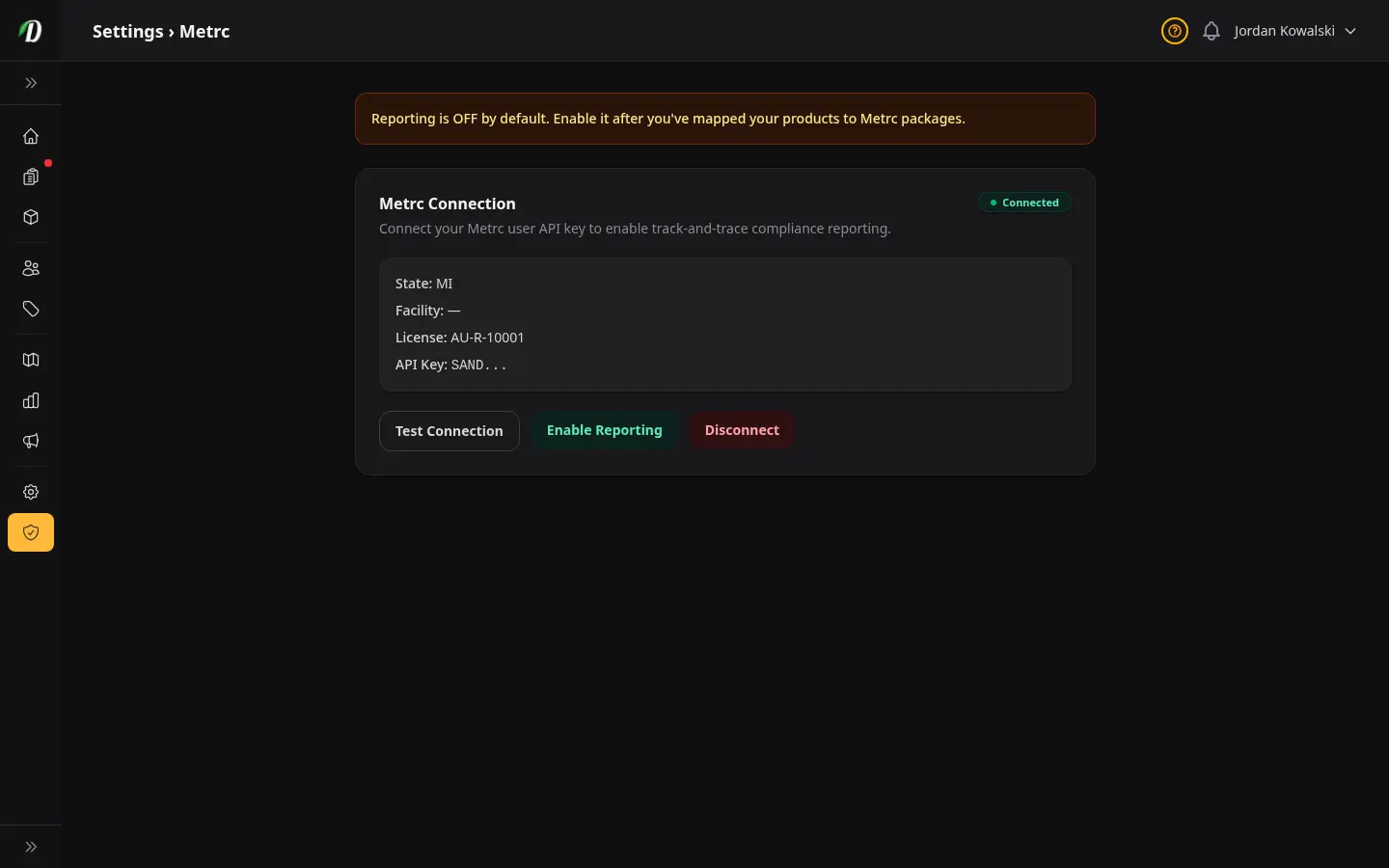
DabDash tests the connection immediately. Once confirmed, the status badge turns green and shows your facility name and license number.
Reporting is off by default. Connecting your API key puts DabDash in read-only mode — it syncs your packages but doesn't report yet. You turn reporting on after you've linked your products.
Step 2 — Check Your Packages
Once connected, DabDash automatically syncs your active packages from Metrc every 15 minutes. Go to Settings → Metrc → Packages (or click through from the Metrc settings page) to see them.
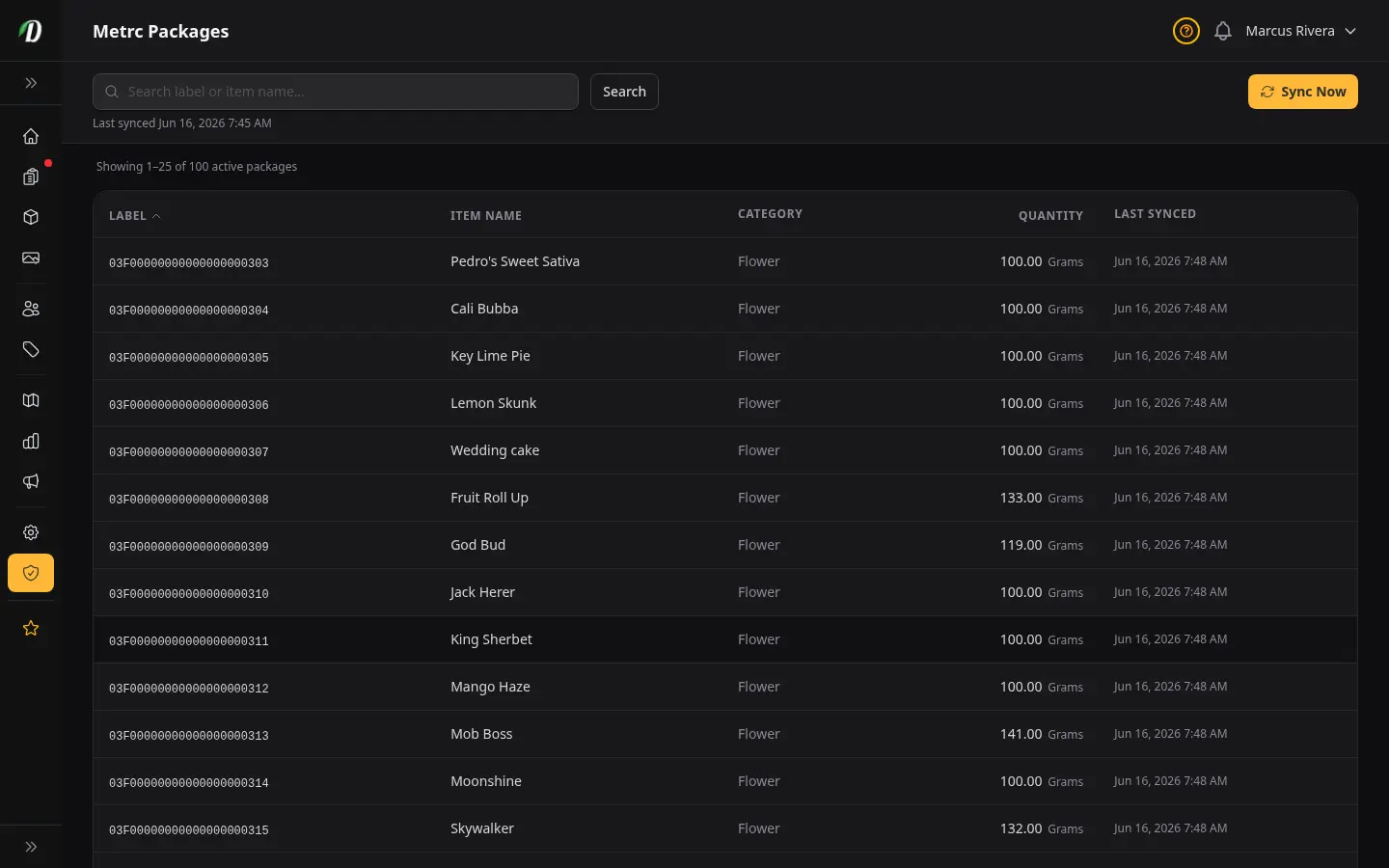
Each row shows the package label (the 24-character code on the Metrc tag), the item name, the category, and the current quantity. These are the packages you'll link to your DabDash products in the next step.
If no packages appear, click Sync Now to trigger a manual pull from Metrc.
- Sync Now
- Triggers an immediate pull from Metrc. Use this after receiving a new shipment or if the package list looks out of date.
- Search
- Filter the list by package label or item name. Useful when you have many active packages and need to find a specific one.
- Last Synced
- Shows when each package was last pulled from Metrc. If this is more than an hour old, click Sync Now.
Step 3 — Link Products to Packages
Before DabDash can report a sale to Metrc, it needs to know which Metrc package each of your products comes from. This is the mapping step — you do it once per product and then forget about it.
Go to Settings → Metrc → Mapping to see every product that still needs a package linked.
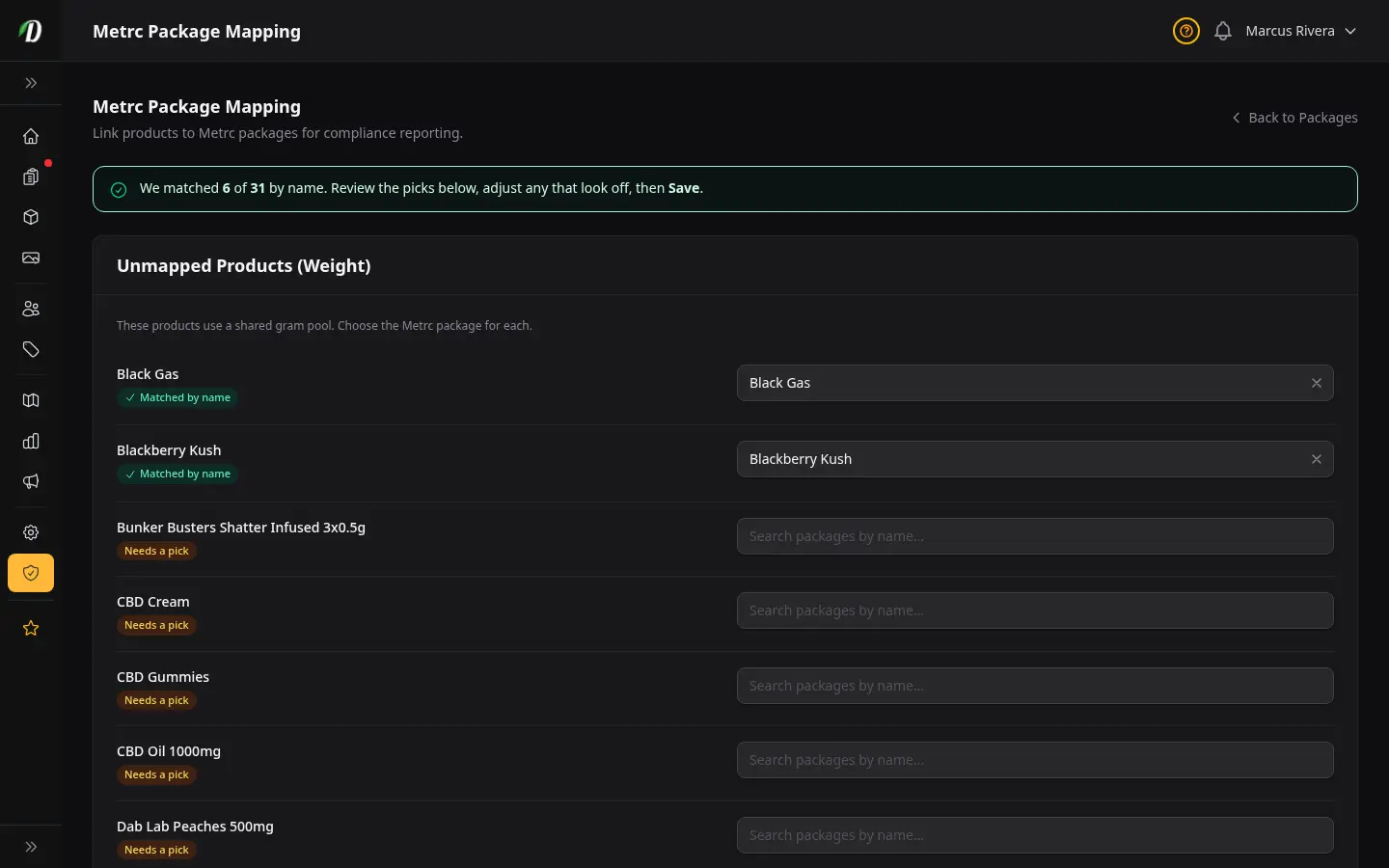
The page has two sections:
- Unmapped Products (Weight)
- Flower, hash, and other products sold by the gram. Each product here draws from a single Metrc package — enter the 24-character label once and all size variations (1g, 3.5g, 7g etc.) report from that package.
- Unmapped Variations (Unit)
- Pre-rolls, edibles, cartridges, and other products sold by the piece. Each variation (e.g. a 5-pack vs a 10-pack) links to its own Metrc package since they're tracked separately.
Start typing a label in any field and DabDash will suggest matching packages from your synced list. Select one or type the full 24-character code directly.
When you're done, click Save Mappings. If a product is already mapped, it won't appear here.
Unit mismatch protection. DabDash checks that the package's unit of measure matches your product type. A gram package can't be linked to a unit-counted product. If there's a mismatch, DabDash blocks it with a clear error message so the wrong receipt can never be sent.
Step 4 — Turn On Reporting
Once every active product is linked to a Metrc package, go back to Settings → Metrc and click Enable Reporting.
The banner at the top of the page changes from amber to green: "Reporting is ON. Delivered orders are automatically reported to Metrc."
From this point on, every order that moves to a delivery status automatically queues a compliance report. DabDash sends it to Metrc within the minute, in the background, without any action needed from you.
The Enable Reporting button won't appear until all active products are mapped. This protects you from accidentally turning on reporting before setup is complete.
Checking Compliance Status
Go to Settings → Metrc → Compliance to see a real-time view of your reporting health.
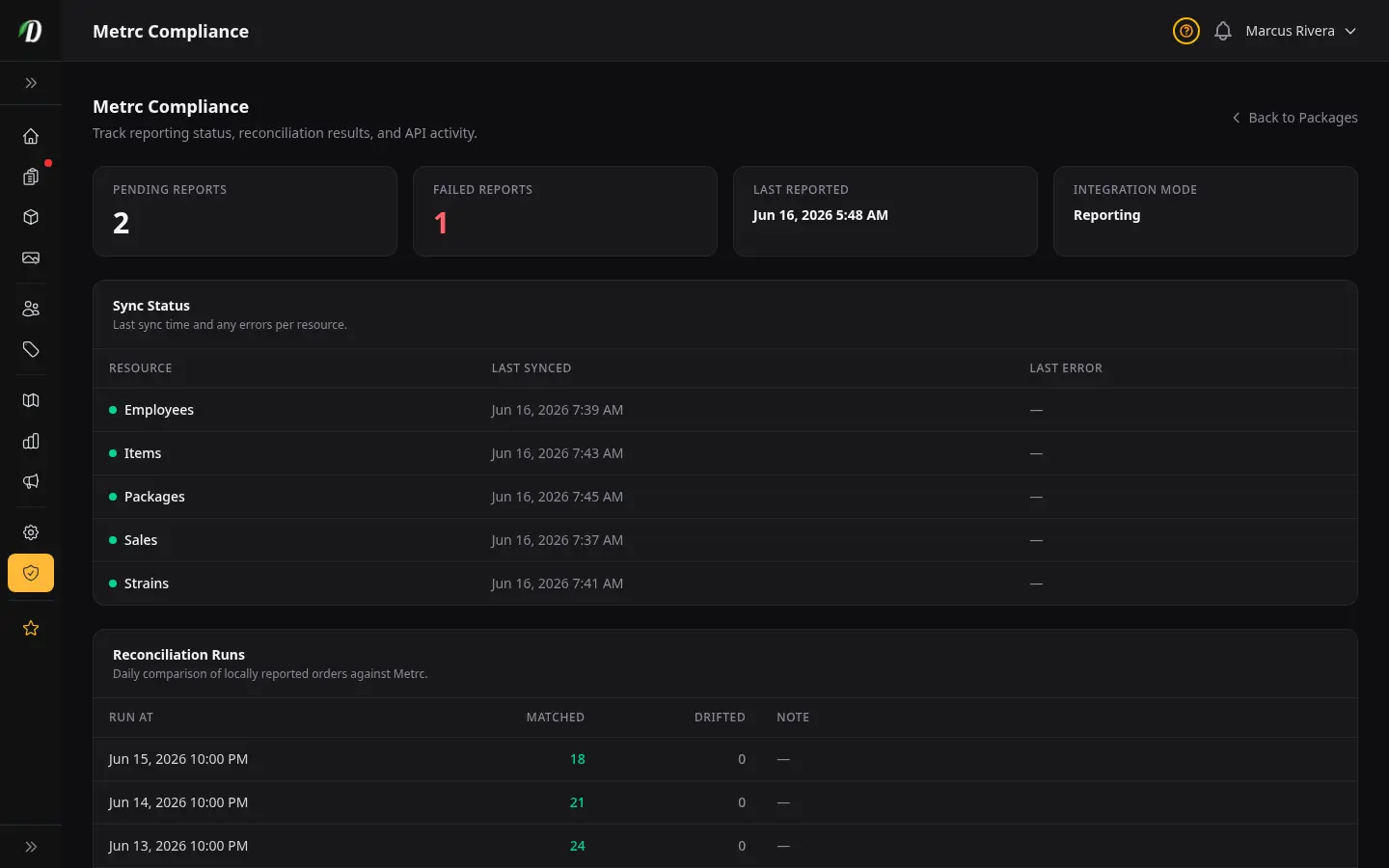
- Pending Reports
- Orders that are queued to report but haven't been sent yet. This should normally be 0 or very low. It rises briefly when orders go out and drops after the next sync cycle.
- Failed Reports
- Orders that DabDash couldn't report after multiple attempts. A non-zero number here needs attention — contact support and we'll investigate. 0 is the target.
- Last Reported
- The date and time of the most recently successful report. If this is more than a few hours old and you've had orders, check the failed count.
- Integration Mode
- Shows "read only" (connected, not yet reporting) or "reporting" (fully live). Should say "reporting" for an active store.
- Sync Status
- A row for each Metrc resource (packages, items, employees, strains) showing when it last synced and whether there were errors. A red dot means something is stale — click through to the Packages page and hit Sync Now.
- Reconciliation Runs
- DabDash runs a nightly check comparing your reported orders against Metrc. "Matched" shows orders confirmed on both sides. "Drifted" shows any discrepancy that may need attention. Runs automatically at 2:00 AM.
- Recent API Activity
- The last 20 requests sent to Metrc. Green status codes (2xx) are successful. Red (4xx/5xx) indicate failures. This log is kept for 3 years and is your audit trail if regulators ever ask for proof.
Checking a Specific Order
Every order detail page has a Metrc panel at the bottom showing the compliance status for that order specifically — whether the receipt was sent, when, and the confirmation ID from Metrc.
If an order shows a failed status, the panel will show the last error message. Contact support with the order number and we can investigate the audit log.
Disconnecting Metrc
To remove the Metrc connection, click Disconnect on the Metrc settings page. You'll be asked to confirm.
Warning: Disconnecting clears all package label mappings from your active products. You'll need to re-map them if you reconnect. This does not delete any records from Metrc — it only removes the link from DabDash.
Frequently Asked Questions
How do I connect Metrc to my DabDash store?
Go to Settings → Metrc, select your state from the dropdown, paste your User API Key (found in your Metrc profile settings), and click Connect Metrc. DabDash tests the connection immediately and displays your facility name and license number once confirmed.
Where do I find my Metrc User API Key?
Log into your state's Metrc portal and go to your profile settings. Your User API Key is listed there. Copy it and paste it into DabDash on the Settings → Metrc page.
Why does Metrc say Reporting is OFF after I connected?
Connecting your API key puts DabDash in read-only mode by default — it syncs your packages but does not report yet. This protects you from submitting receipts before your products are fully set up. Once every active product is linked to a Metrc package, the Enable Reporting button appears and you can turn it on.
How do I link my products to Metrc packages?
Go to Settings → Metrc → Mapping. You'll see a list of every product that still needs a package link. For flower and weight products, enter one package label per product — all size variations draw from the same package. For pre-rolls, edibles, and unit-counted products, each variation gets its own package label. Start typing in any field and DabDash will suggest matching packages from your synced list.
My packages aren't showing up on the mapping page. What do I do?
Go to Settings → Metrc → Packages and click Sync Now to trigger a manual pull from Metrc. Packages sync automatically every 15 minutes, but a manual sync is the fastest way to pull in a new shipment. If packages still don't appear after syncing, check the Compliance page for sync errors.
What happens to my orders when Metrc is down?
Your store keeps running normally. DabDash queues every compliance report separately from the order itself — your customer places the order, your driver goes out, and the order is fulfilled as usual. The report keeps retrying in the background until Metrc comes back up. Customer checkout is never blocked.
How do I check whether a specific order was reported to Metrc?
Open the order on the Order Management page and scroll to the Metrc panel at the bottom. It shows the compliance status, the receipt confirmation ID from Metrc, and when the report was sent. If it failed, the last error message is shown there too.
What does a "drifted" reconciliation mean?
Each night DabDash compares your locally reported orders against what Metrc has on record. "Matched" orders are confirmed on both sides. "Drifted" means a discrepancy was detected — for example, an order DabDash shows as reported that Metrc doesn't have, or vice versa. Contact support if you see a non-zero drifted count.
What is the Metrc integration available in?
Metrc is a US-only system. The Metrc settings are only visible to stores registered in a US state where Metrc is the regulator (California, New York, Michigan, and more states through 2026). Stores in other countries do not see any Metrc settings.