Your Account
Update your display name, change your email address, set a new password, and see your role and dashboard access permissions.
What this page does
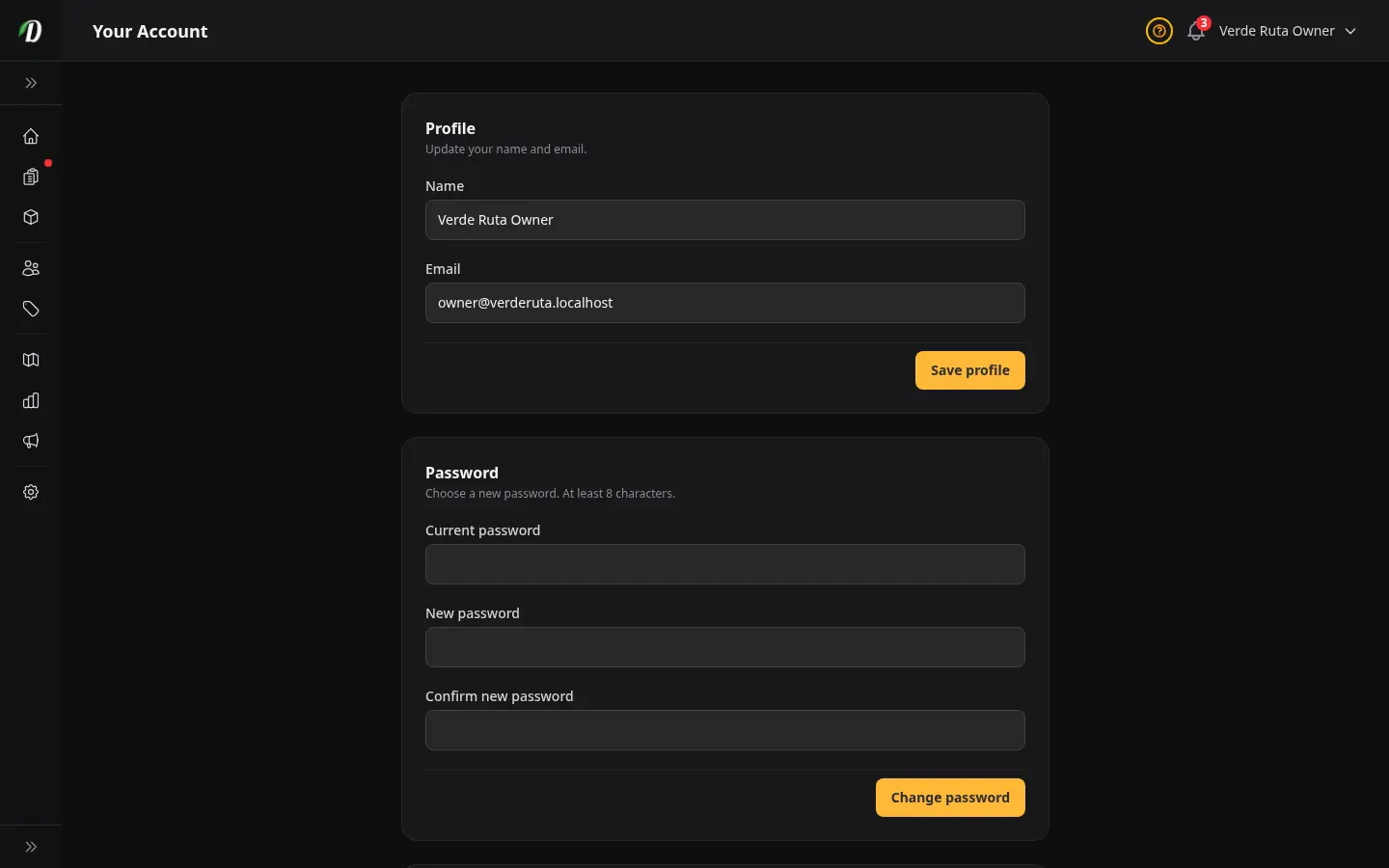
Your Account is where you manage your personal login details — your name, email address, and password. It also shows you your current role and which parts of the dashboard you can access.
This page is personal to you. Changes here only affect your login. They do not change any store settings.
Updating your name and email
Your name appears in the dashboard header and on any activity logged under your account. Change it here if your name has changed or you prefer a different display name.
To change your email address, type the new address in the Email field. A Current password field will appear — enter your current password to confirm the change. This extra step protects your account from unauthorized email changes.
Click Save profile when done.
Changing your password
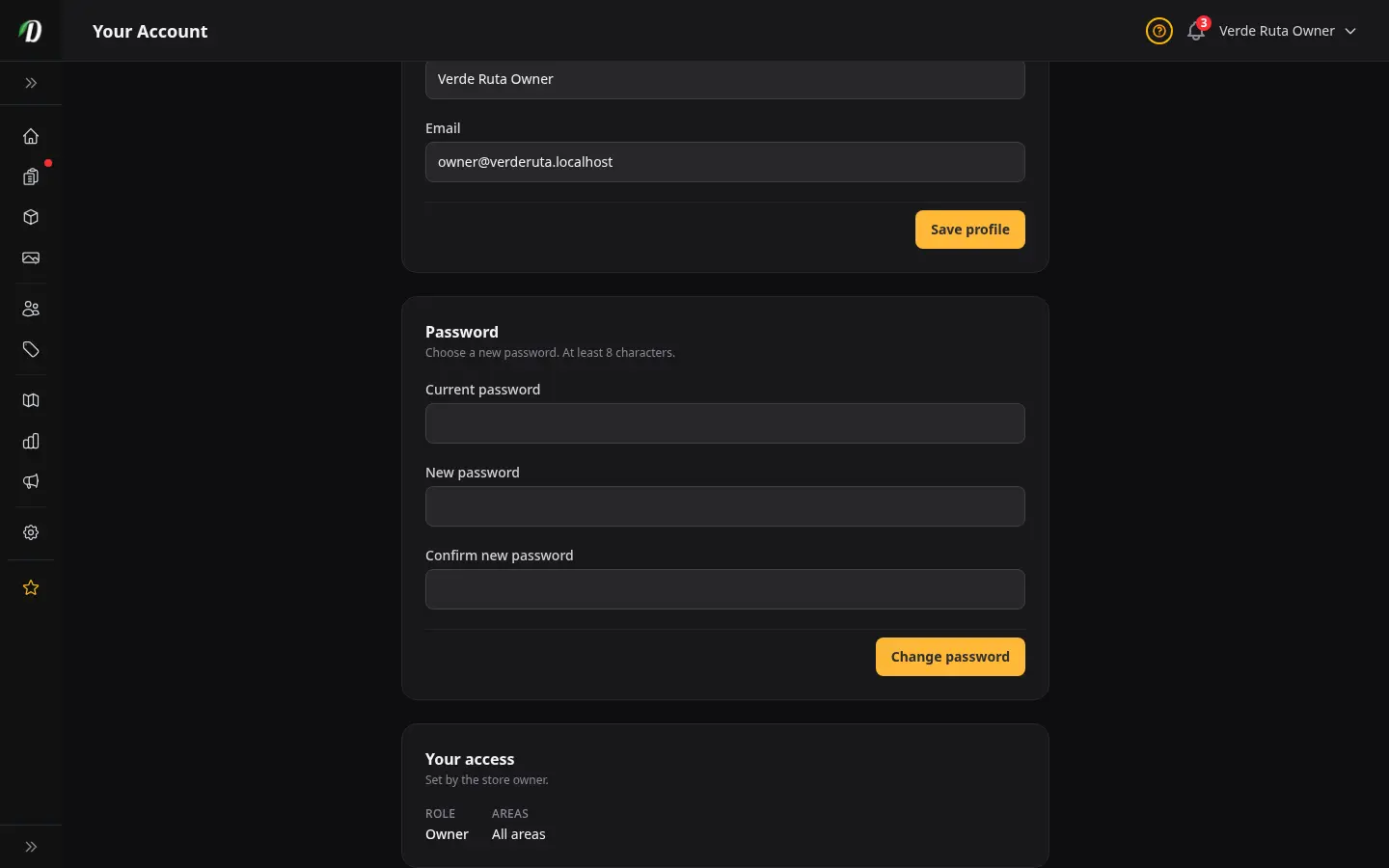
Scroll to the Password card. Enter your current password, then your new password twice to confirm. Passwords must be at least 8 characters long.
Click Change password. You will see a confirmation message at the top of the page.
Tip: If you were given an initial password by the store owner, change it here to something you chose yourself. The owner can reset your password from the Staff & Permissions page if you ever forget it.
Your access
The Your access panel shows your role and the areas you can reach in the dashboard. This is set by the store owner and is read-only — you cannot change it yourself.
- Owner
- Full access to every page, including billing and staff management. The dashboard shows All areas under Areas.
- Staff
- Access limited to the areas the owner has granted. The chips below Areas show exactly which sections you can see. If you need access to additional areas, ask the store owner to update your permissions in Settings → Users.
Frequently Asked Questions
How do I change my name in DabDash?
Go to Your Account, update the Name field, and click Save profile. Your new name appears in the dashboard header immediately.
How do I change my email address in DabDash?
Go to Your Account, update the Email field, and enter your current password in the Current password field that appears. Click Save profile to confirm. The new email address takes effect immediately and is used for all future login and notifications.
How do I change my password in DabDash?
Go to Your Account, scroll to the Password section, enter your current password, then your new password twice to confirm. Click Change password. Passwords must be at least 8 characters long.
How do I see which areas I have access to in DabDash?
Scroll to the Your access panel at the bottom of Your Account. It lists your role (Owner or Staff) and shows chips for each area you can reach. If you need access to an area that is not listed, ask the store owner to update your permissions in Settings → Users.