The Shopping Cart
How the DabDash shopping cart works — delivery address entry, zone detection, coupon codes, automatic freebies, bundle deal discounts, and order totals.
Overview
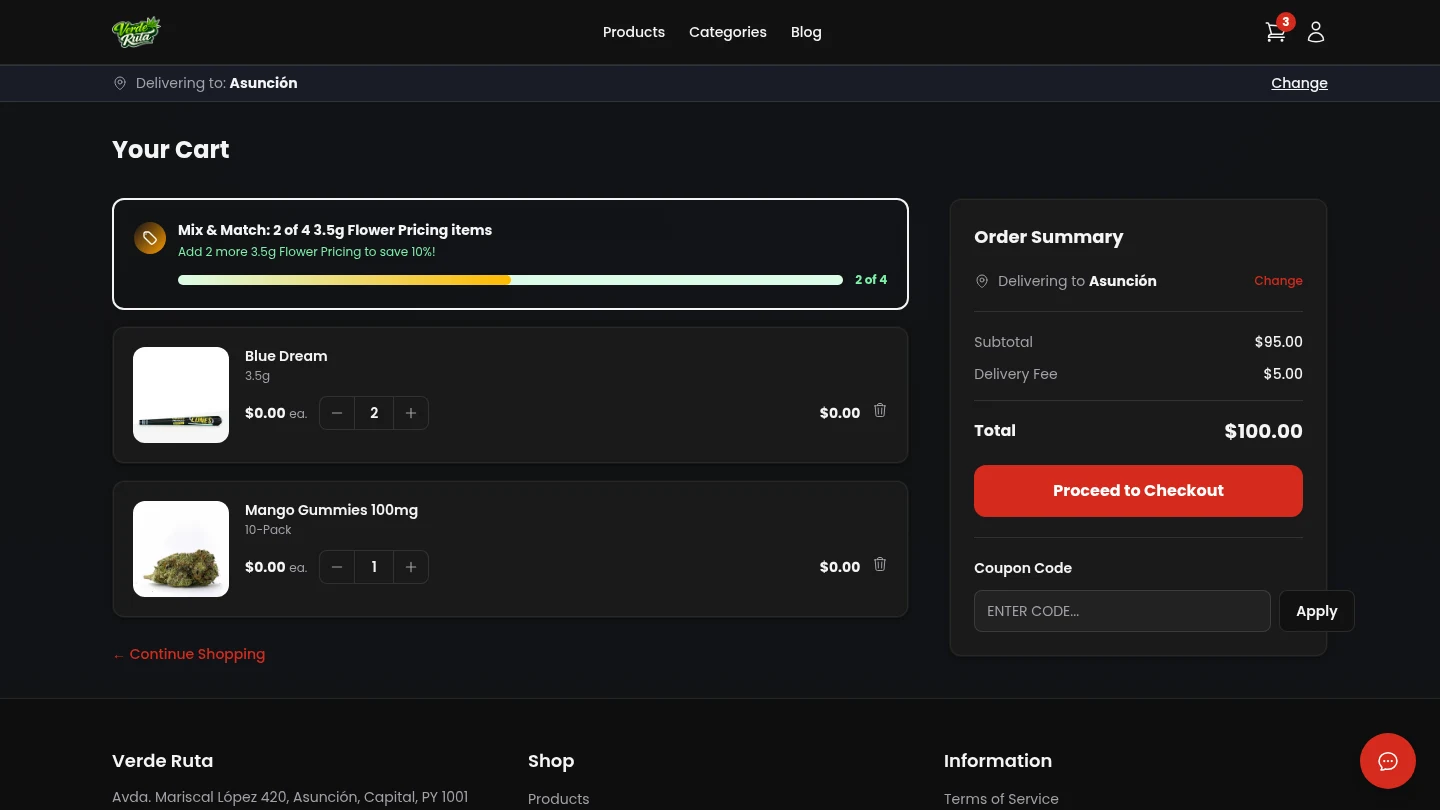
The cart page is where items are reviewed before checkout. It shows every item with quantities, prices, and a running total. Delivery fees show up after a delivery address is entered.
From here, coupon codes can be applied, and automatic promotions like free items and bundle deals appear when the cart meets the right conditions.
Entering a Delivery Address
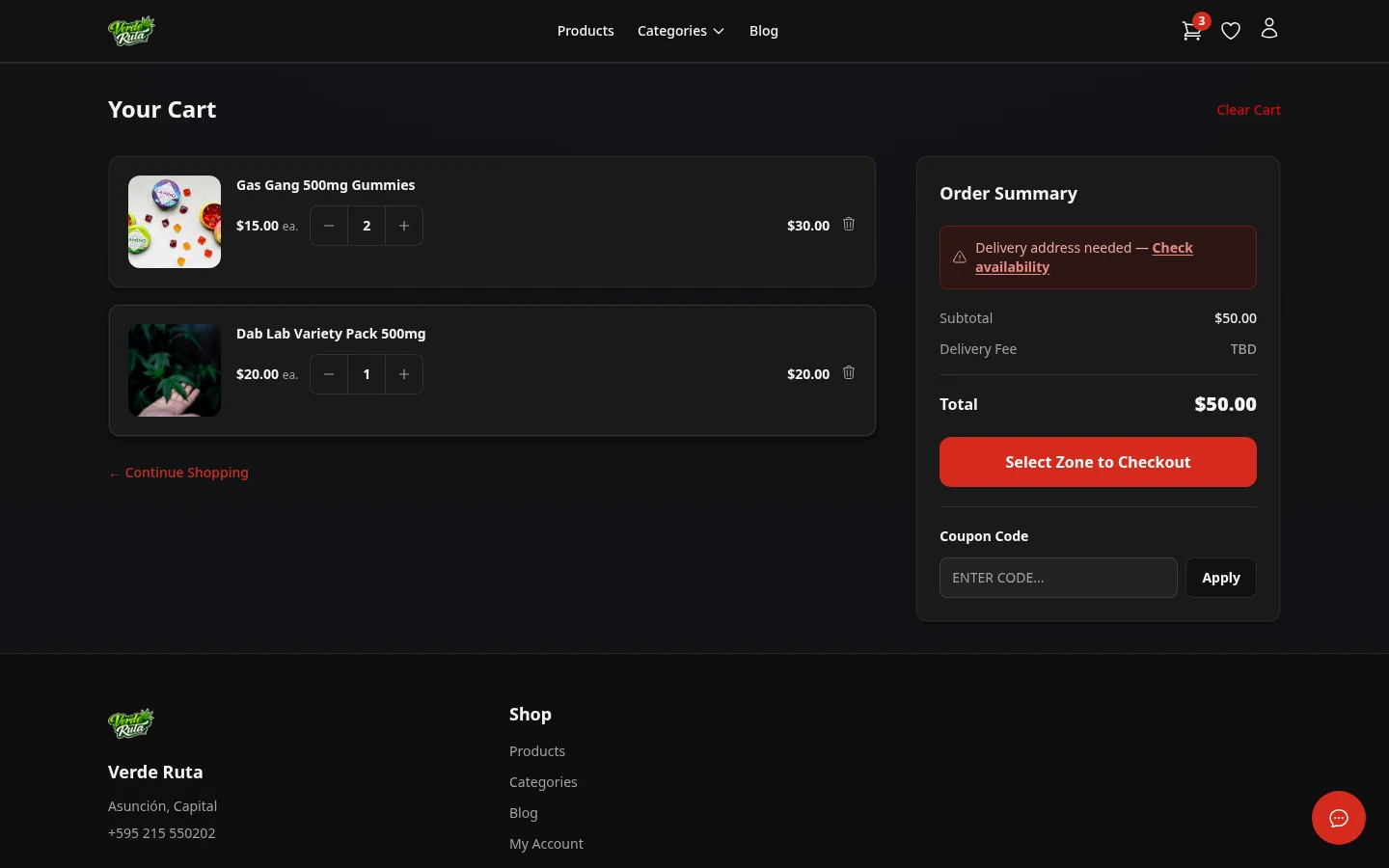
First-time visitors type a delivery address on the cart page. The system checks if the address is inside a delivery zone. If it is, the delivery fee and any minimum order amount show up. If the address is outside all zones, a message explains that delivery is not available there.
Returning customers who are logged in see their saved address already filled in. The delivery zone is detected automatically.
Cart Items
Each item shows the product name, size or variation, price, and quantity controls. The subtotal, delivery fee, and total update as items are added or removed.
Clicking the plus or minus buttons changes the quantity. Setting the quantity to zero removes the item from the cart.
Applying a Coupon
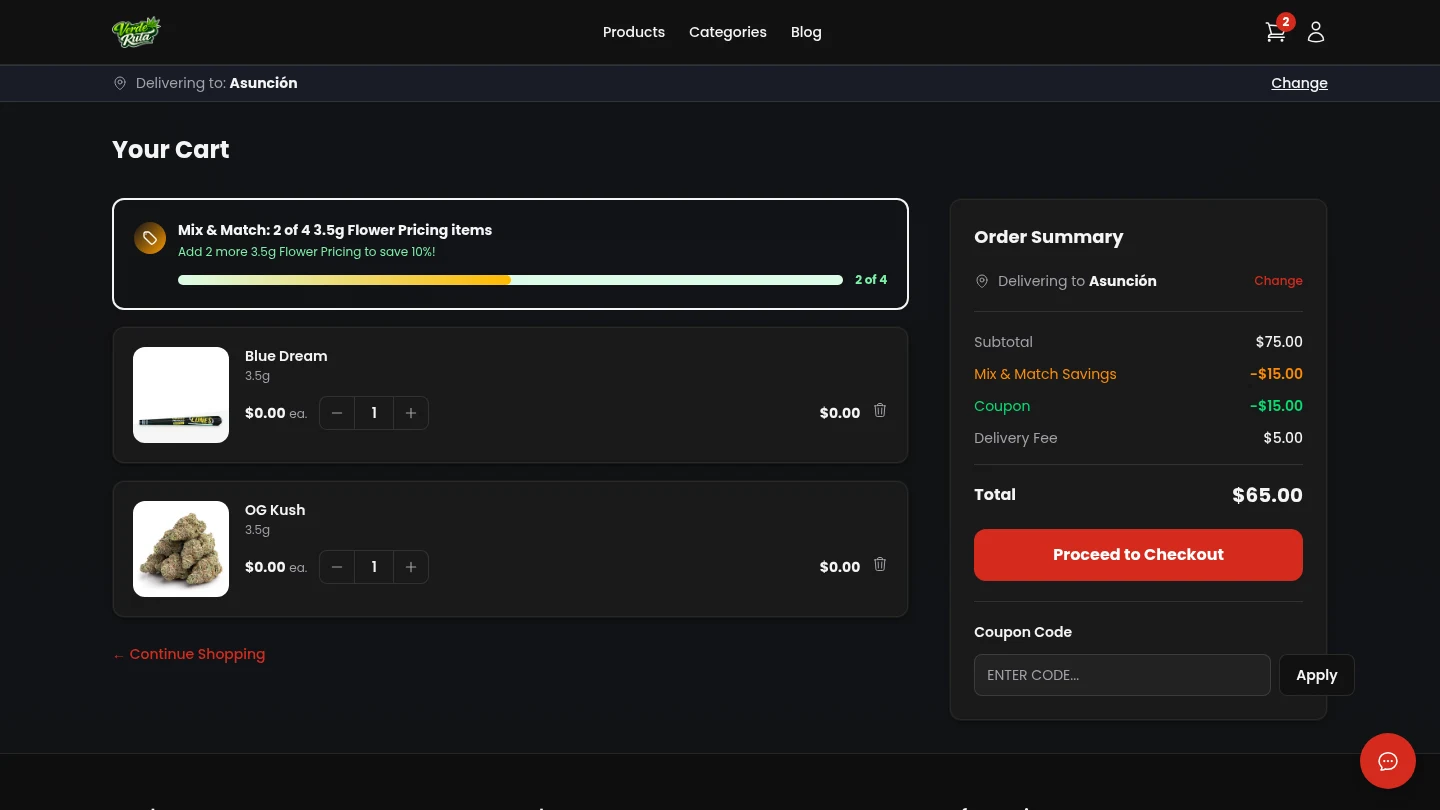
There is a coupon code field on the cart page. Typing a valid code and clicking Apply shows the discount as a line item in the order summary. Invalid or expired codes show an error message.
Free Items
Some stores set up automatic free items. When the cart reaches a certain amount, a free product appears in the cart at no charge. If the total drops below the minimum cart total, the freebie disappears.
Bundle Deals
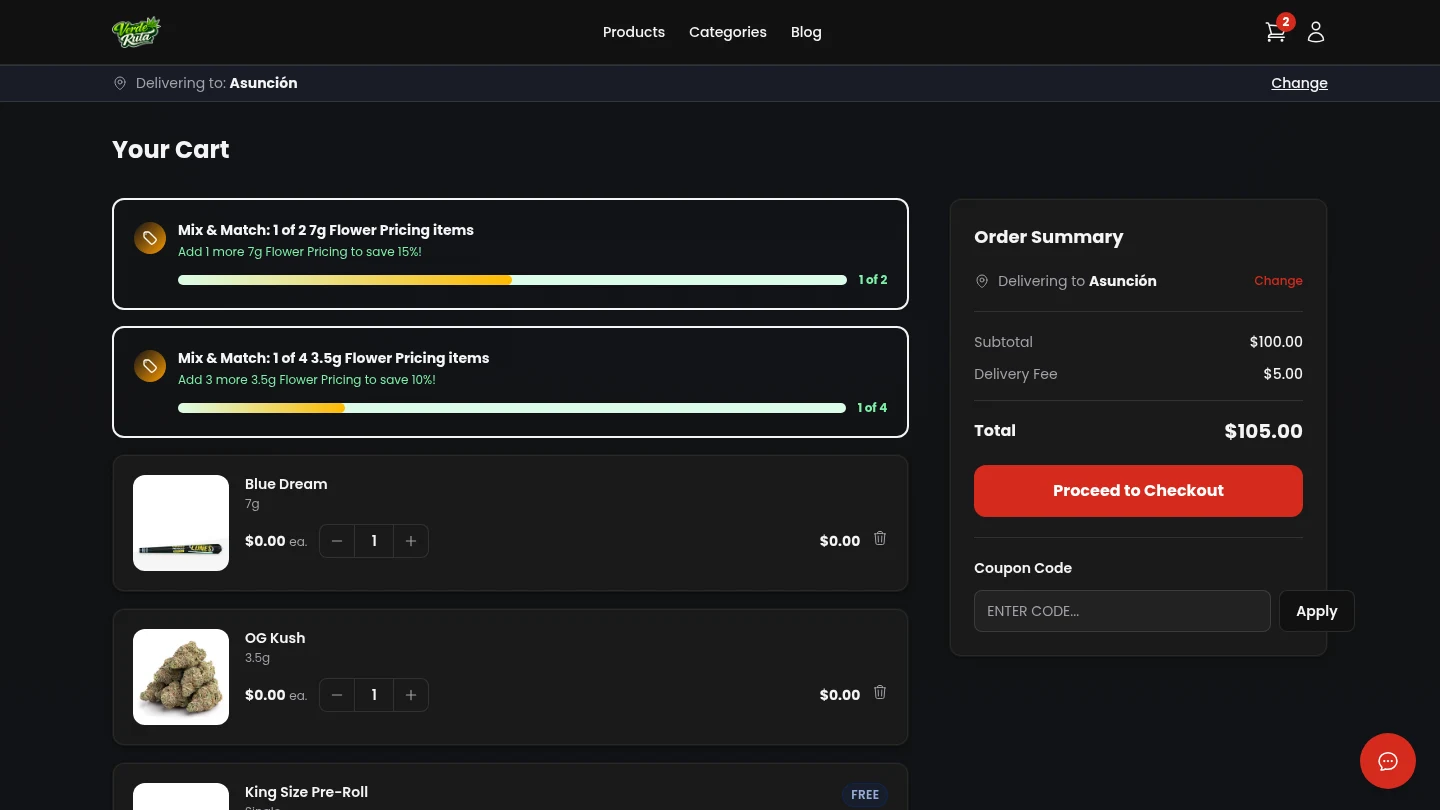
When qualifying products are in the cart, a bundle deal discount can apply. A progress bar shows how close the cart is to unlocking the deal. Adding more qualifying items fills the bar.
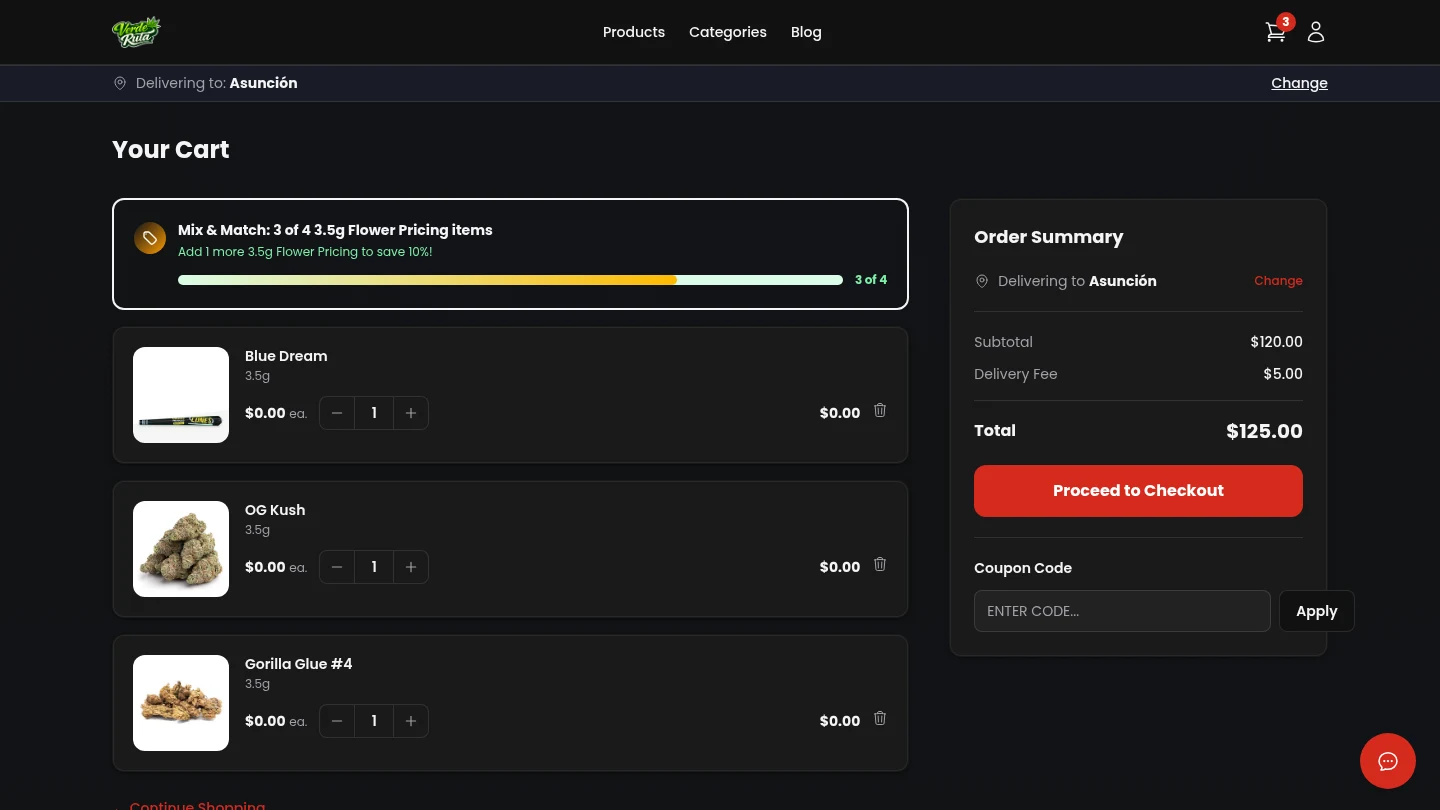
Once enough qualifying items are in the cart, the deal activates and the discount is applied to the order total.

Frequently Asked Questions
How do coupons work on a DabDash store?
On the cart page, there is a coupon code field. Typing a valid code and clicking Apply shows the discount as a separate line item above the total. Invalid or expired codes show a clear error message.
When do free items appear in the cart on a DabDash store?
Free items appear automatically when the cart subtotal reaches the store's freebie threshold. No code is needed — the free product shows up as a line item at no charge. If the total drops below the threshold, the freebie is removed.
How does delivery zone detection work on the cart page?
After entering a delivery address, the system checks if it falls inside one of the store's delivery zones. If it does, the delivery fee and minimum order amount appear. If the address is outside all zones, a message explains delivery is not available there.
Can coupons and loyalty points be used together on a DabDash store?
Yes. Coupon discounts and loyalty point redemptions stack. Both show as separate discount line items, and the final total reflects all discounts combined.