Payment Methods
Enable any combination of Cash on Delivery, Payment Link (templated per-order URL), QR Code, and CRM/Webhook handoff. Customers see only the methods you turn on at checkout.
What payment methods can DabDash offer?
DabDash never holds funds, never sees a card, never processes a charge. Customers pay you directly, using whatever channel you choose to offer. Four methods are available — enable any combination, and customers see only the ones you turn on at checkout.
At least one method must always be enabled. Cash on Delivery is on by default and is the safest fallback if you're not sure what to pick.
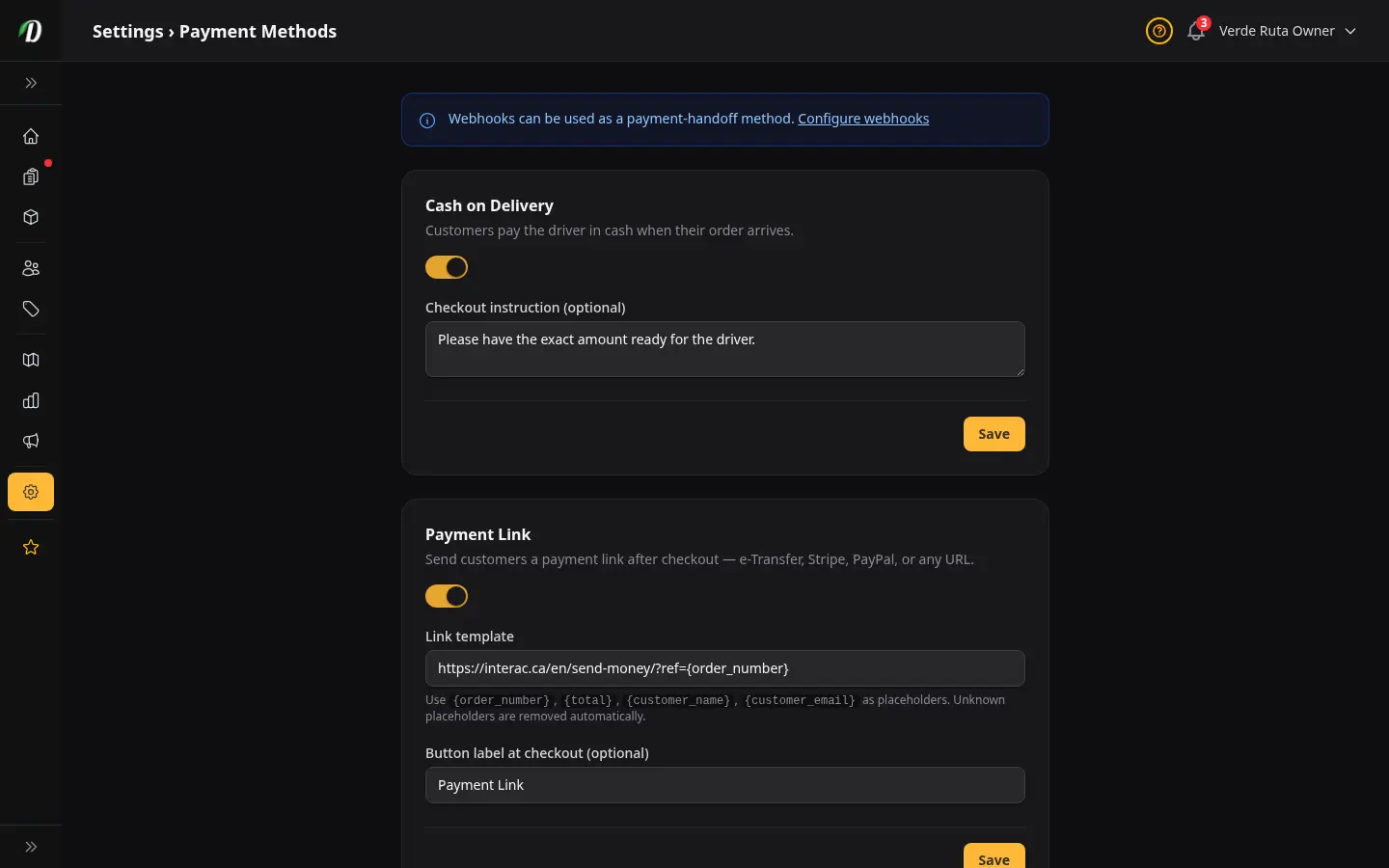
Cash on Delivery (COD)
The default. Your driver collects cash on the doorstep. No payment processor is involved — the driver brings the customer their order, the customer hands over cash, the driver brings the cash back.
Use the instruction line to ask the customer to have exact change ready, list which bills are acceptable, or any other delivery-time note. The note appears on checkout and on the receipt.
Payment Link
Direct customers to a payment URL you control — an Interac e-Transfer request page, a PayPal.me URL, a Square invoice, or any checkout link. DabDash never holds the money; you do.
Set a URL template with placeholders. We fill them in per order:
{order_id}— numeric internal id{order_number}— the customer-visible order number{total}— total amount in dollars (e.g. 42.50){total_cents}— total amount in cents (e.g. 4250){currency}— e.g. CAD{customer_name},{customer_email},{customer_phone}{tenant_slug}— your shop slug
Example payment-link template:
https://pay.example.com/abc123?prefilled_amount={total_cents}&client_reference_id={order_number}
On the order success page and email/SMS receipt, the customer sees a short branded link — dabdash.com/order/<token>/pay — that redirects to your filled-in URL. The first time the link is clicked, we log a link_viewed event on the order so you can see who's paying.
QR Code
Upload a single static QR image (PNG/JPG/WebP, max 2 MB) — usually your Interac, Venmo, or Cash App receive-money QR. Customers see it on the order success page and in their order history.
Use the caption to give scanning instructions like "Scan with your Interac app and send $X". We do not templatize the amount into the QR — the customer types the amount into their bank app from the order total on the page.
CRM / Webhook handoff
For vendors who already have a CRM (HubSpot, GoHighLevel, custom) handling payment requests, DabDash can POST every new order to your CRM and let it take over from there. Your CRM sends the customer payment instructions via your branded email/SMS pipeline.
This method depends on a configured webhook. The card on the Payment Methods page shows a status pill — Webhook active or Webhook not configured. If you see "not configured", click Configure webhook to deep-link to Settings › Webhooks — set a URL there, then come back here and enable the method.
If the webhook fails 3 times in a row, the order is flagged "payment notification failed" on the orders index for vendor follow-up. The order itself is created normally — webhook failure never blocks checkout.
What customers see
At checkout, only enabled methods appear as a radio selector. If only one method is enabled (e.g. just COD), no selector is shown — the customer just sees the one option.
Use the display label on each card to name the method in the customer's voice — "Pay by e-Transfer", "PayPal", "Square" — instead of generic technical names.
Per-order payment activity
Each order's detail page has a Payment activity section showing every event in chronological order — "Payment link viewed 14:22", "QR code viewed", "CRM notified", "CRM notification failed". Use it to confirm a customer actually saw their payment instructions before you mark the order as paid.