Delivery Settings
Control driver self-serve options, what customers see on the tracking page, proof of delivery, and driver alerts.
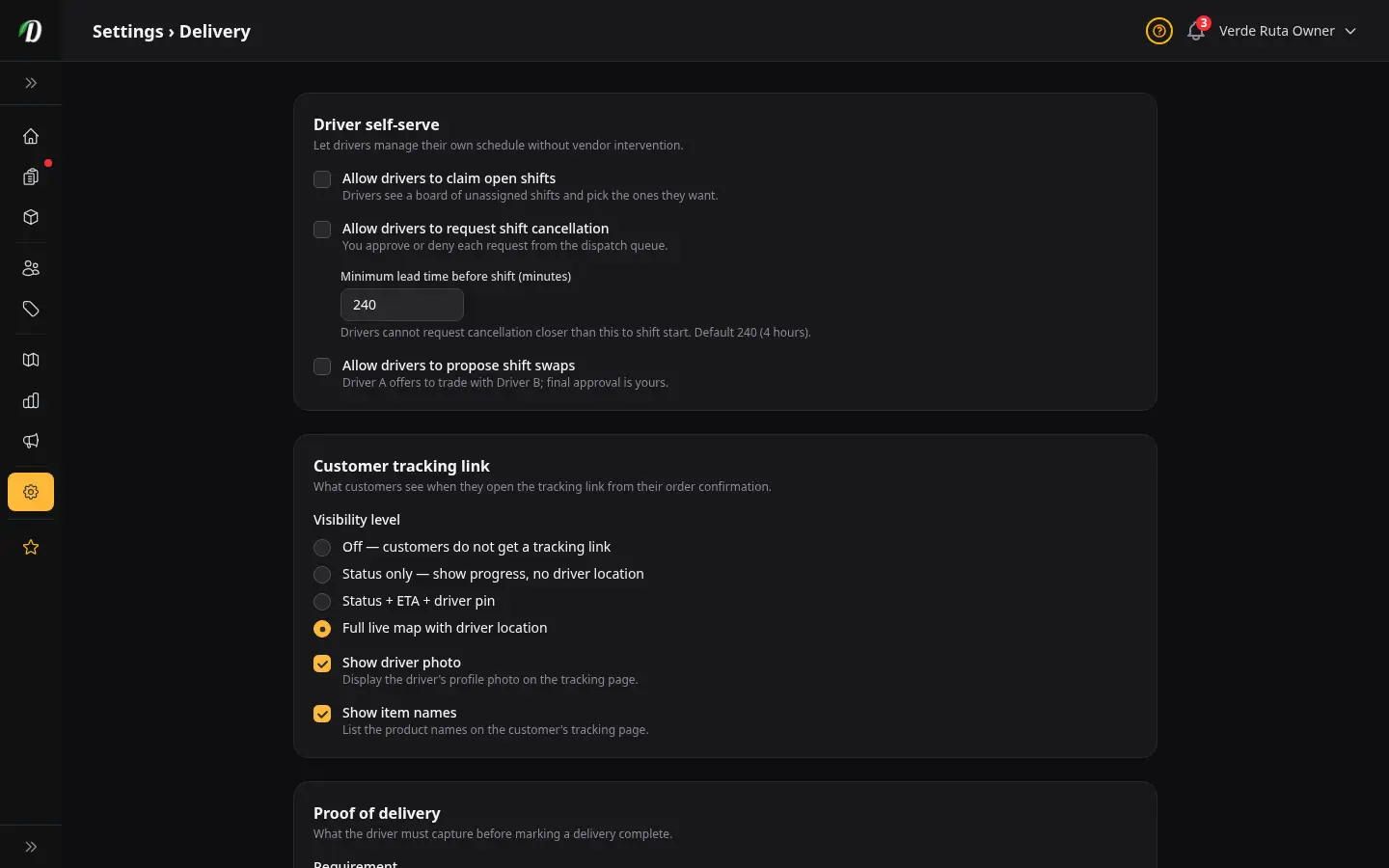
Overview
Delivery Settings is where you decide how your delivery operation runs day to day — how much freedom your drivers have, what your customers see while they wait, what proof you keep for each drop-off, and which alerts go out. It is grouped into four clear sections so you can set each part of the experience once and leave it.
One thing to know before you start: these controls only take effect when delivery is turned on for your store. The master on/off switch for delivery lives on your Shop settings page. If delivery is off, the options here are simply waiting for the day you switch it on.
Driver Self-Serve
Self-serve decides how much your drivers can do for themselves without coming to you for every change. Turn these on and your drivers handle their own scheduling within the limits you set; leave them off and every change runs through you.
- Claim open shifts
- Lets drivers pick up shifts you have posted without a name attached. Useful when you want to advertise coverage you need and let your team grab it, rather than assigning every shift by hand.
- Request cancellations
- Lets a driver ask to be let off a shift they can no longer make. The request comes to you to approve or deny — it never changes the schedule on its own.
- Propose swaps
- Lets two drivers agree to trade shifts between themselves and send it to you for final sign-off. It cuts out the middle-man messaging while keeping you in control of who works.
- Notice period
- The minimum amount of warning a driver must give before a shift. Set this so you always have time to find cover — for example, a notice period stops a driver from dropping a shift an hour before it starts and leaving you scrambling.
Even with self-serve on, you keep the final word: cancellations and swaps still come to you to approve.
Customer Tracking
When a customer places an order, you can give them a tracking link to follow along while they wait. This section controls exactly how much they see — so you can match the experience to what you are comfortable sharing.
Choose one of three levels for the tracking link:
- Status only — the customer sees where their order is in the process (preparing, on the way, delivered) and nothing more. The most private option.
- Status with live ETA — adds an estimated arrival time so the customer knows roughly when to expect their order, without showing the driver's position.
- Full map with driver location — the customer sees the driver moving on a map in real time. The most reassuring option for the customer, and the most transparent.
Two extra toggles let you fine-tune what appears on the tracking page:
- Show driver photo
- Displays the driver's photo so the customer knows who to expect at the door. A nice touch for trust and safety.
- Show item names
- Shows what is in the order on the tracking page. Turn this off if you would rather keep the contents discreet — handy for privacy at a shared address.
Proof of Delivery
Proof of delivery is the record your driver captures at the door confirming an order was handed over. It protects both you and your customer if there is ever a question about whether a delivery arrived. You decide what your drivers must collect for each drop-off.
- What to require
-
Choose the level of proof that suits your operation:
- Photo — the driver takes a photo at the point of handover.
- Signature — the customer signs to confirm receipt.
- Both — a photo and a signature, for the strongest record.
- None — no proof captured, for the lightest-touch deliveries.
- Retention days
- How long proof is kept before it is automatically removed. Set a window that meets your record-keeping needs without holding customer data longer than necessary.
If your area has any record-keeping rules around deliveries, requiring a photo or signature is the simplest way to stay covered.
Driver Notifications
This section is a store-wide kill-switch for the alerts your drivers receive — new assignment, schedule change, shift reminder, and so on. Each alert type has its own switch, so you can turn off any one of them across the whole store.
Most stores leave all alerts on, since they keep drivers informed without you having to chase them. Reach for the kill-switch when a particular alert is creating noise rather than helping — for example, switching off a reminder type your drivers find repetitive. Turning an alert off here stops it for everyone, so use it deliberately.
Tips
- Turn delivery on from the Shop settings page first. Until you do, the options here are set up and waiting but not yet in effect.
- If you trust your drivers to manage their own schedules, turn on self-serve and set a sensible notice period — it saves you a lot of day-to-day coordination while you keep the final approval.
- Match the tracking level to your customers. A full live map is reassuring for new customers; status-only is plenty once they trust you and prefer discretion.
- Turn off "show item names" if many of your deliveries go to shared or sensitive addresses — it keeps the order contents private on the tracking page.
- Require at least a photo for proof of delivery. It is the easiest way to settle a "my order never arrived" dispute quickly and fairly.
- Leave driver notifications on unless one type is genuinely creating noise. They keep your drivers in the loop without extra effort from you.
Frequently Asked Questions
How do I control what customers see while they wait for delivery?
On the Delivery Settings page, the Customer Tracking Link section lets you choose: a simple status, a status with a live arrival estimate, or the full map with the driver's location. You decide how much to share.
How do I require proof of delivery in DabDash?
In Delivery Settings, the Proof of Delivery section lets you require a photo, a signature, both, or neither when a driver marks an order delivered. You can also set how many days to keep the proof on file.
Can I let drivers manage their own shifts in DabDash?
Yes. The Driver Self-Serve section in Delivery Settings lets you allow drivers to claim open shifts, request a cancellation, or propose a swap. You set a notice period so you're never left short at the last minute.