The Driver Portal
What your drivers see — their shifts, open shifts to claim, their delivery stops, and proof of delivery.
Overview
Your drivers don't use the admin dashboard. Instead, they sign in to a separate, simplified driver portal built just for them — they see their shifts and their deliveries, and nothing else. This article explains what that portal looks like from the driver's side, so you understand the experience your team has on the road.
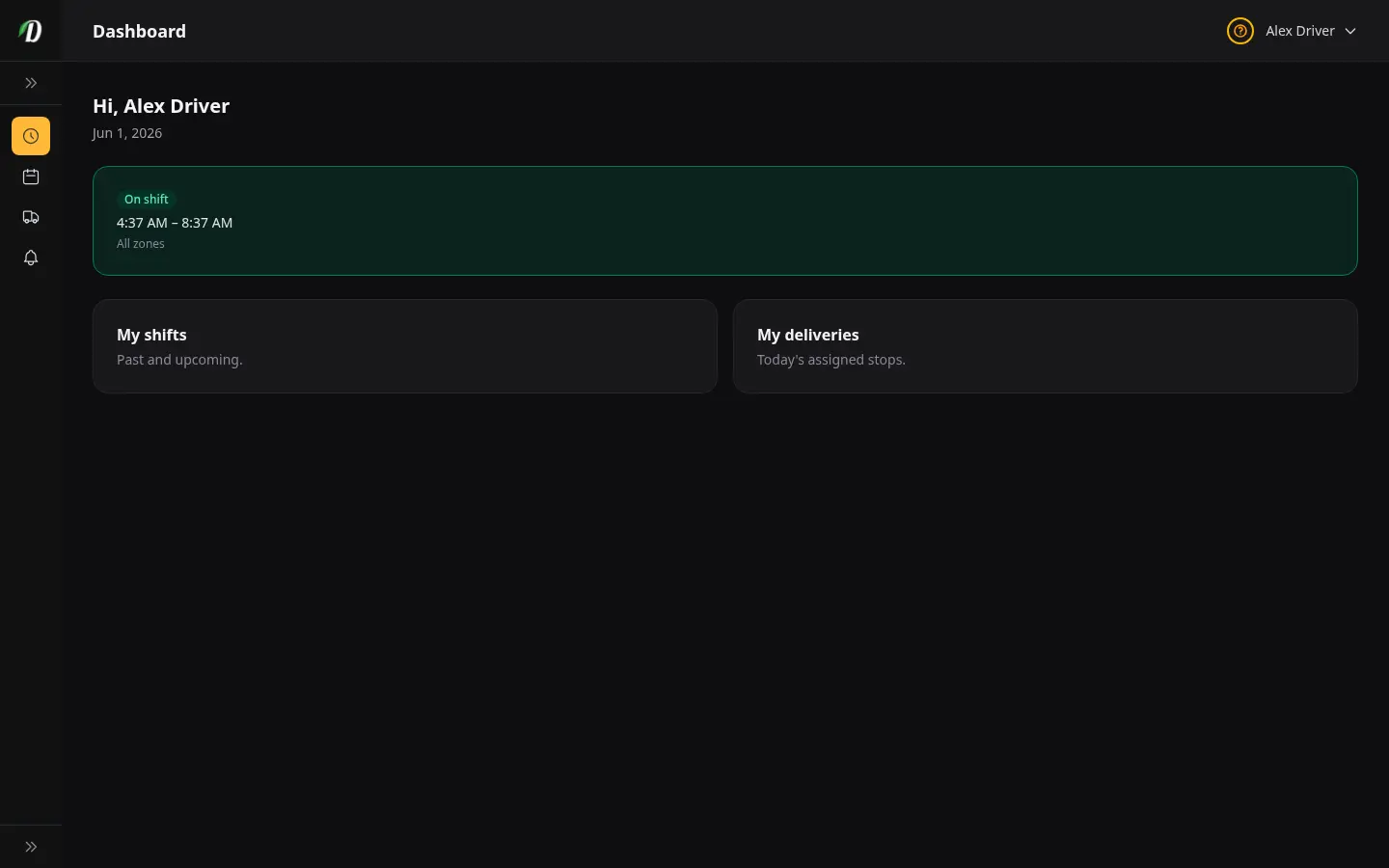
The driver portal lives at /driver and is designed for a phone. Drivers can check in for a shift, see the stops they need to make, mark deliveries as completed with proof, and control how they get notified — all from one screen-friendly app.
Importantly, a driver only ever sees the driver portal. They cannot reach your products, pricing, customer list, or any other admin area. This keeps their experience focused and your business information private.
Adding a Driver
You add a driver from Settings → Users. Invite the person by email and give them the Driver role. That role is what unlocks the driver portal for them — and limits them to it.
- The Driver role
- A user with the Driver role is automatically sent to the driver portal when they sign in. They can see shifts and deliveries, but never the admin dashboard.
- Where they sign in
- Drivers go to /driver on your store and sign in with the email and password they set up from the invite. Because it's a web app, there's nothing to install — they can add it to their phone's home screen for quick access.
If someone needs both admin and driving access, give them the appropriate admin role as well — but most stores keep drivers as drivers only.
The Driver Dashboard & Shifts
When a driver opens the portal, the dashboard shows their current status — whether they're on shift right now — and their next scheduled shift. It's the at-a-glance home screen for their day.

From My Shifts, a driver sees the shifts assigned to them. Depending on how you've set things up, they may be able to:
- Request a cancellation — let you know they can no longer cover a shift, so you can reassign it.
- Propose a swap — offer one of their shifts to another driver, if you've enabled swapping.
Claiming & Swapping Shifts
The Open Shifts screen is a claim board. It shows shifts that aren't yet assigned to anyone, and drivers can claim the ones that suit them. This is a simple way to fill gaps in your schedule without you having to assign every shift by hand.
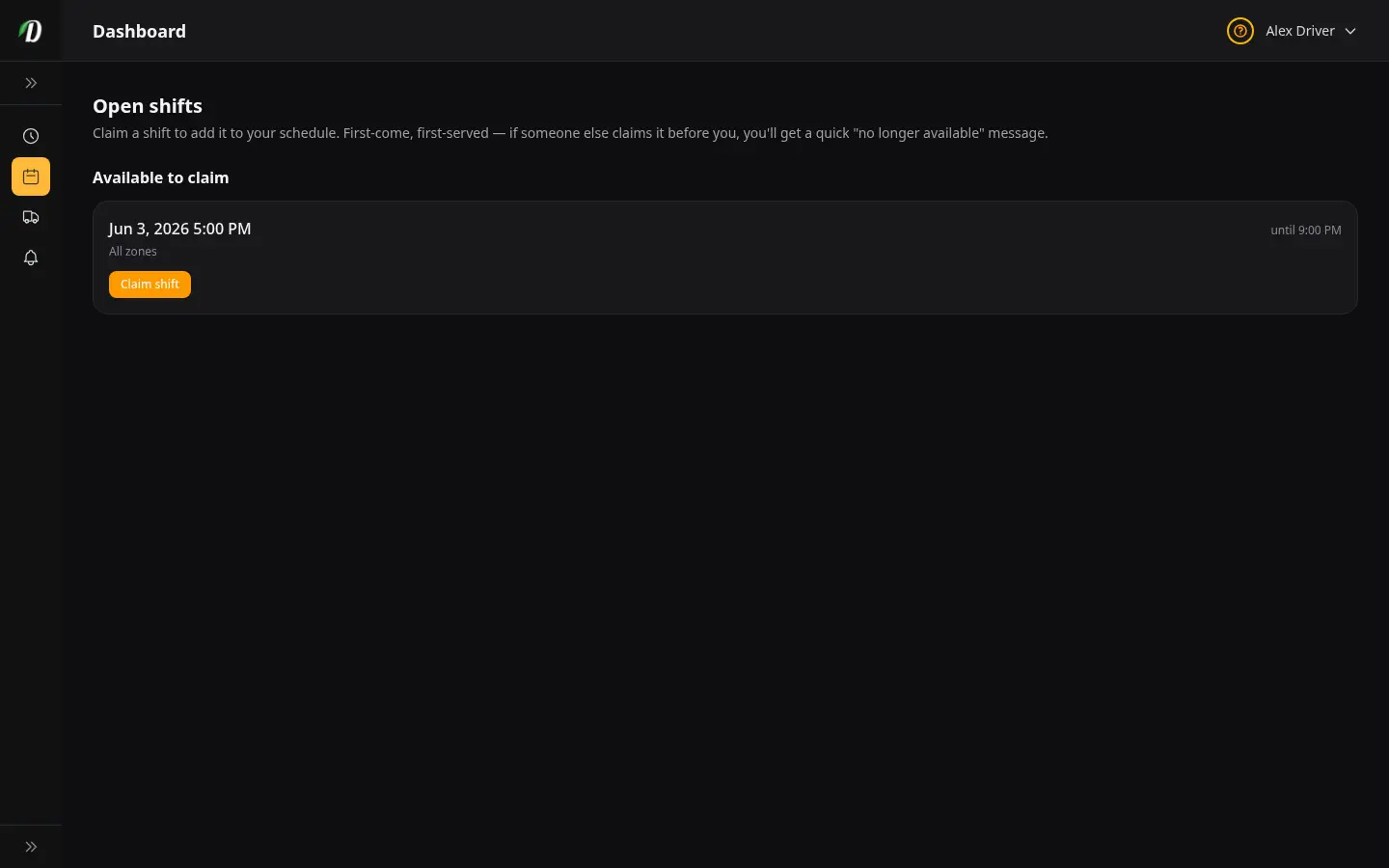
The same screen is also where a driver sees incoming swap offers from teammates. If another driver has offered to hand off a shift, it shows up here for them to accept or decline. Together, claiming and swapping let your team manage coverage among themselves within the rules you set.
Completing Deliveries
The My Deliveries screen lists today's stops in the order the driver should make them. Tapping a stop opens the delivery detail, with the address, the customer, and the items for that order.

On the stop screen, a driver works through the delivery:
- Verify ID
- For age-restricted orders, the driver confirms the customer's ID before handing anything over.
- Mark delivered
- Once handed over, the driver marks the stop delivered. If you require it, they capture proof — a photo and/or a signature — at this point.
- Mark failed
- If no one's home or the delivery can't be completed, the driver marks it failed and gives a reason, so you can follow up.
Notification Preferences
Each driver controls how they want to be told about things that matter to them. From their notification settings, they can turn each type of alert on or off per channel.

- In-app — alerts shown inside the driver portal.
- Push — alerts sent to their phone, even when the portal isn't open.
- Email — alerts sent to their inbox.
Drivers can mix and match — for example, push for a new delivery assignment but email only for shift changes. This keeps them informed without overwhelming them.
Tips
- Ask drivers to add the portal to their phone's home screen so it opens like an app.
- Decide up front whether to allow shift cancellations and swaps. Turning them on lets your team cover for each other; leaving them off keeps you in full control of the schedule.
- Use Open Shifts to fill last-minute gaps — post the open shift and let an available driver claim it.
- If you handle age-restricted products, require delivery proof so every completed stop has a photo or signature on record.
- Encourage drivers to turn on push notifications for new deliveries so they never miss a stop.
Frequently Asked Questions
What do drivers see in the DabDash driver portal?
Drivers get their own simple view: whether they're on shift right now, their upcoming shifts, open shifts they can claim, their delivery stops for the day in order, and their notification preferences. They never see your admin pages.
How does a driver complete a delivery in DabDash?
On a delivery stop, the driver checks the customer and items, verifies ID if your store requires it, then marks the order delivered — capturing a photo or signature if you've asked for proof — or marks it failed if they couldn't deliver.
How do drivers get added to DabDash?
Add a driver from Settings → Users by choosing the Driver role. They log in with the same store login but only see the driver portal at /driver, never the admin.