Mobile App Installation (Android)
Install the DabDash mobile app on Android using the direct APK flow — browser download, Allow from this source, package installer, and first launch — with guidance for the three latest Android versions.
Before you start
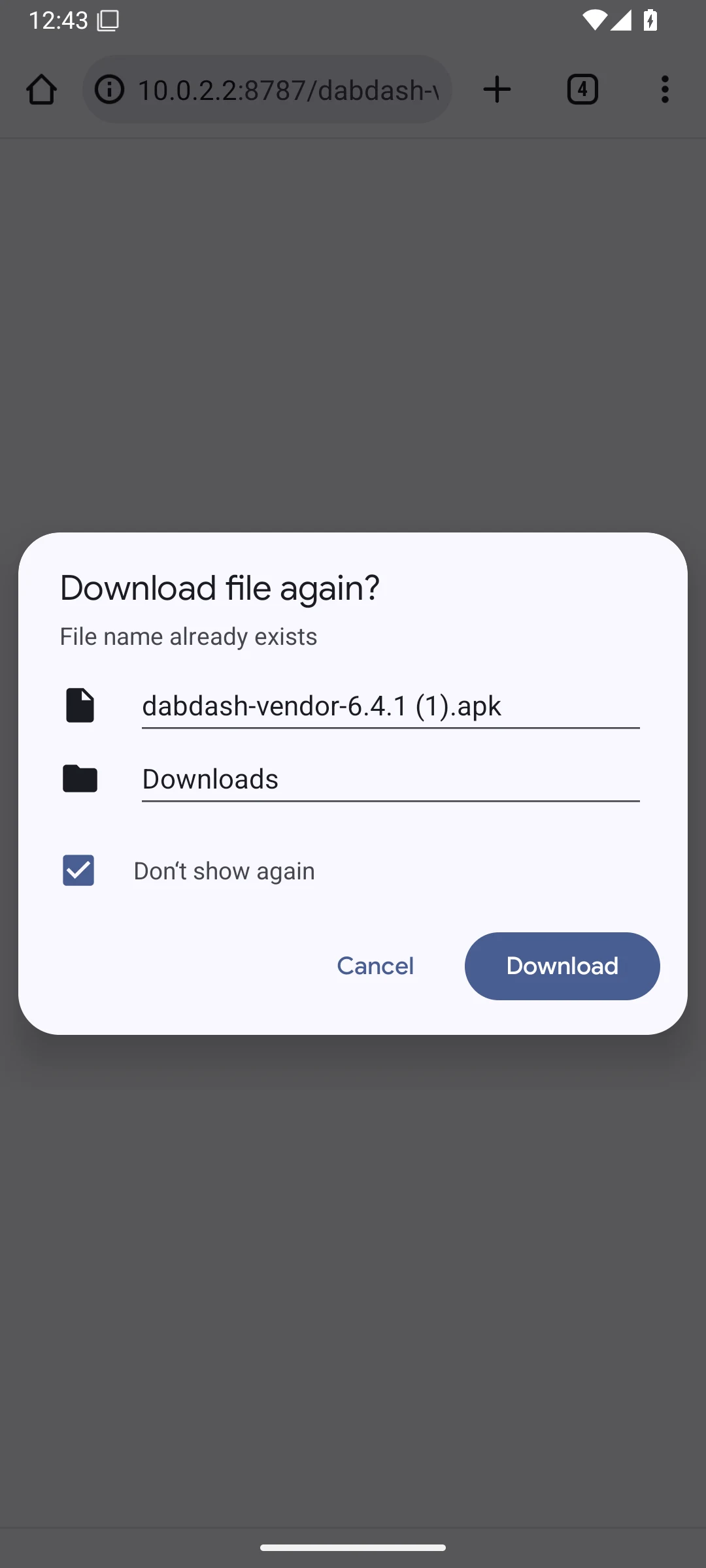
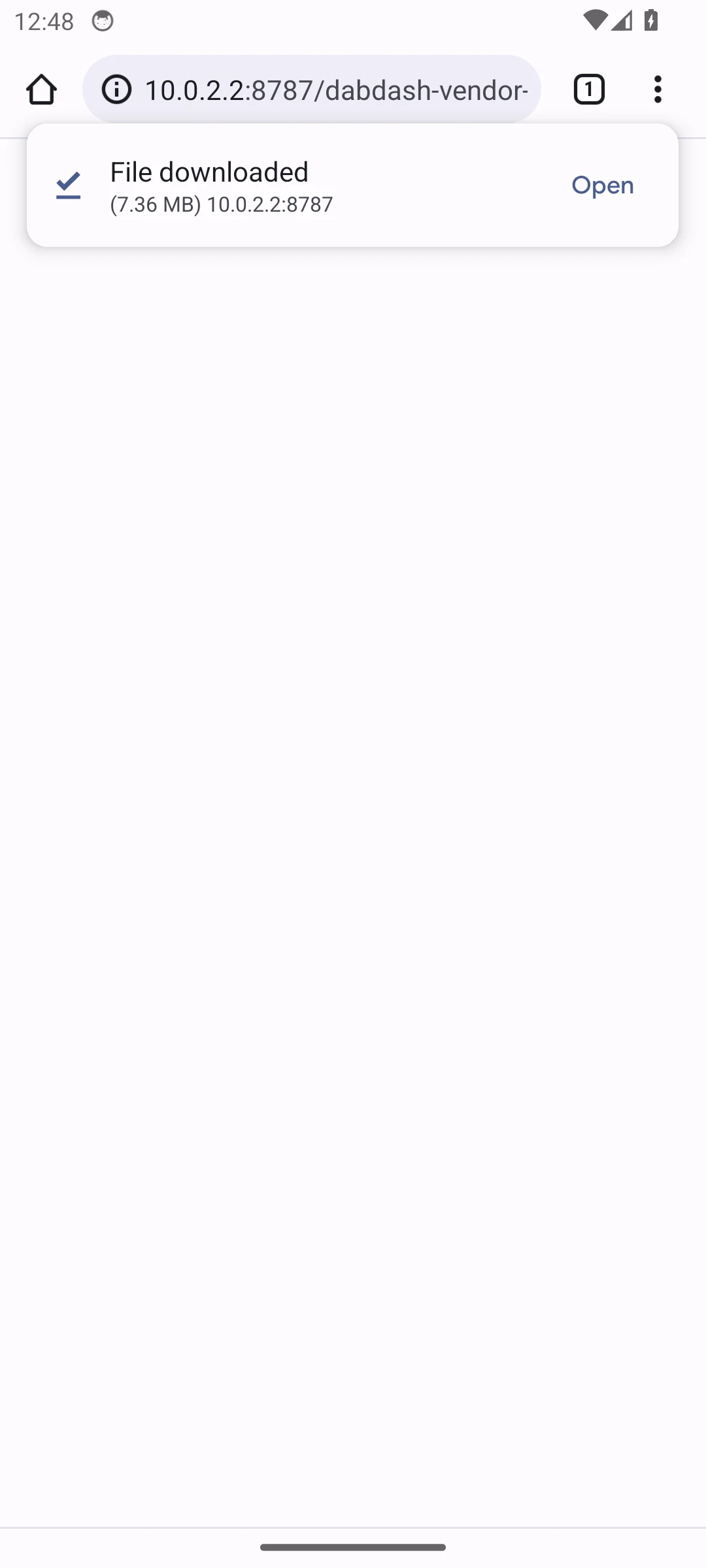
DabDash is distributed as an official direct APK for Android, not through the Google Play Store. Use the download button on the DabDash mobile app page and keep your vendor login ready.
The screenshots show the native Android screens. Labels can vary by device maker, but the permission and installer flow is the same. Choose your Android version to see its steps.
Android 16
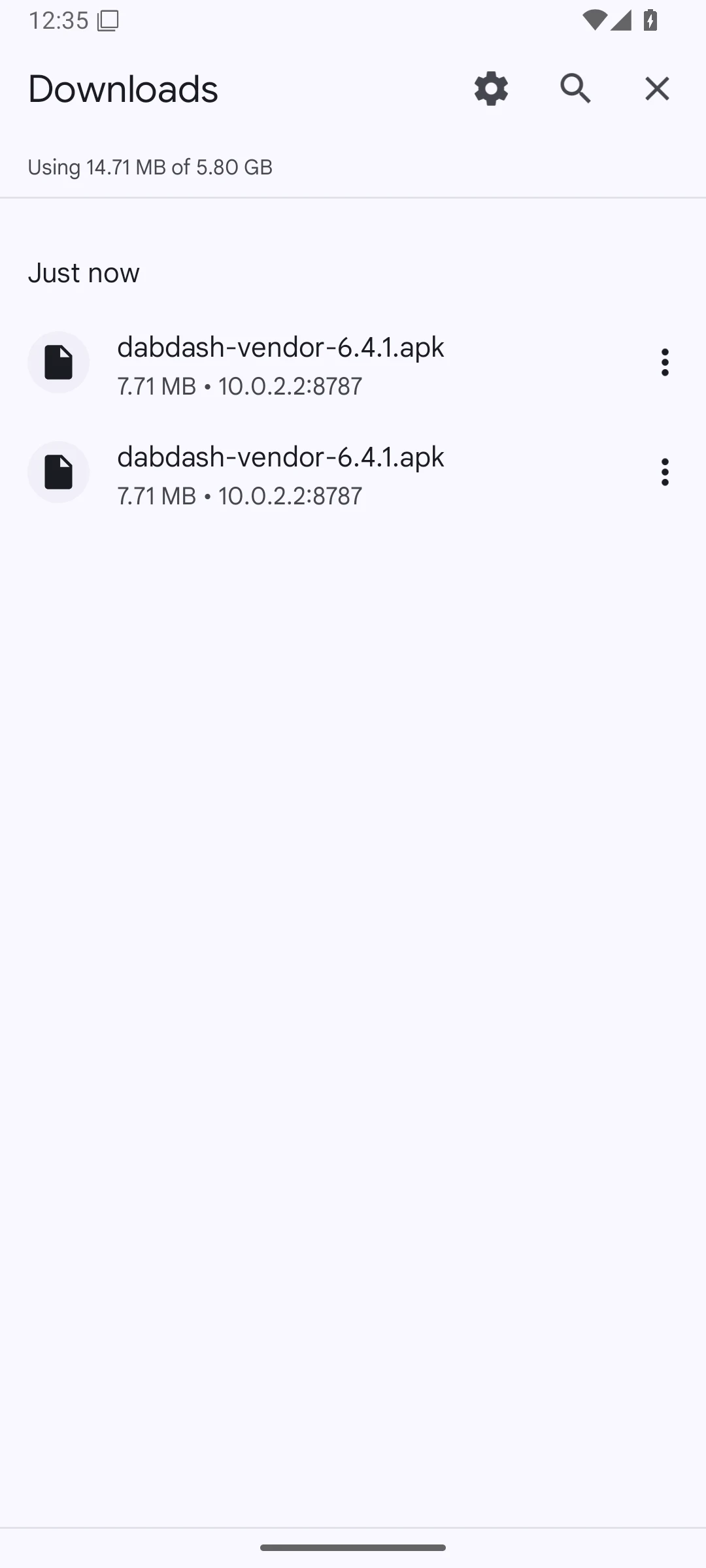
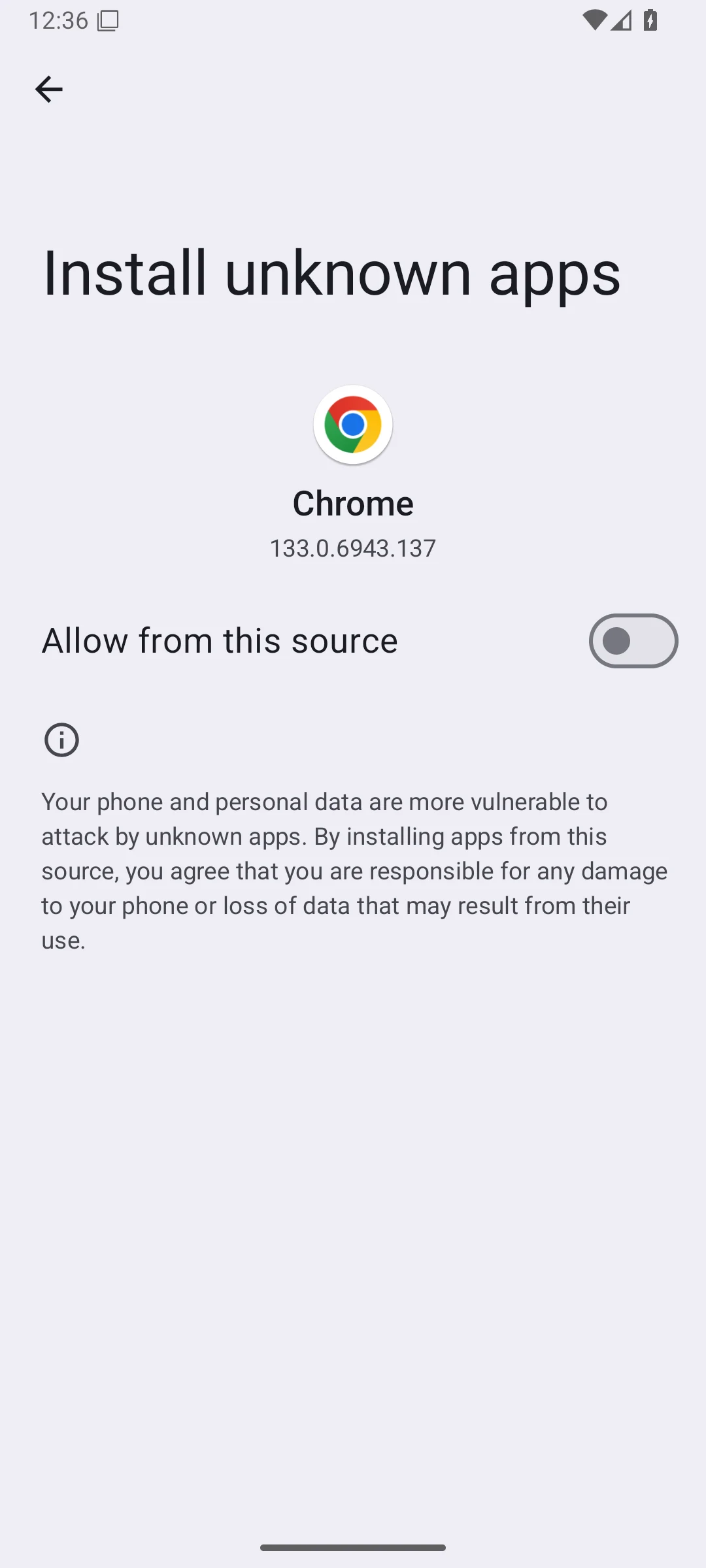
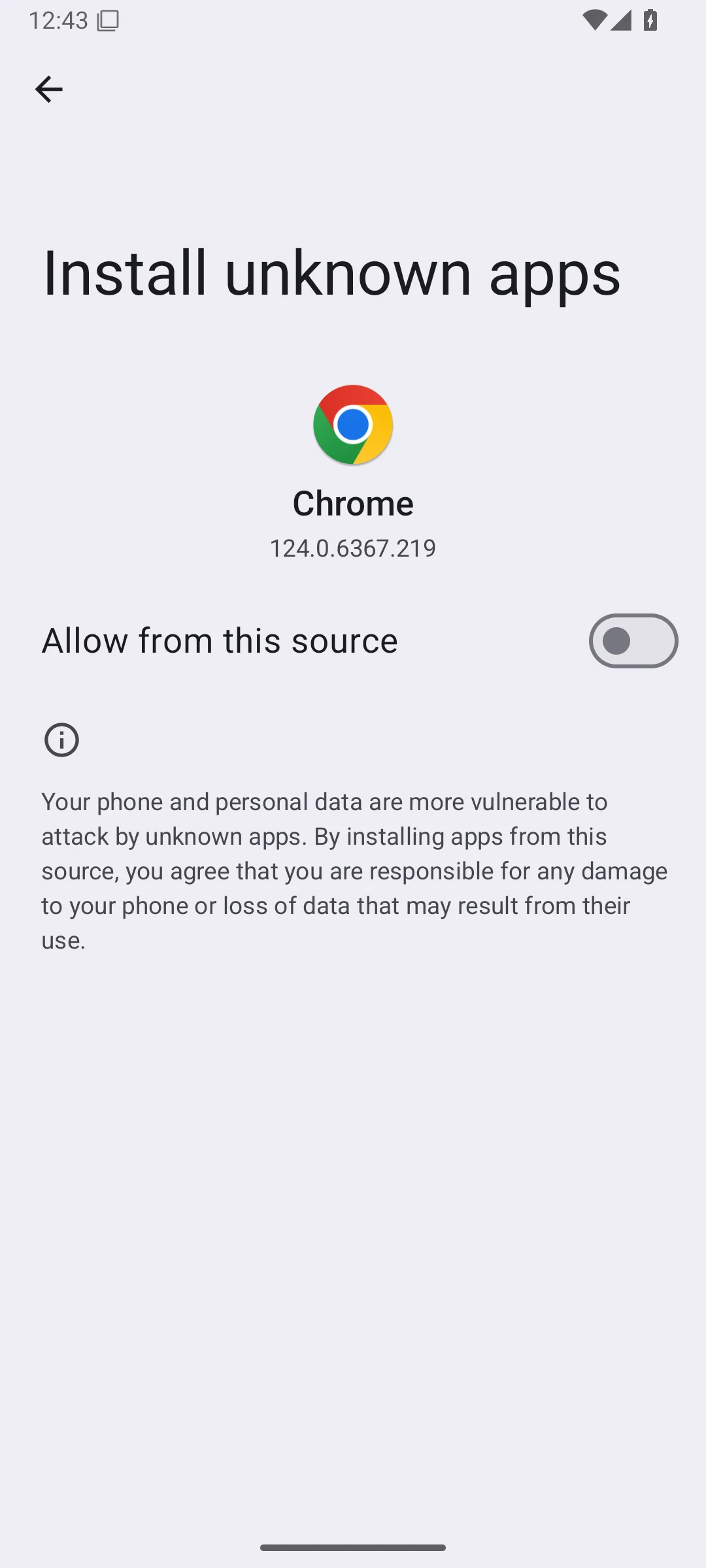
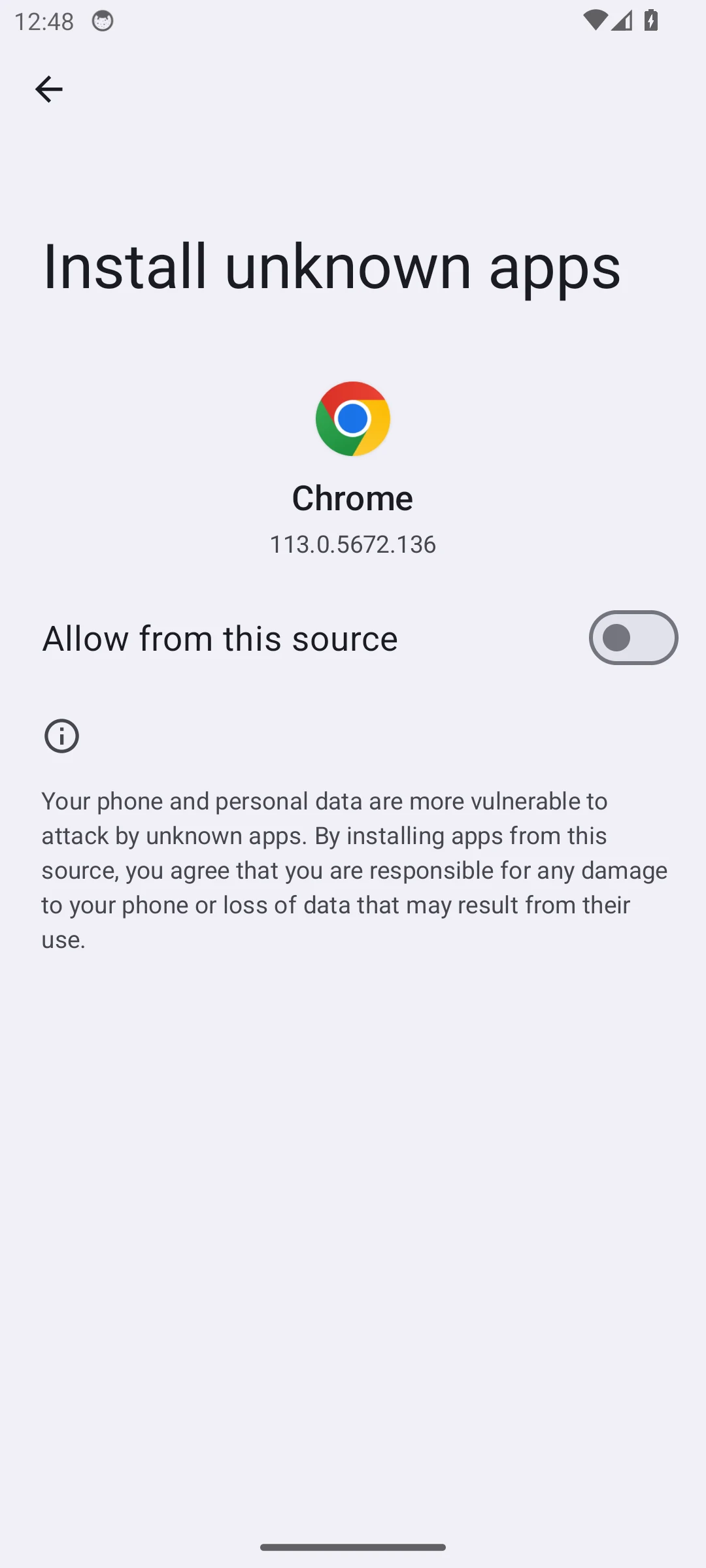
The browser may send you to its app-specific Install unknown apps permission the first time you open the APK.
Android 15
Android 15 uses the same browser-specific permission flow. If you already allowed the browser to install apps, skip straight to opening the downloaded APK.
Android 14
Android 14 may show the permission as a full-screen Settings page. Use the back arrow after enabling the browser, then open the APK again.
Troubleshooting
- “App not installed”
- Uninstall any existing DabDash copy first. A previous test or store build signed with another key cannot be upgraded in place. Download the current APK again and retry.
- The download will not open
- Open Files → Downloads and tap the APK directly. If Android blocks it, enable Allow from this source for the app that opened the file.
- The app opens but notifications are missing
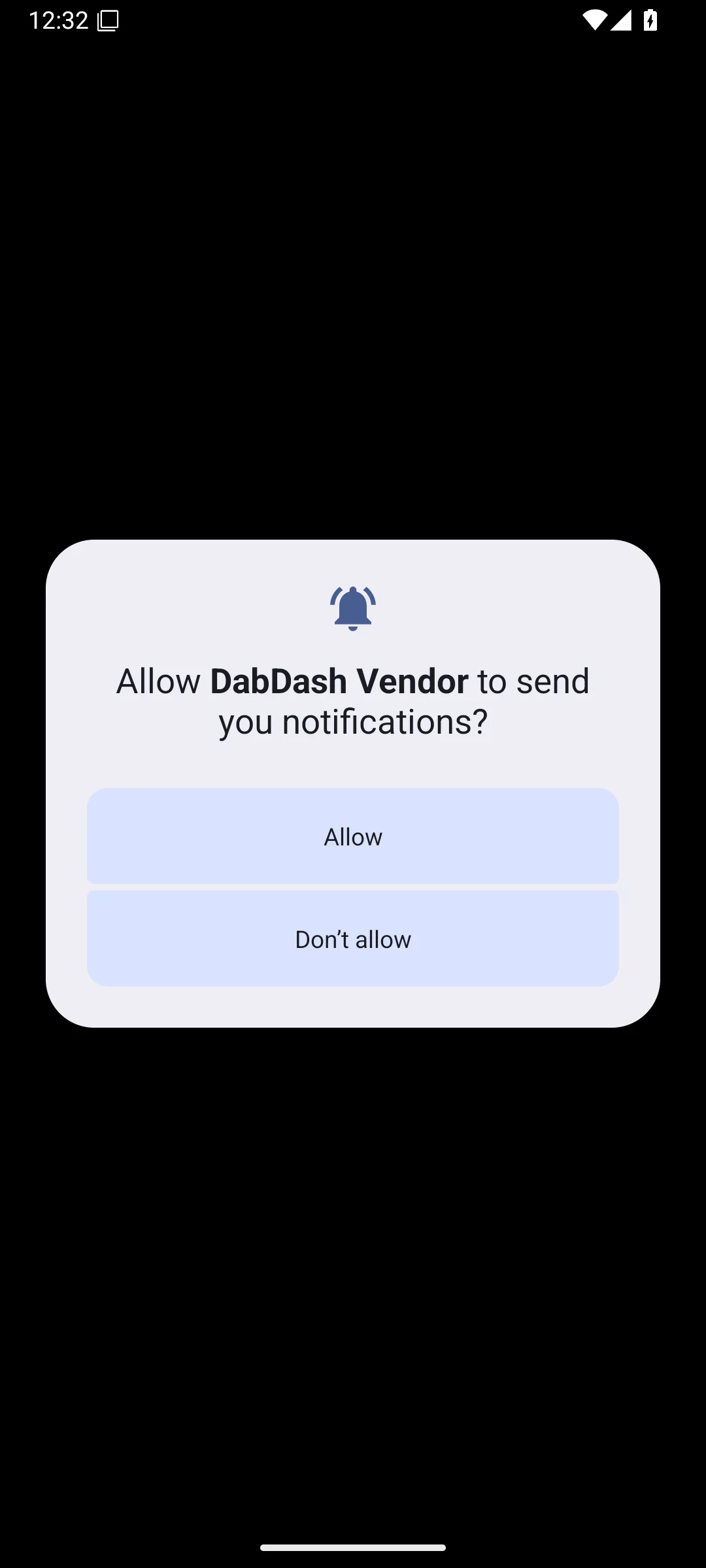
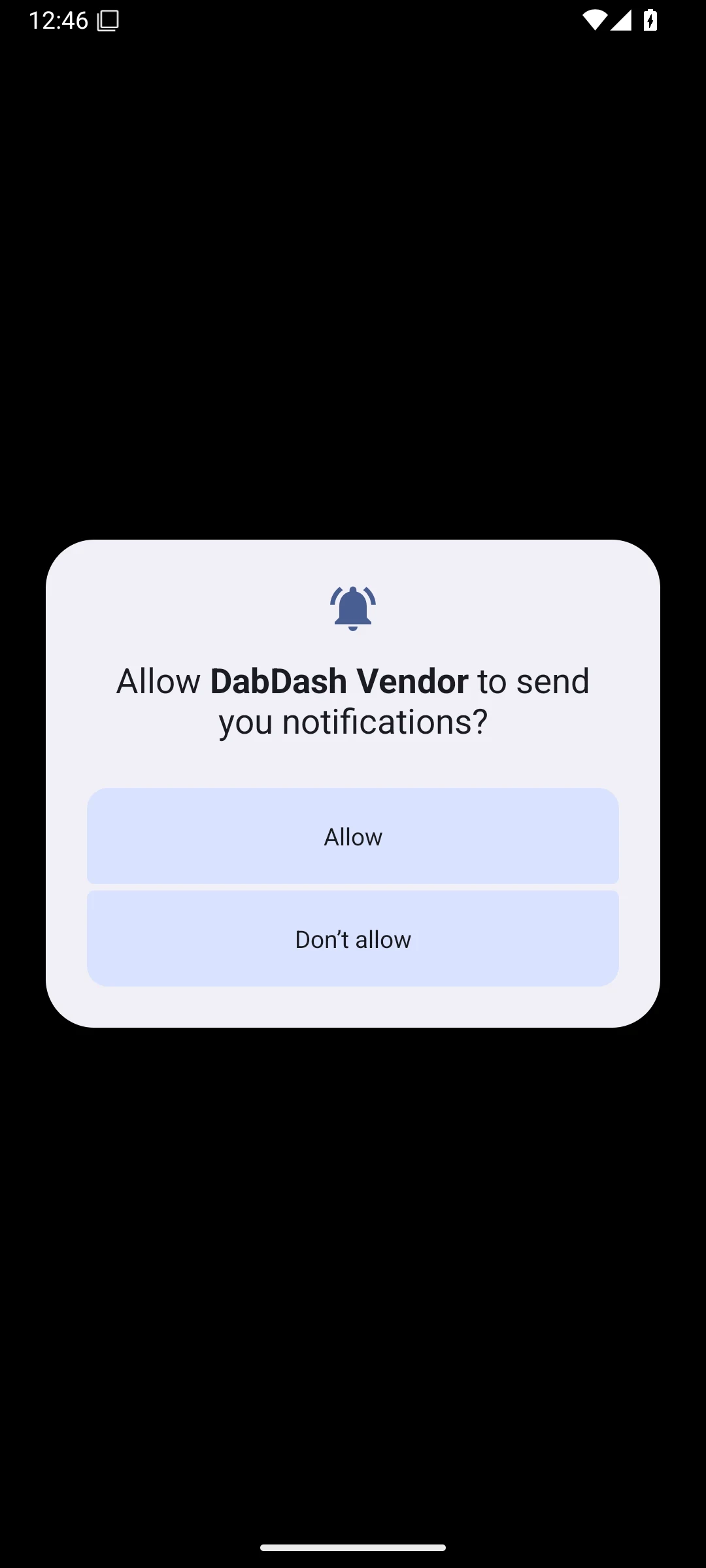
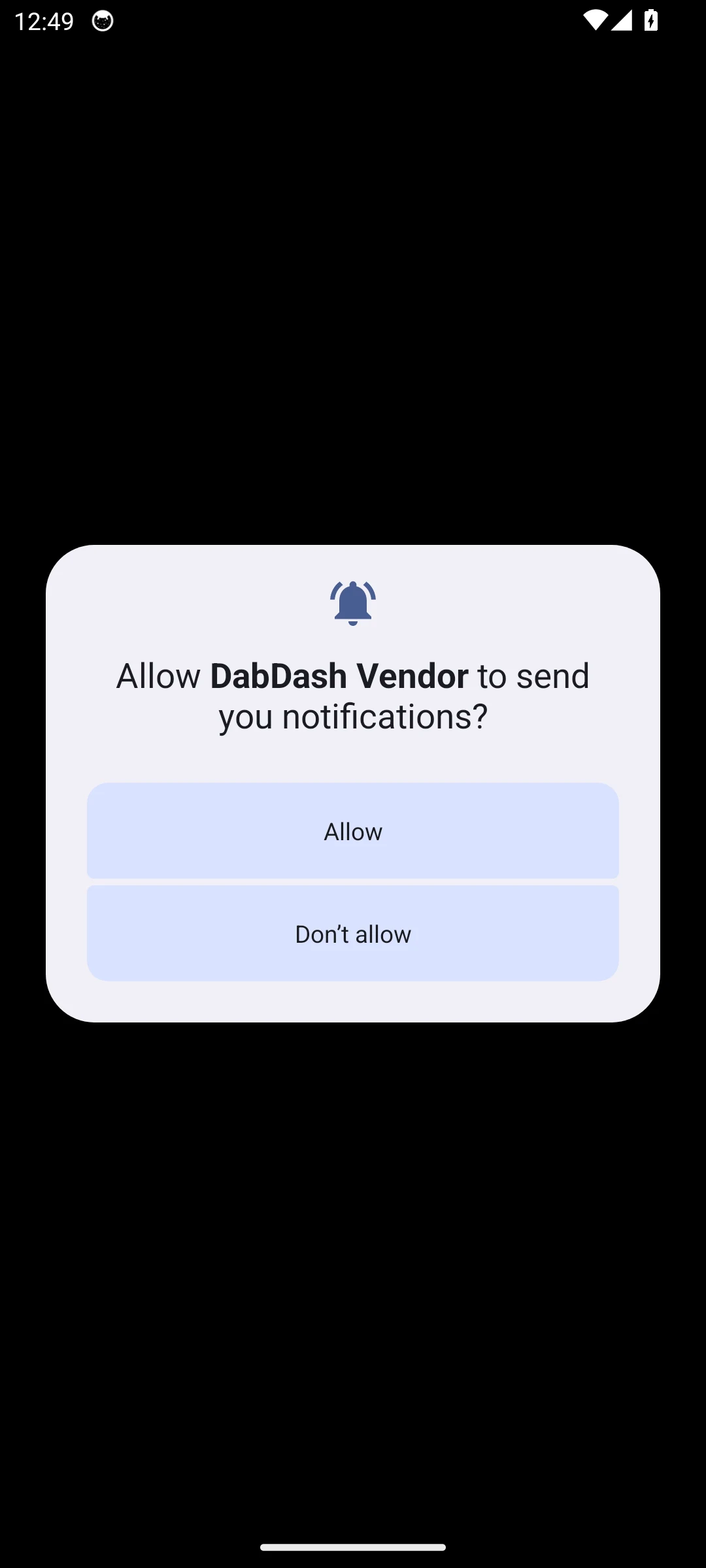
- Open Settings → Notifications → DabDash and enable notifications. Android may ask for this permission during first launch.
- The browser permission is missing
- Open Settings → Apps → Special app access → Install unknown apps, choose the browser or Files app you used, and enable Allow from this source.
Frequently Asked Questions
How do I install the DabDash mobile app on Android?
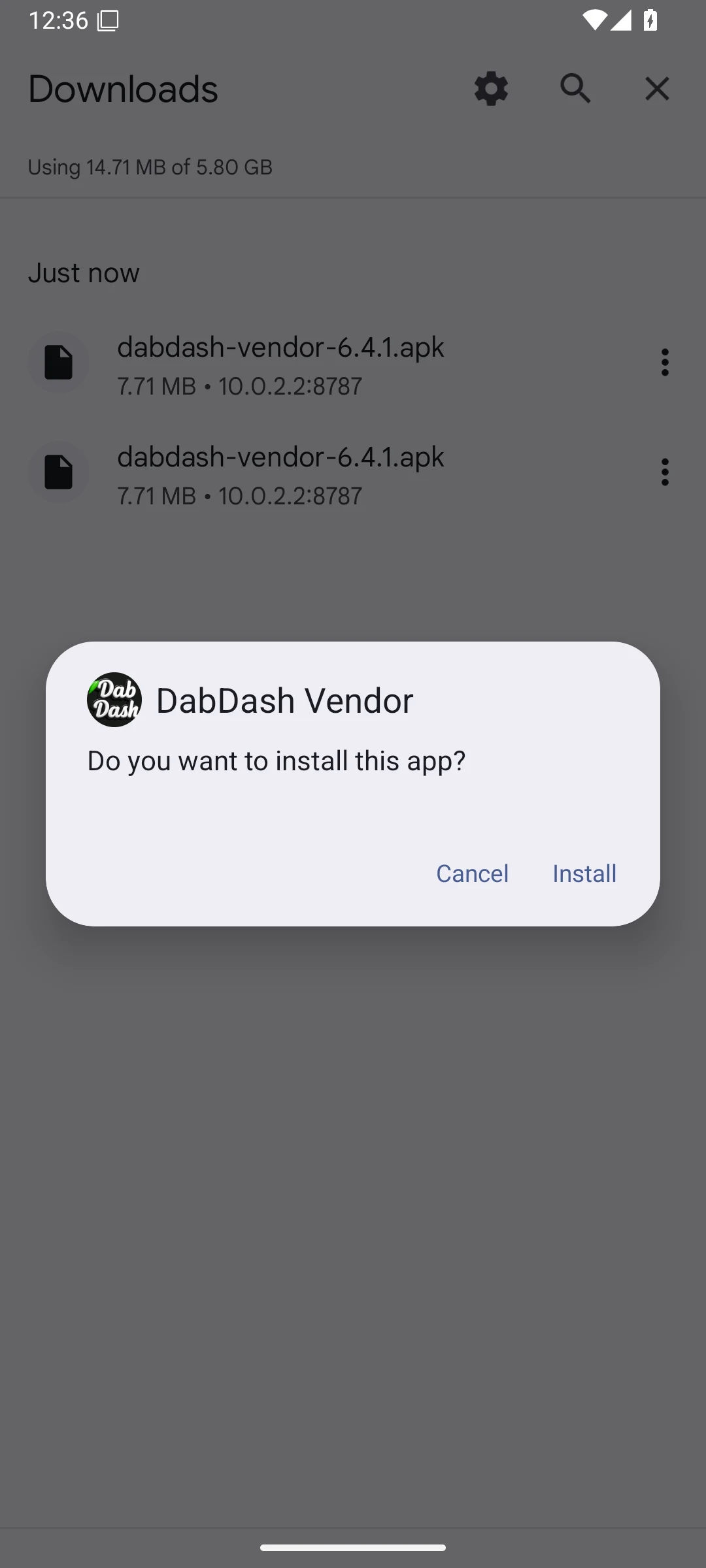
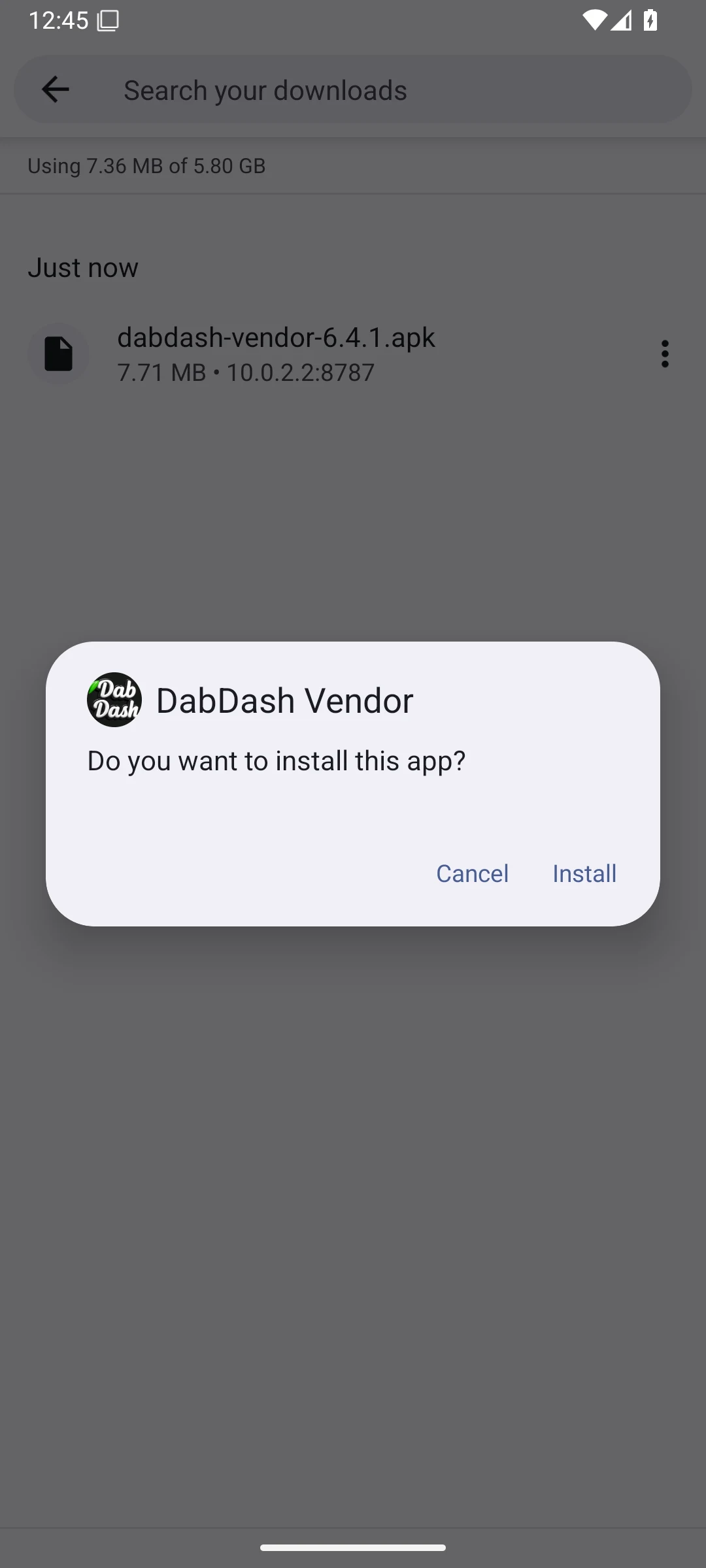
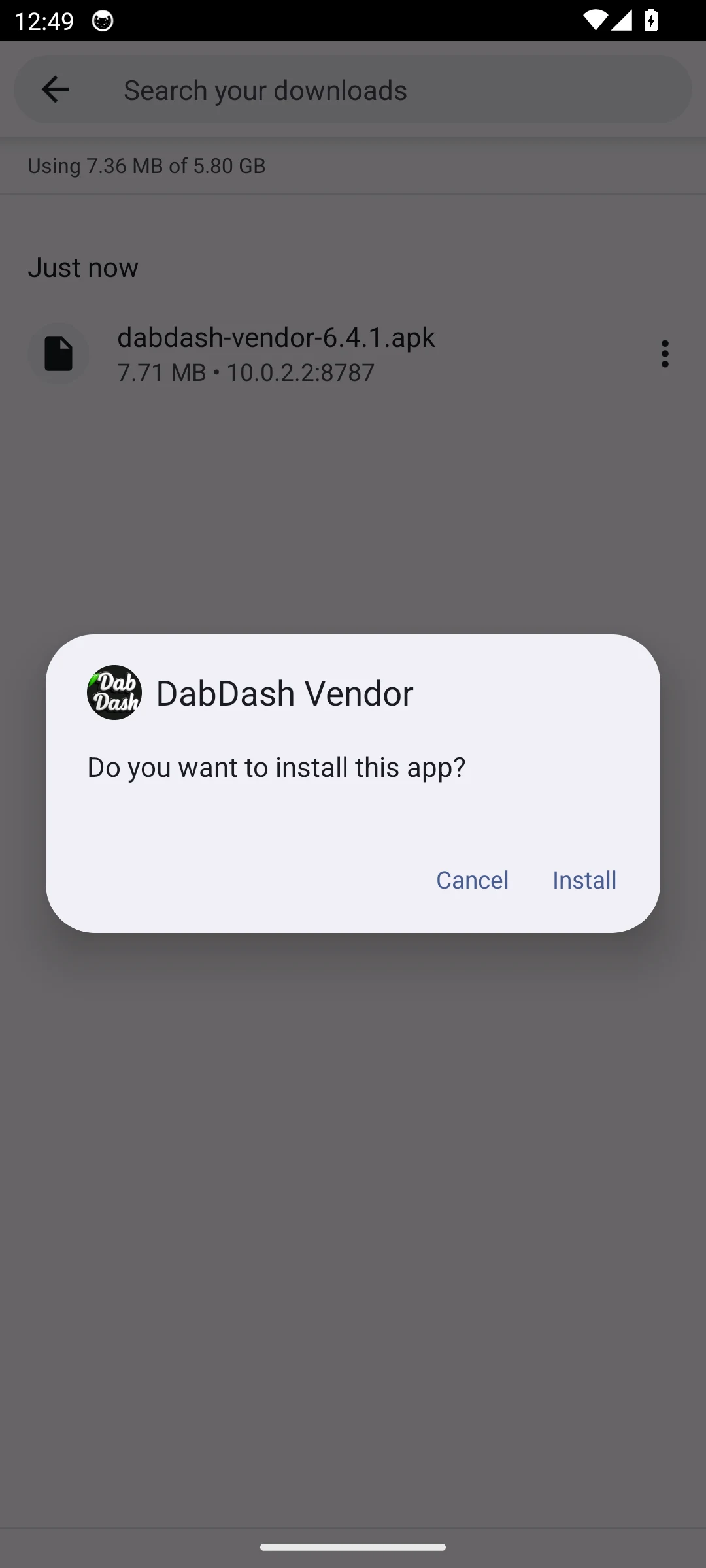
The DabDash mobile app is distributed as a direct APK, not through the Play Store. Open the download page in your Android browser, save the APK, allow installs from your browser in Settings → Apps → Special access → Install unknown apps, then open the APK and confirm the install in the package installer. The full step-by-step is in this article.
Why doesn't the DabDash app show up in the Play Store?
DabDash distributes the Android app as a direct APK so the same build reaches every store regardless of country. This is the only supported Android install method — the app is not published on the Play Store.
What does "App not installed" mean on Android?
"App not installed" almost always means a signature mismatch — there is already a copy of the app on the device signed with a different key (a previous build, a test build, or a build from another store). Uninstall every existing copy of the app, then install the new APK again.
Why does Android ask me to allow installs from my browser?
Modern Android requires explicit per-app permission before any app — including your browser — can install an APK. This is a Google security policy, not a DabDash restriction. You allow it once for the browser you used to download the APK, and Android remembers the choice until you revoke it.
How do app updates work on Android?
Updates are delivered as new APK downloads, not through the Play Store. Open the download page again, save the new APK, and confirm the install when Android prompts. The package installer always asks you to confirm an update, even when the signing key matches.
Will the app ask for notification permission on first launch?
Yes. On first launch Android shows a system dialog asking whether DabDash can send you notifications. Tap Allow to receive order updates, delivery alerts, and other time-sensitive events. You can change this any time in Android Settings → Apps → DabDash → Notifications.