Suppliers & Purchase Orders
Keep supplier details, draft purchase orders, receive stock, and turn low-stock recommendations into replenishment work.
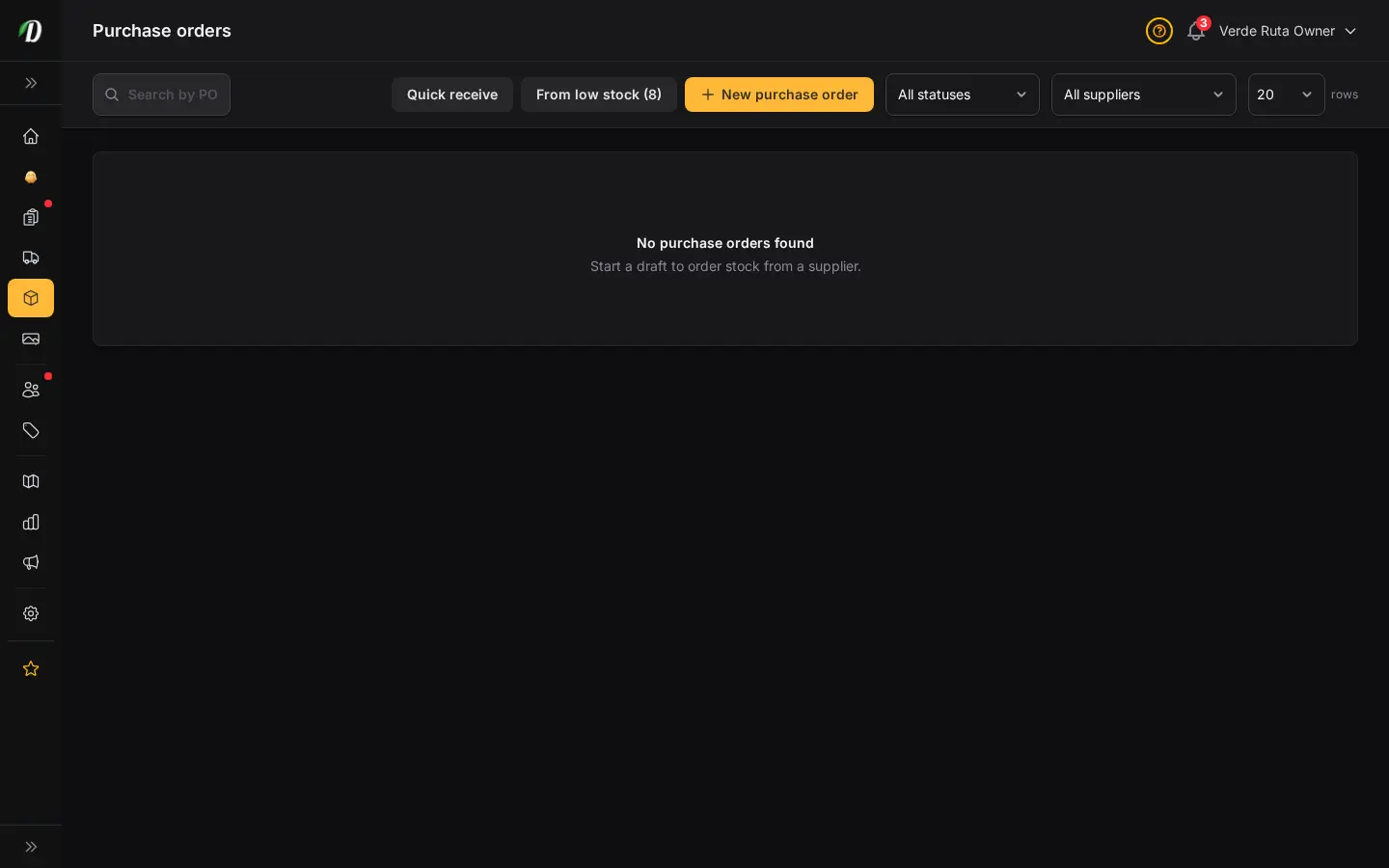
Keep purchasing tied to inventory
Use Suppliers to save the people and companies you buy from, then create purchase orders that move from draft to submitted to received. The same workflow records what arrived and updates inventory without retyping every product.
When stock drops below a reorder point, the Replenishment page can create a draft from the low-stock list. Review the recommendation before sending it to a supplier.
Save supplier details once

Open Products → Suppliers, click Add supplier, and record the supplier name, contact details, license number, expected lead time, and notes. Turning a supplier off keeps its history while removing it from normal purchasing choices.
Create and receive a purchase order

- Open Products → Purchase Orders and click New purchase order.
- Choose a supplier and add each product or variation, quantity, and unit cost.
- Save the draft while you confirm the order with the supplier.
- Submit the purchase order when it is ready to send.
- When stock arrives, receive the remaining quantity or receive lines in smaller deliveries. Inventory updates to match what you received.
Turn low stock into a draft

Use Products → Inventory → Replenishment to review items that are out of stock, below their reorder point, or approaching it. Adjust stock, snooze an alert, discontinue dormant products, or open From low stock to start a purchase-order draft.
Before submitting: confirm the supplier, quantities, and unit costs. Receiving is what changes inventory, so record only the quantity that actually arrived.
Frequently Asked Questions
How do I track supplier orders in DabDash?
Open Products → Purchase Orders to create drafts, add products and quantities, submit an order, and record partial or complete receipts. Receiving only the quantity that arrived keeps your inventory accurate.
How do I turn low stock into a purchase order?
Open Inventory → Replenishment, review the Out of stock and Reorder now lists, then choose From low stock. Select a supplier and the products to include before starting the draft.
What supplier information does DabDash save?
A supplier record can include the name, email, phone, license number, expected lead time, and notes. Turning a supplier off keeps its existing purchase history.