Issue Tracking
Report bugs, request features, and track issue status with GitHub integration.
Overview
Found a bug? Want a new feature? Have a question about how something works? You can report it straight from your admin dashboard. Every report is automatically created as a GitHub issue, so our development team can prioritise, track, and resolve it.
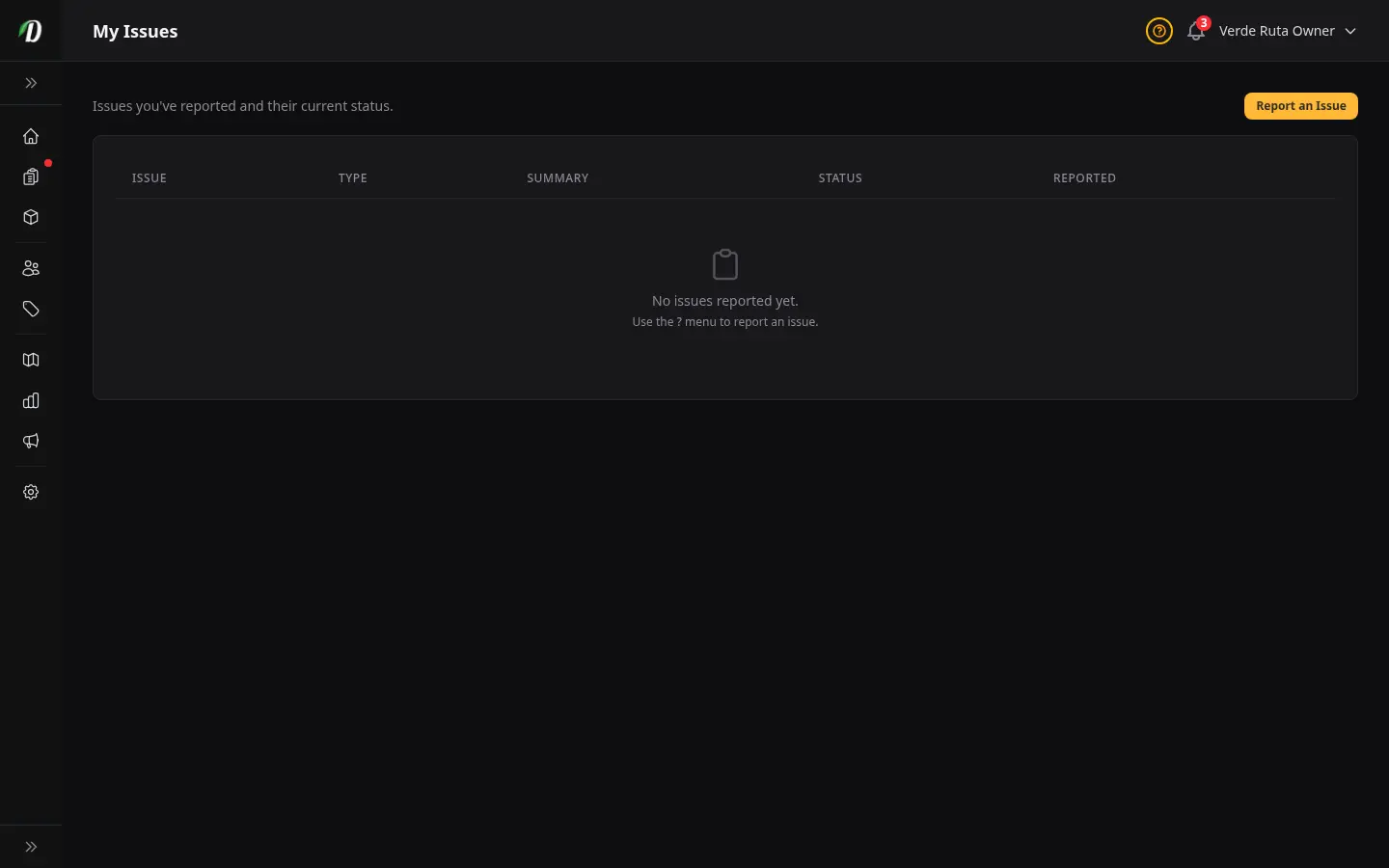
The My Issues page collects every report you have submitted. You can see the current status of each one without leaving DabDash.
Reporting an Issue
Click the ? help button in the top-right corner of any admin page, then choose Report an issue. A slide-over panel opens with a short form.
- Type
- Choose Bug, Feature request, or Question.
- Area
- Pick the part of DabDash the issue relates to — checkout, orders, inventory, storefront, and so on.
- Severity
- How urgently it needs fixing: low, medium, high, or critical.
- Summary
- A short description of what happened or what you need.
- Order or Customer (optional)
- Start typing an order number or customer name to attach context. This helps our team reproduce the problem faster.
After you submit, the form shows a confirmation with the issue number (e.g. #42). The issue immediately appears on the My Issues page.
Issue Statuses
DabDash syncs each issue's status from GitHub. You will see one of these badges next to every report:
- To Do
- The issue has been logged and is in our backlog.
- In Progress
- A developer is actively working on it.
- In Review
- A fix or change has been submitted and is being reviewed.
- Done
- The issue has been resolved and deployed.
When the status of one of your issues changes, you will also receive a notification on your Notifications page.
Tips for Good Reports
- Include the exact steps to reproduce a bug — "I clicked X, then Y, then saw Z."
- Attach an order or customer when the issue is tied to a specific record.
- Choose the right severity — critical means your store is down or losing orders.
- One issue per report keeps things clear for both you and our team.
Frequently Asked Questions
How do I report a bug in DabDash?
Click the ? help button on any admin page and choose Report an issue. Fill in the type (Bug), area, severity, and a short summary. You can attach an order or customer for context. DabDash creates a GitHub issue automatically and shows you the issue number (e.g. #42).
How do I track reported issues in DabDash?
Go to the My Issues page from the help menu. Every issue you have reported is listed with its issue number, type, summary, current status, and date. Statuses update automatically as our team works through the backlog.
What issue statuses exist in DabDash?
Issues progress through four statuses: To Do (logged in backlog), In Progress (developer working on it), In Review (fix submitted for review), and Done (resolved and deployed). You receive a notification each time the status changes.