Moving Your Data In
Import your products, stock levels, and customers from Wix using CSV files.
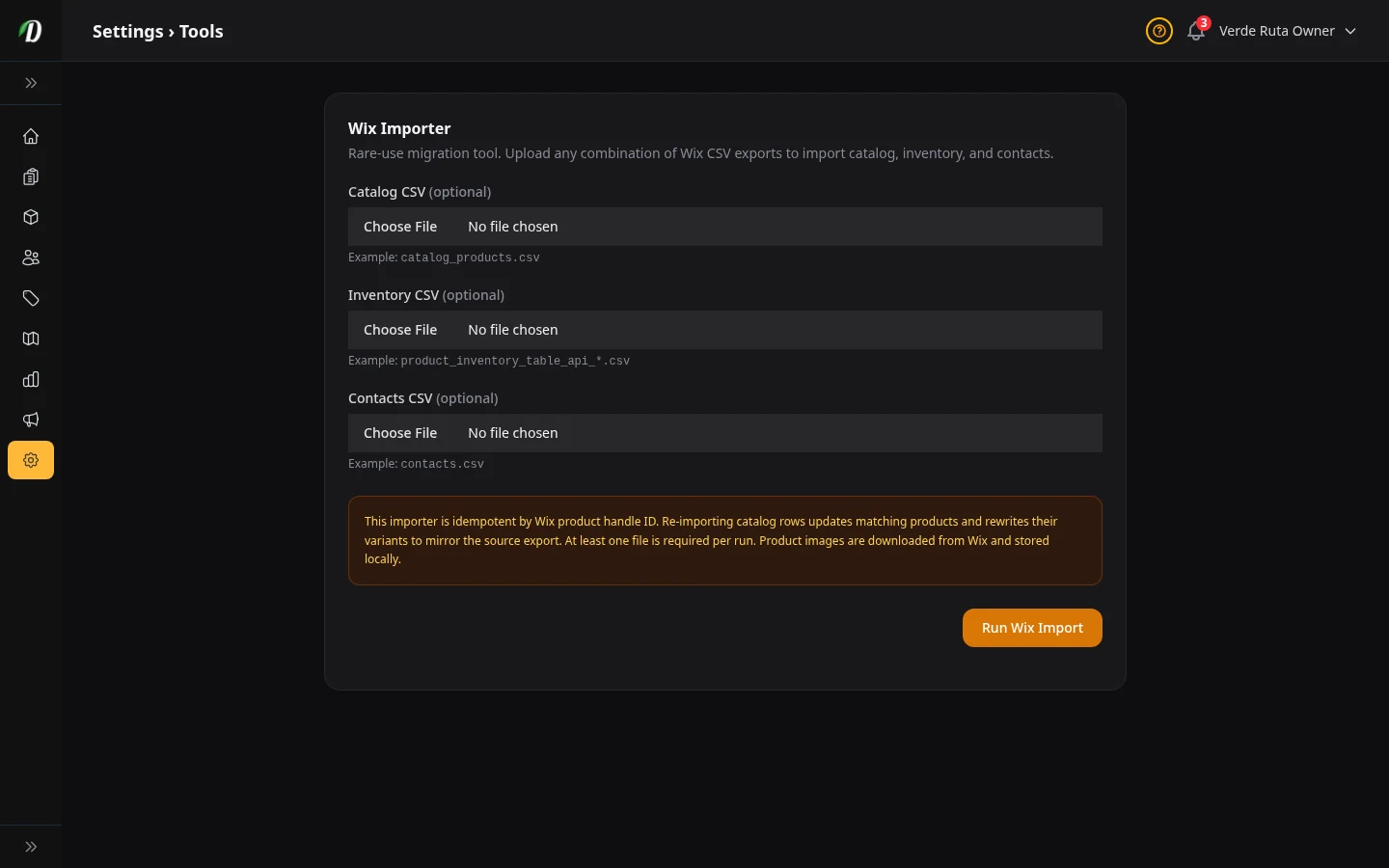
What this page does
If you are moving from a Wix store to DabDash, this page lets you bring your stuff over. You export files from Wix, upload them here, and DabDash creates your products, sets your stock levels, and imports your customer list. No typing things in by hand.
What you can import
- Catalog CSV
- Your products, sizes, categories, and images. Export it from your Wix dashboard as
catalog_products.csv. Product photos get downloaded from Wix and saved in DabDash — they won't break later. - Inventory CSV
- Stock amounts for each product size. Export it from Wix as
product_inventory_table_api_*.csv. DabDash matches each row to the right product by Wix product ID. - Contacts CSV
- Customer names, emails, and addresses. Export it from Wix Contacts as
contacts.csv. If a customer with the same email already exists in DabDash, it updates them instead of making a copy.
How to run an import
- Go to your Wix dashboard and export the CSV files you need.
- Come to this page and upload one, two, or all three files. You need at least one.
- Click Run Wix Import. It runs in the background — you can leave the page and come back. It updates when it's done.
- Check the summary to see how many products, customers, and addresses were created or updated.
Can I run it again?
Yes. Running the import a second time with the same files is safe. It updates products that already exist and skips creating copies. This is useful if you made changes in Wix after your first import.
Tips
- Import your catalog first, then inventory, then contacts. That way stock levels match the right products.
- After importing, go to your Products page and spot-check a few to make sure names, prices, and images look right.
- If the import fails, the error message tells you what went wrong. Usually it's a formatting problem in the CSV — re-export from Wix and try again.