Your Domain & Email
Use your own domain name, set up your email sender, and add a BIMI logo.
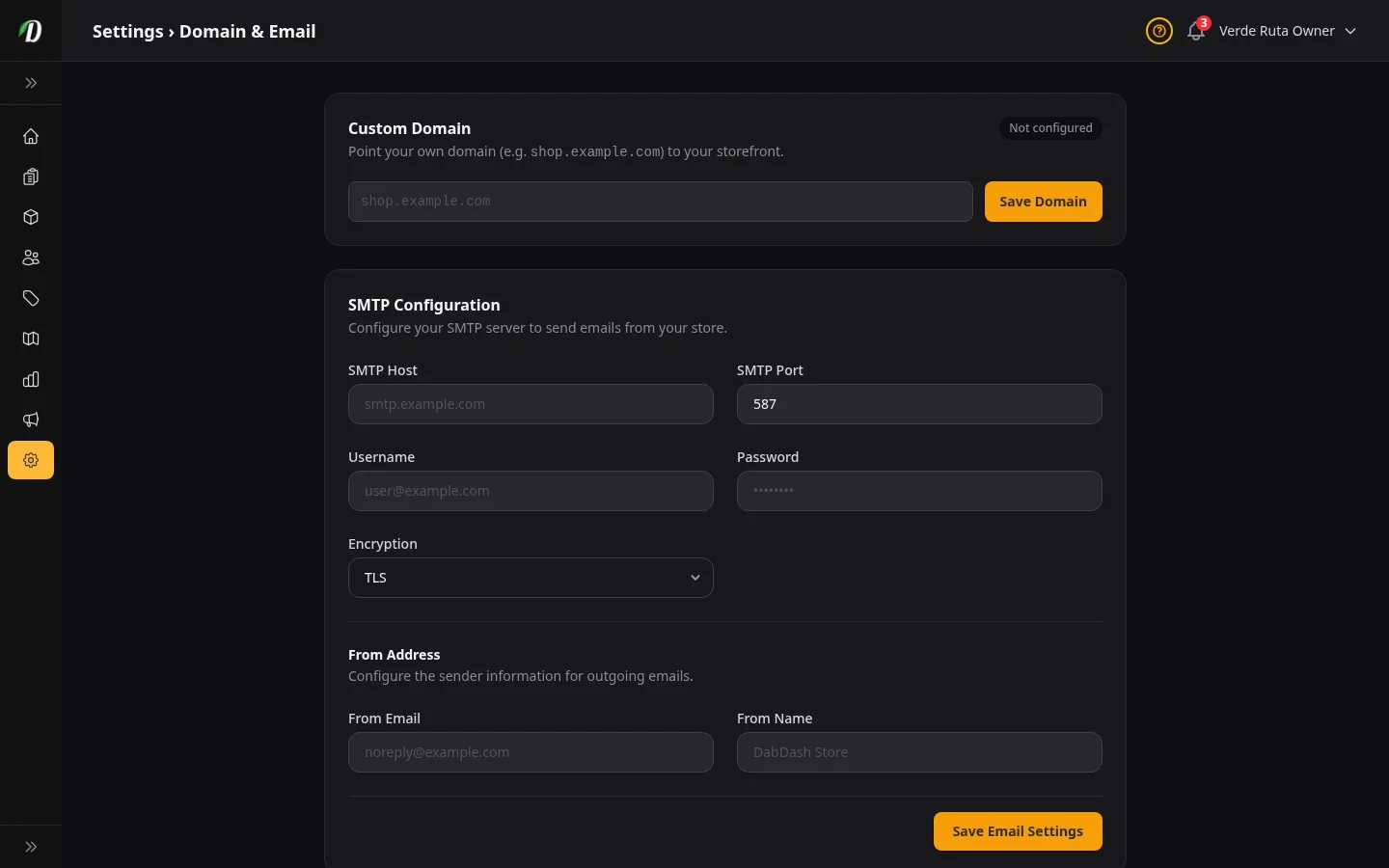
What this page does
Two big things live here. First, you can point your own domain name at your store (like shop.yourbrand.com instead of yourname.dabdash.com). Second, you can make emails come from your own email address instead of a shared DabDash address.
Custom Domain
By default your store is at yourname.dabdash.com. But you can use your own domain instead.
How to set it up
- Type your domain (like
shop.yourbrand.com) into the box and click Save Domain. - You will see two records to add at the place where you bought your domain (GoDaddy, Namecheap, Cloudflare, etc.).
- Add both records there. It can take a few minutes to a few hours for them to work.
- Come back here and click Verify DNS. When it passes, the badge turns green and says Active.
The two records
- TXT record
- This proves the domain is yours. Copy the name and value exactly as shown and add them at your domain provider.
- CNAME record
- This sends visitors from your domain to your DabDash store. The value is always
dabdash.com.
Removing a domain
Click Remove next to the domain field. Your store goes back to yourname.dabdash.com right away. You can delete the DNS records from your domain provider after that.
Email Logo (BIMI)
BIMI lets you show your logo next to your name in Gmail, Apple Mail, and Yahoo Mail. This section only appears after you save a custom domain.
How to use it: Upload your logo as an SVG file, then add the DNS record shown on screen at your domain provider. Apple Mail and Yahoo start showing the logo right away. Gmail needs an extra certificate (VMC) — only worth doing if most of your customers use Gmail.
Email Sender (SMTP)
By default, order emails (confirmations, receipts, alerts) come from a shared DabDash email address. If you fill in this section, emails come from your own address instead.
What to fill in
- SMTP Host
- Your email provider's outgoing server. Examples:
smtp.gmail.com,smtp.sendgrid.net. - SMTP Port
- Usually 587. Some providers use 465.
- Username & Password
- The login your email provider gave you. For Gmail, use an App Password (not your regular Gmail password).
- Encryption
- Almost always TLS. Pick SSL only if your provider says to.
From Address
- From Email
- The email address customers see in their inbox. Example:
[email protected]. - From Name
- The name next to the email. Example: "Green Leaf Dispensary."
Testing it
After you save, a Send Test Email box appears. Type in any email address and click the button. If you get the test email, everything is working.
Going back to the default
Click Remove Settings at the bottom. All the SMTP fields clear out and emails go back to the shared DabDash sender.